Read Activity Monitor
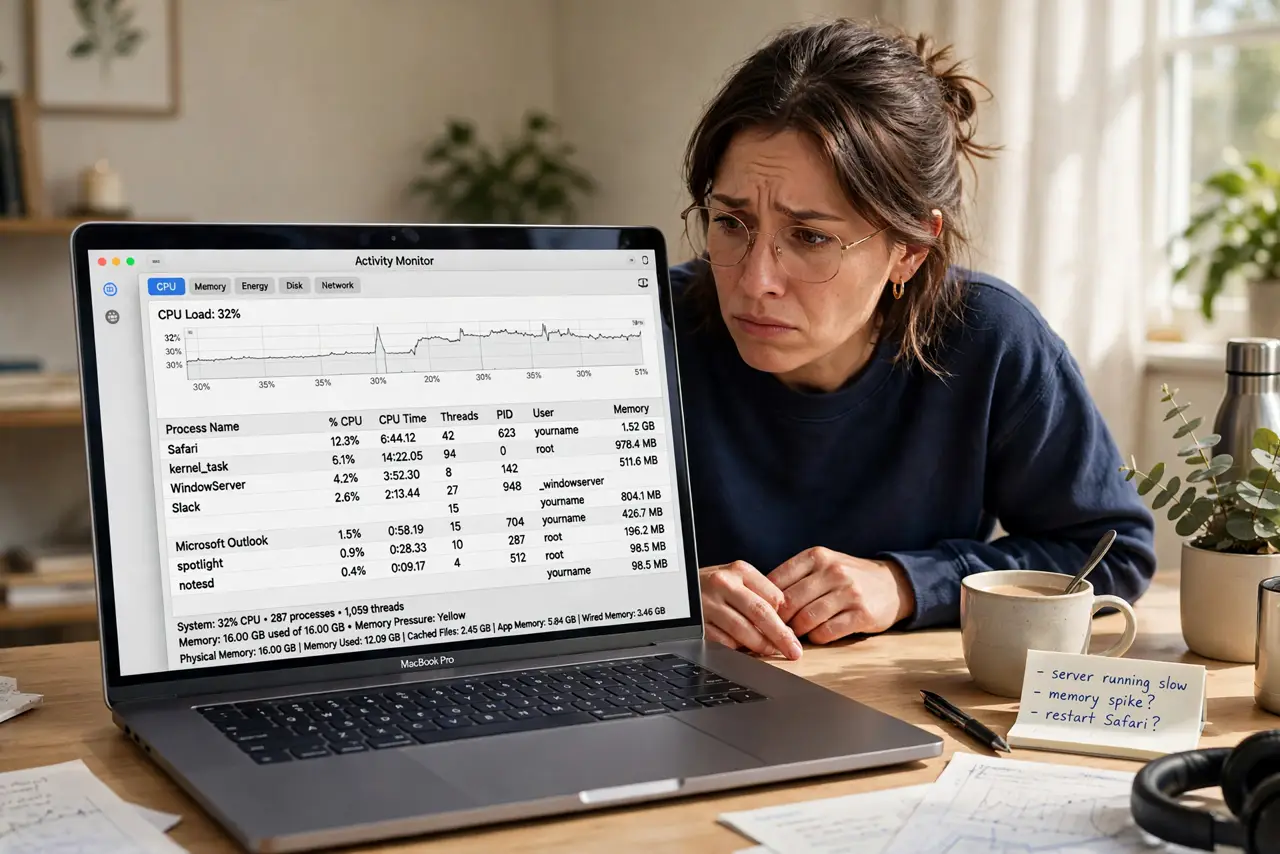
Your Mac is hot, the fan is loud, and everything feels sluggish — but which app is the culprit? Activity Monitor is the built-in detective: it shows exactly what is eating your CPU, memory, battery, and network right now. Five minutes of reading it beats hours of guessing.
TL;DR / Quick Fix
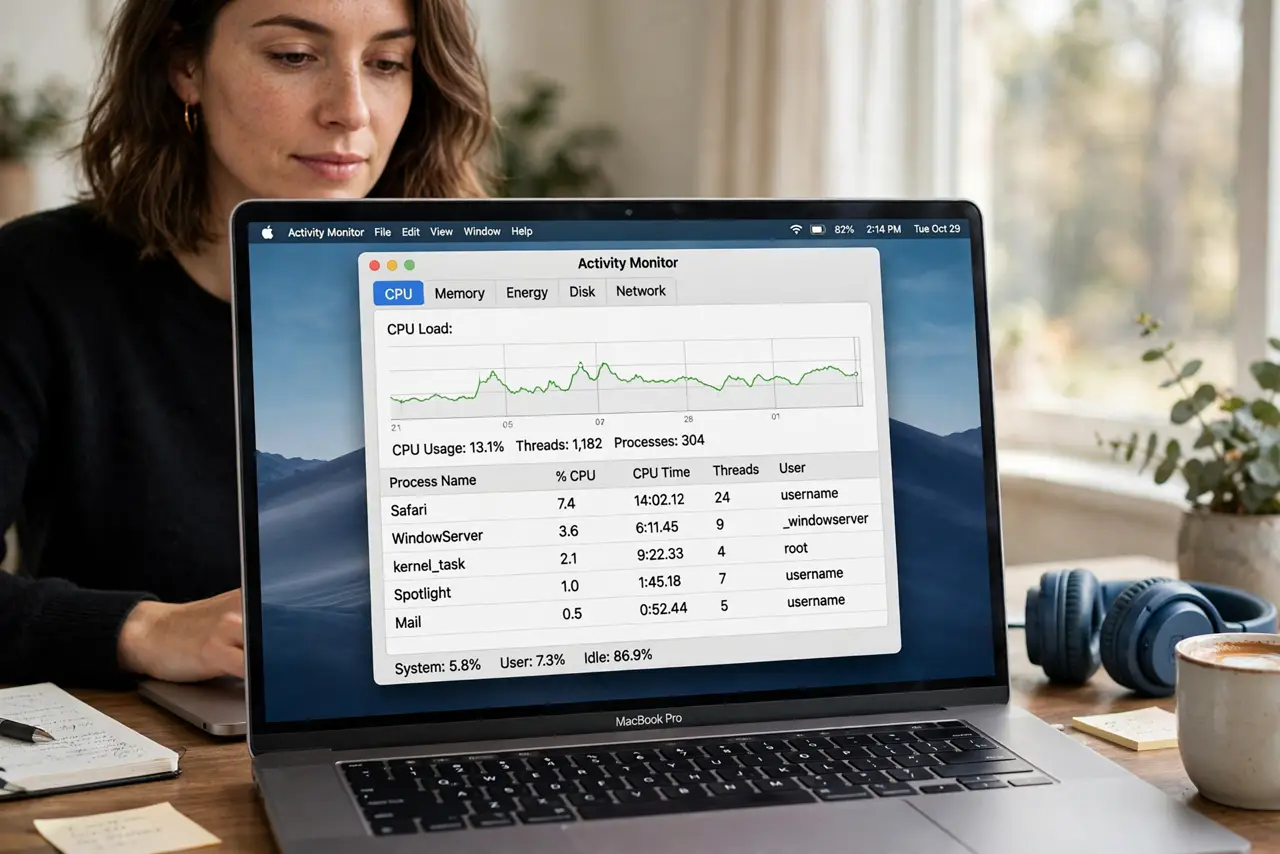
Quick fix: open Activity Monitor from Applications, Utilities, and sort by CPU to find the runaway process. High CPU plus heat usually means one stuck app — quit it and watch the numbers fall. Check the Energy tab for battery hogs. Never force-quit system processes you do not recognize.
Follow these steps
- Open Activity Monitor. Find it in Applications, then Utilities — or press Command-Space and type Activity Monitor. It opens to the CPU tab, which is where most hunts start.
- Sort by CPU usage. Click the % CPU column header to sort highest first. The app at the top during a slowdown is your prime suspect — the energy tab is the next stop for battery mysteries.
- Read memory pressure, not just numbers. The colored graph at the bottom matters more than raw megabytes: green is fine, yellow is tight, red means macOS is gasping. Red plus swapping equals slowness.
- Identify the real culprit. A browser tab eating 200% CPU is a stuck page — quit the tab, not the browser. One bad tab should not cost you twenty good ones.
- Quit the offender properly. Select it, click the X, and choose Quit first. Force Quit is the backup for frozen apps — start gentle.
- Check what launches at login. Repeat offenders often start with the Mac. Trim login items in System Settings so the same hog does not return every boot.
What NOT to do
- Do not force-quit processes you do not recognize. System processes with odd names are usually essential — killing them can crash the Mac.
- Do not chase low memory numbers alone. macOS uses free memory as cache by design; pressure color is the real signal.
- Do not install cleaner apps to fix this. Activity Monitor plus quitting the culprit does the job free.
- Do not ignore sustained 100% fan with no visible culprit. That can mean dust or a failing sensor — hardware, not software.
Frequently asked questions
What is a normal CPU percentage?
Idle should sit near the bottom. Brief spikes are normal; one app pinned high for minutes is not.
Why is kernel_task using so much CPU?
Often it is macOS protecting the Mac from heat — it throttles things down when temperatures climb. The heat is the problem, not kernel_task.
Can Activity Monitor show network usage?
Yes — the Network tab shows per-app data. Handy for spotting the app silently uploading gigabytes.