The Bluetooth Menu? Basics
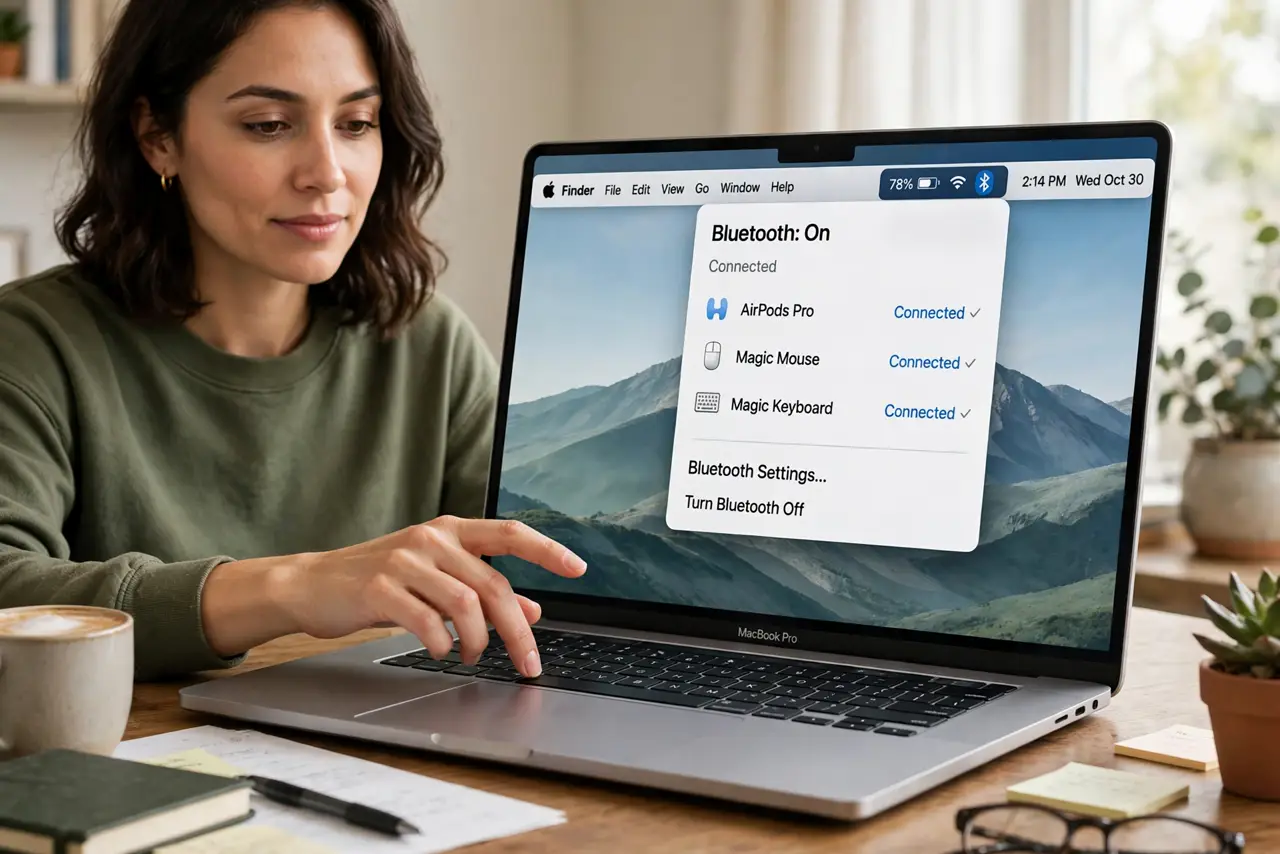
That little Bluetooth icon in your Mac's menu bar is mission control for headphones, mice, keyboards, and speakers — connecting, disconnecting, and troubleshooting them all. Most people click it only to connect, missing the useful half. Here is what the menu does and how to use it when devices misbehave.
TL;DR / Quick Fix
Quick fix: the Bluetooth menu-bar icon on your Mac lists nearby devices — click it to connect or disconnect headphones, mice, and keyboards without opening Settings. Hold Option while clicking for signal strength and advanced details. If the icon is missing, re-add it in Control Center settings.
Follow these steps
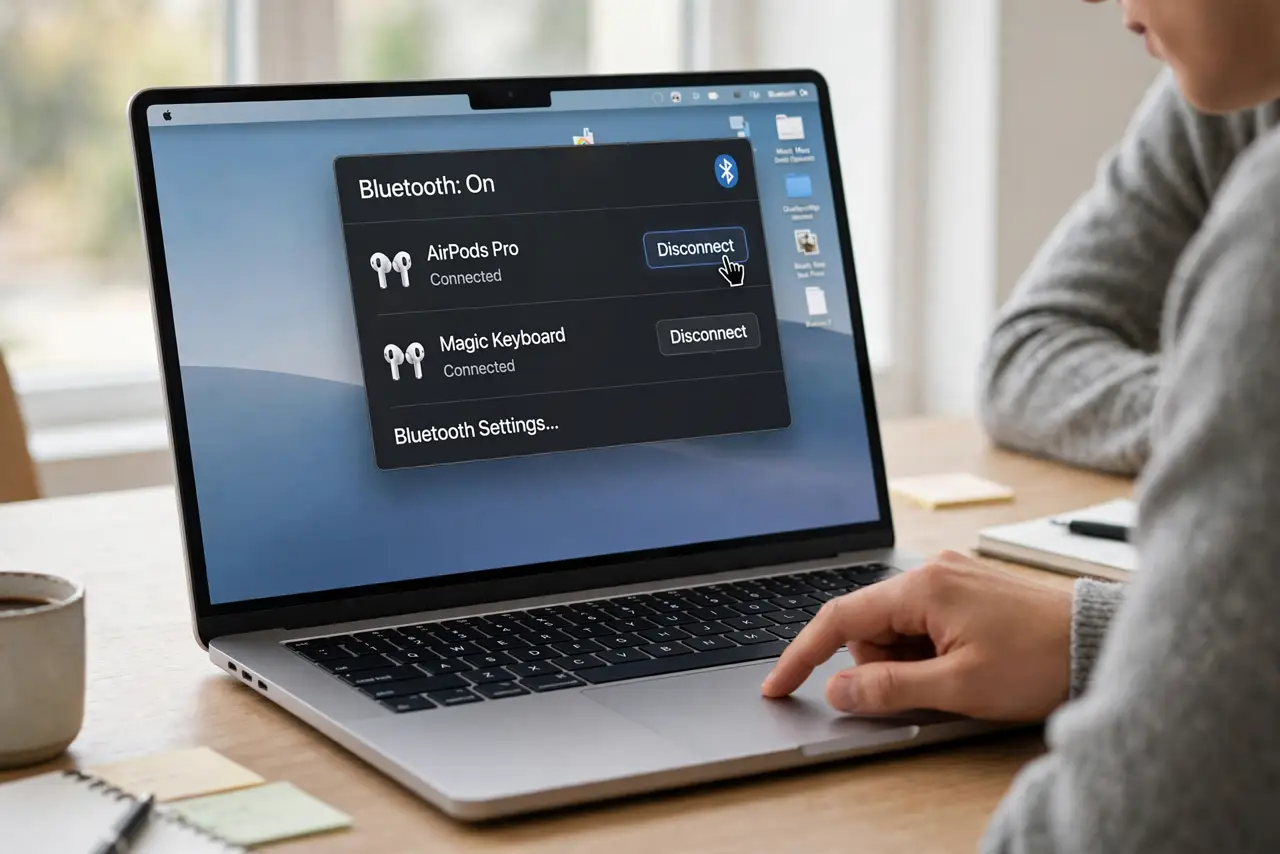
- Connect and disconnect fast. Click the Bluetooth icon to see devices — click a device name to connect or disconnect. Faster than digging through System Settings for the daily headphone shuffle.
- Add the icon if it is missing. System Settings > Control Center > Bluetooth > Show in Menu Bar. Apple sometimes hides it by default; two clicks bring it back permanently.
- Hold Option for the pro view. Option-click the icon to reveal signal strength (RSSI), device addresses, and codec details — the diagnostic view that explains choppy audio and lag.
- Remove stale pairings. Old, duplicated, or dead devices clutter the list and confuse auto-connect. Option-click > remove the ghosts — your Mac stops trying to connect to headphones you sold.
- Fix the common misbehaviors. Audio stuttering, mouse lag, and phantom disconnects usually yield to: remove and re-pair, move the Mac away from USB-3 interference, and restart Bluetooth from this very menu.
- Know when it is not Bluetooth's fault. An app hogging audio or a dying device battery mimics Bluetooth problems. Rule out the simple causes before blaming the radio.
What NOT to do
- Do not pair in a crowd of devices and expect clarity. A dozen competing Bluetooth signals cause exactly the stutter you are debugging.
- Do not ignore USB-3 interference. Hard drives and hubs next to the Mac spray noise on the Bluetooth band — move them.
- Do not keep ten dead pairings around. Stale entries cause auto-connect confusion — prune them.
- Do not forget the Option-click diagnostics. Signal strength numbers beat guessing when troubleshooting range issues.
Frequently asked questions
Why do my Bluetooth headphones stutter on Mac?
Usually Wi-Fi/Bluetooth congestion, USB-3 interference, or distance. Option-click the menu for signal strength, then move interferers away.
Can I see battery levels in the menu?
For Apple and many third-party devices, yes — the menu or the Bluetooth settings pane shows battery percentages.
How many devices can connect at once?
macOS handles about seven, but audio gets complicated past one or two — keep the active set small for reliability.