The Books App? Basics
The Books app on Mac is Apple's reading hub: your purchased ebooks and audiobooks, free classics, and PDFs you drop in yourself. It syncs with your iPhone, so a book started on the couch continues on the train. The PDF side is underrated — it is a perfectly good document reader. Here is the plain tour.
TL;DR / Quick Fix
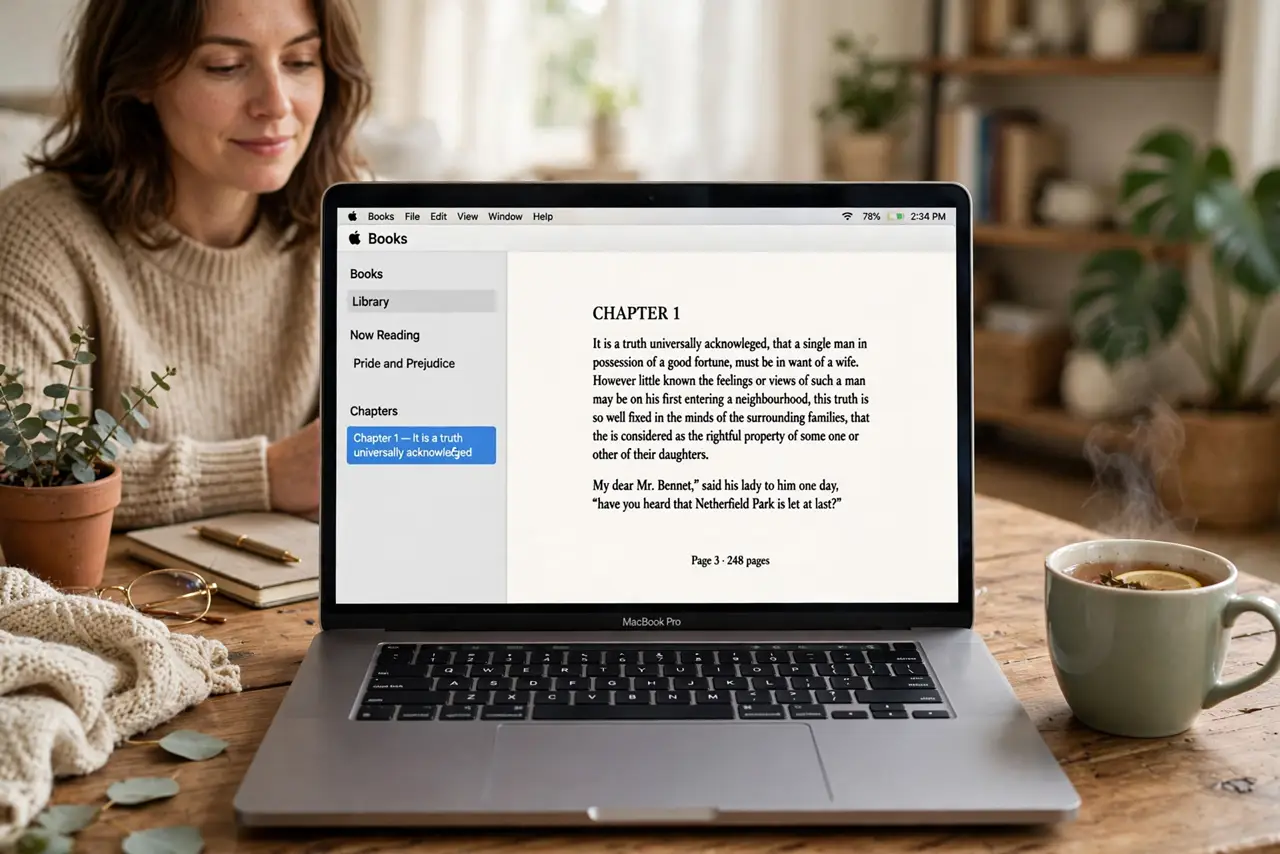
Quick fix: open the Books app and sign in with your Apple ID to sync purchases with your iPhone. Browse the Book Store for new titles or grab free classics. Drop your own PDFs and ePubs into the library. Adjust font size and theme in the reading controls.
Follow these steps
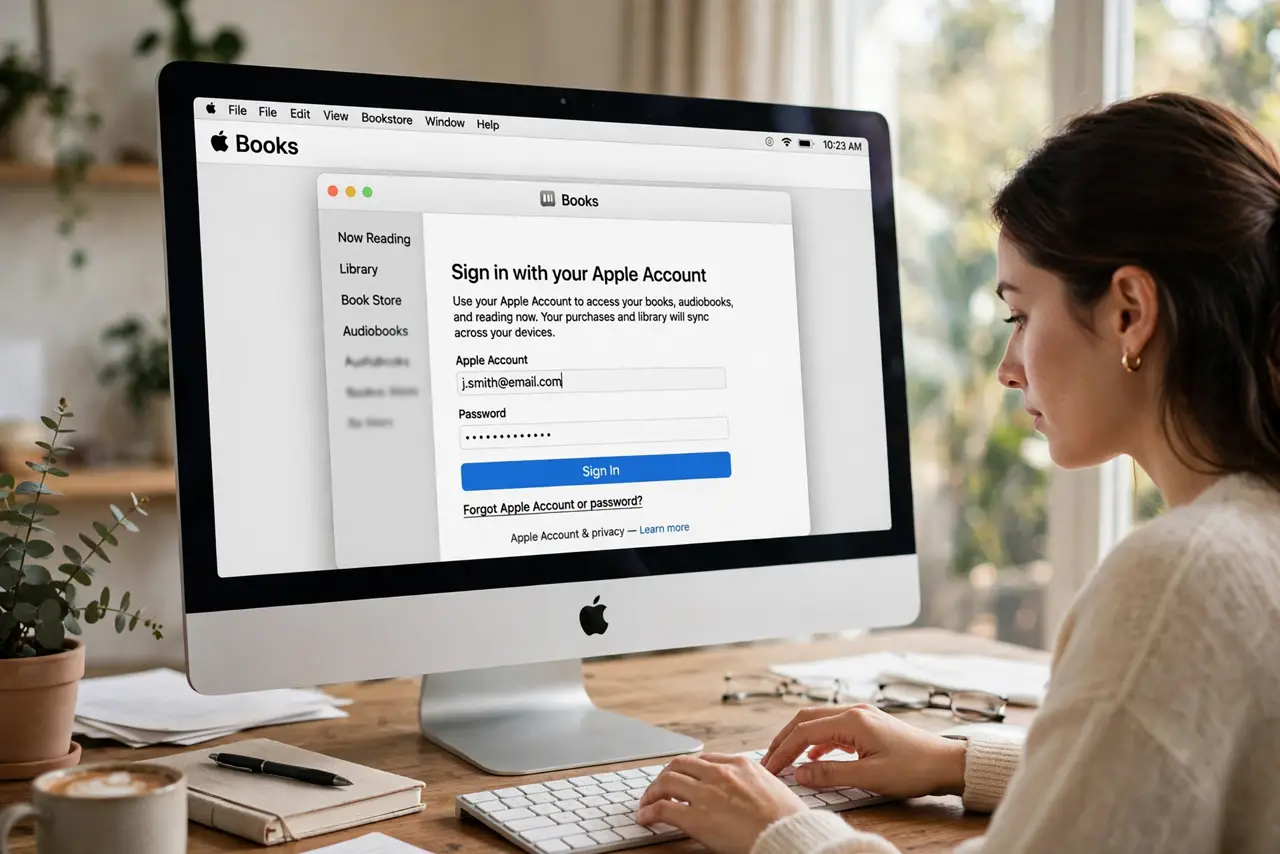
- Open the app and sign in. Find Books in Applications or Launchpad. Sign in with your Apple ID so purchases, bookmarks, and reading position sync with your iPhone and iPad.
- Tour your library. Library shows your books, audiobooks, and PDFs. Collections let you shelve things by topic — create one for work PDFs and one for novels. Search finds any title instantly.
- Browse the Book Store. The Store sells ebooks and audiobooks, often cheaper than print. Sample any book free before buying — the sample is generous enough to judge the writing. Check the free classics section for public-domain gems.
- Add your own files. Drag PDFs and DRM-free ePubs into the library and they sync to your other Apple devices. This turns Books into your universal document reader — manuals, papers, and reports included.
- Adjust reading comfort. In any book, click the text controls: font size, font choice, and themes including dark mode for night reading. Good typography settings are the difference between eye strain and a lost afternoon.
- Try audiobooks. The Audiobooks tab holds purchases and samples. Playback syncs position with your iPhone, so the commute continues where the desk left off — a natural companion to the Podcasts app.
What NOT to do
- Do not buy ebooks on the wrong Apple ID. Purchases lock to the account — keep one ID for all book buying.
- Do not expect Kindle books to import. Amazon's DRM keeps Kindle titles in Kindle apps; buy Apple versions for the Books app.
- Do not ignore the free classics. Thousands of public-domain masterpieces cost nothing and sync everywhere.
- Do not let PDFs pile up unsorted. A few collections now save a scrolling nightmare later.
Frequently asked questions
Can I read my Apple books on a non-Apple device?
No — Apple books are locked to Apple devices. For cross-platform reading, buy DRM-free ePubs elsewhere and import them.
Where are my audiobooks?
In the Books app under Audiobooks — Apple moved them there years ago. They sync position with your iPhone.
Can I add my own PDFs?
Yes. Drag them into the library and they sync across your Apple devices — Books doubles as a solid PDF reader.