Fix a Black Mac Camera in Video Calls
A camera that shows only black in calls, while the green light may even be on, usually means another app holds the camera or the calling app lacks permission. The camera hardware is rarely dead. Test it outside the call app first.
TL;DR / Quick Fix
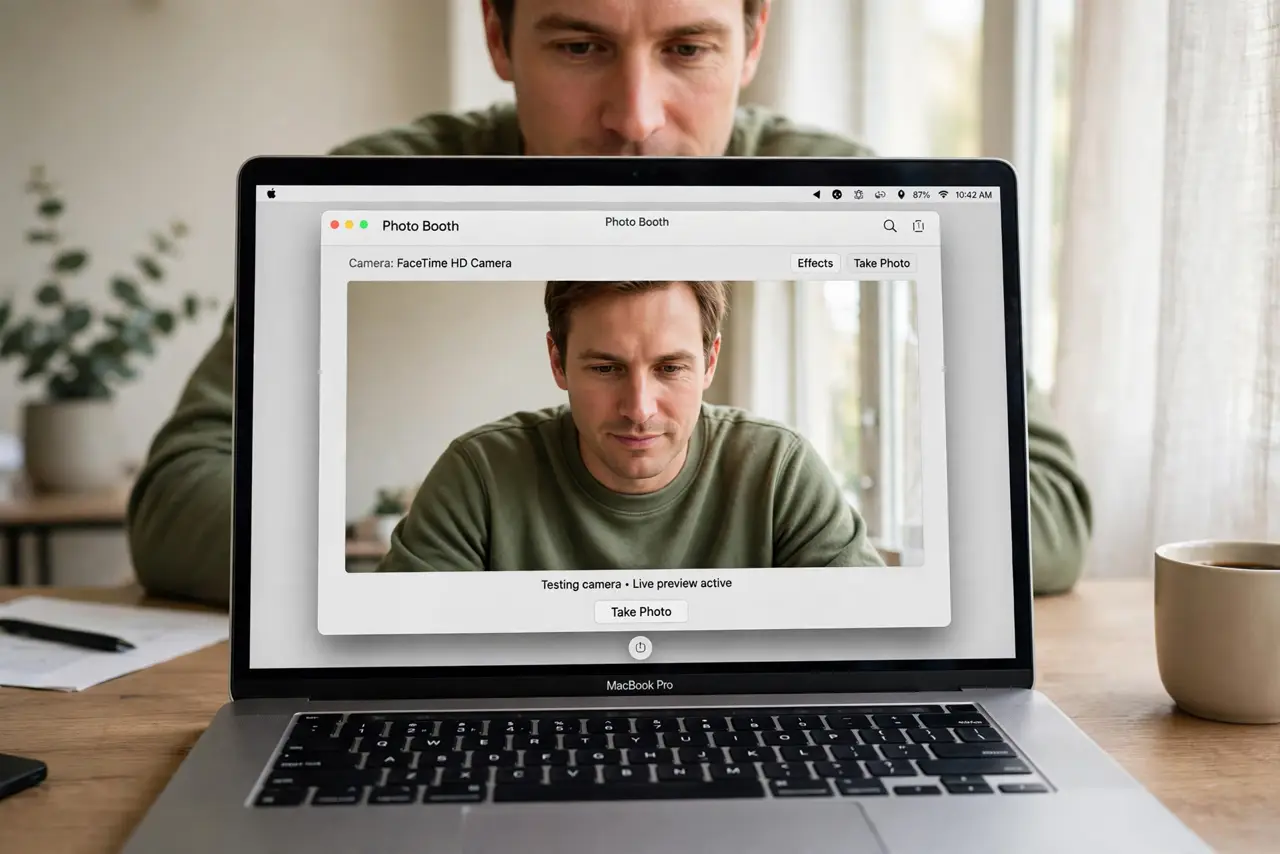
Quick fix: open Photo Booth and check whether the camera shows a picture. If it does, close other video apps, check the calling app's camera permission in Privacy settings, and restart the calling app. Test the call again after each step.
Follow these steps
- Test the camera in Photo Booth. Open Photo Booth and check whether you see yourself. A working picture there proves the camera hardware works and the problem is the calling app.
- Close other apps using the camera. Quit other video calling apps, camera apps, and browser tabs that may hold the camera. macOS usually gives the camera to one app at a time.
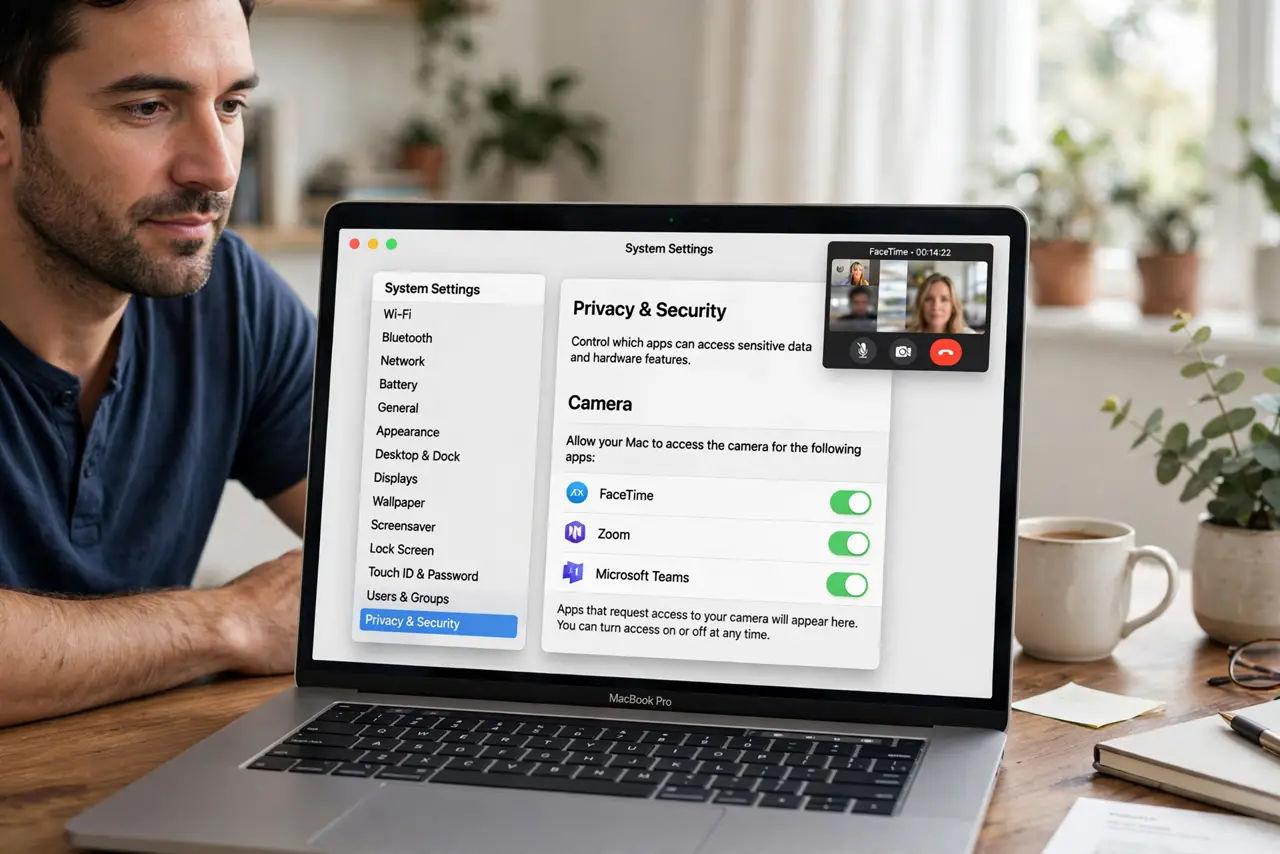
- Check camera permission for the app. Open System Settings, then Privacy and Security, then Camera, and confirm the calling app is allowed. Turn it on if it is off, then restart the app.
- Restart the calling app. Fully quit the calling app, not just its window, then reopen it and join the call again. Apps check camera permission when they start.
- Restart the Mac if the camera stays black. If Photo Booth also shows black, restart the Mac and test Photo Booth again. A restart clears a stuck camera process.
- Check for a camera cover or case. Make sure no privacy cover, sticker, or case flap blocks the camera. A closed cover produces a perfectly black picture that looks like a fault.
What NOT to do
- Do not reinstall the calling app first. Camera permission and a competing app cause most black screens, and reinstalling will not change either.
- Do not assume the camera is broken from one black call. Test Photo Booth first, since a working picture there rules out hardware failure.
- Do not grant camera permission to every app. Allow it only for apps you actually use for video, and keep the rest off.
- Do not keep rejoining the same call rapidly. Quit the app fully between attempts, so it re-checks permission and releases the camera cleanly.
Frequently asked questions
Why is the camera black but the light on?
Another app may hold the camera, or the calling app may have permission to open it without receiving a picture. Close competing apps and restart the call app.
Does a privacy cover cause a black screen?
Yes, and it is easy to miss. Check for a sliding cover, sticker, or case flap before assuming a software fault.
What if Photo Booth is black too?
Restart the Mac and test again. If Photo Booth stays black after a restart, the camera itself may need professional attention.