Stop Your Mac Battery Draining Overnight
A MacBook that loses a large charge overnight while closed is usually kept awake by an app, a connected device, or a setting that allows background work. A healthy battery should lose only a little while asleep. Find what stays awake first.

TL;DR / Quick Fix
Quick fix: before bed, close heavy apps, disconnect external drives and accessories, and check battery usage in System Settings. Then close the lid, leave the Mac unplugged overnight once as a test, and check the battery level in the morning.
Follow these steps
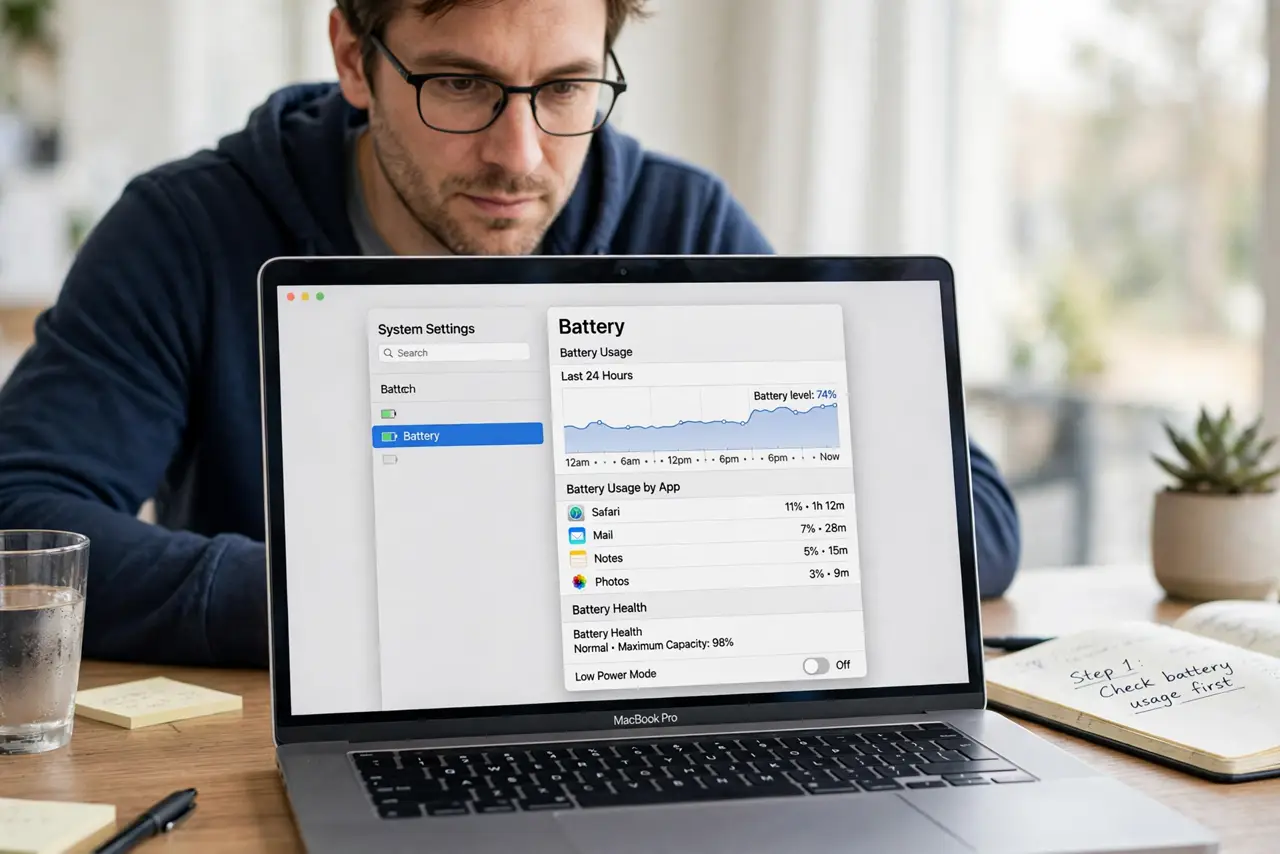
- Check battery usage first. Open System Settings, then Battery, and review which apps used the most energy in the last 24 hours. An app at the top overnight is your prime suspect.
- Close heavy apps before bed. Quit browsers with many tabs, video apps, and backup or sync apps before closing the lid. An app left running can keep the Mac awake all night.
- Disconnect drives and accessories. Unplug external drives, hubs, and USB devices overnight for the test. A device that keeps waking the Mac can drain the battery while you sleep.
- Check Energy Saver settings. In Battery settings, review options for waking for network access and Power Nap. Turn off wake features you do not need overnight.
- Test one closed night. Charge the Mac, close heavy apps, disconnect accessories, close the lid, and leave it unplugged overnight. Compare the morning level with previous nights.
- Check battery health. In Battery settings, check Battery Health. If health is significantly degraded, overnight drain may be a battery age issue rather than a software one.
What NOT to do
- Do not leave the Mac plugged in every night as a workaround. That hides the drain instead of finding which app or device causes it.
- Do not close the lid with a hot Mac in a bag. A Mac that cannot cool down may stay awake and drain fast, so let it cool and sleep properly first.
- Do not disable every background feature at once. Change one setting per night, so you know which change stopped the drain.
- Do not replace the battery first. Test apps, accessories, and wake settings, since those fix most overnight drain without new hardware.
Frequently asked questions
How much overnight drain is normal?
A small drop is normal while asleep. A large drop overnight usually means something kept the Mac awake.
Can an external drive drain the battery?
Yes. A connected drive or hub can wake the Mac repeatedly, so test one night with everything disconnected.
What if battery health is poor?
An aged battery holds less charge and drains faster. If health is significantly degraded, a battery replacement may be the real fix.