Clean Install macOS? Basics
Your Mac has years of cruft — old apps, mystery slowdowns, weird glitches no troubleshooting fixes. A clean install wipes the Mac and installs a fresh macOS, giving you the 'new Mac' feeling without buying one. It is the deepest fix there is, and the most disruptive. Here is when it is worth it and how to do it safely.
TL;DR / Quick Fix
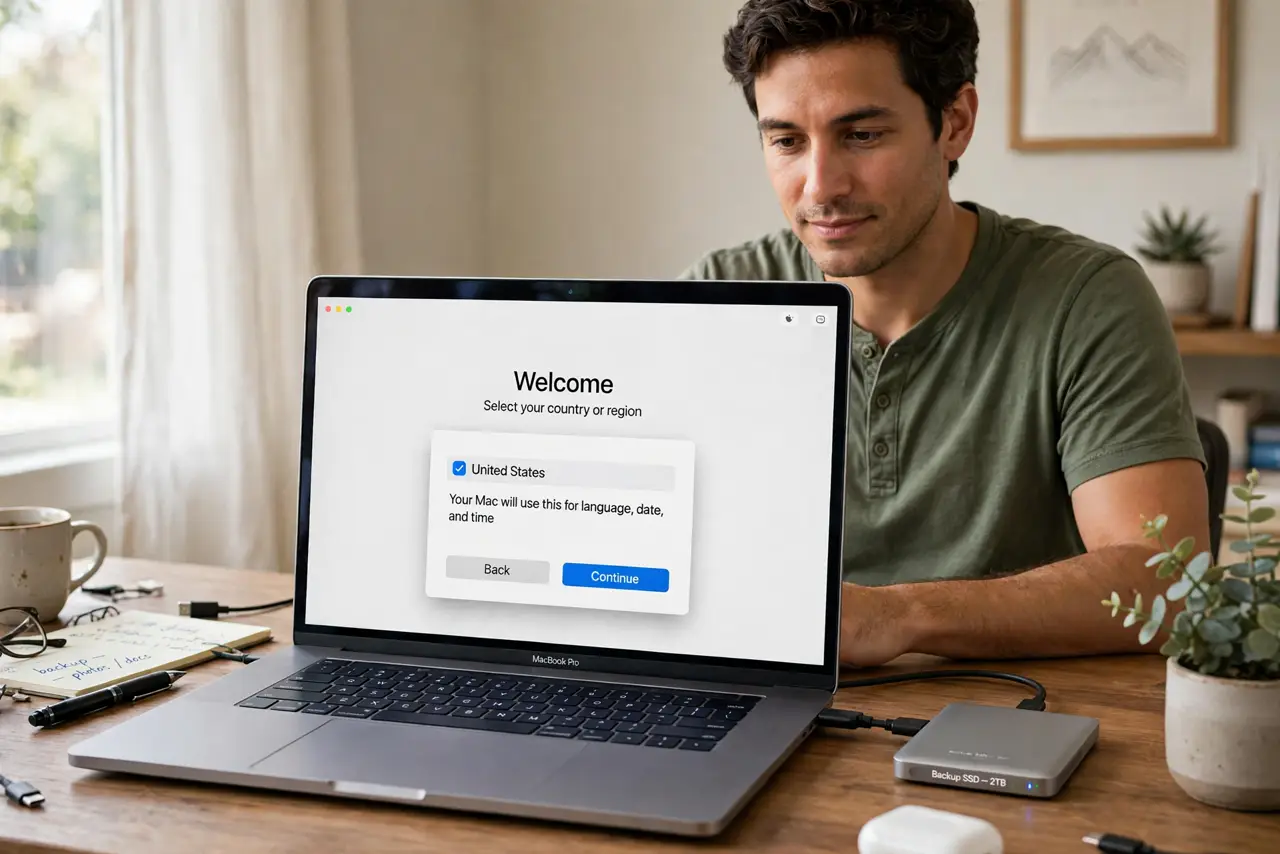
Quick fix: a clean install erases your Mac and installs fresh macOS — the deepest fix for persistent glitches and cruft. Back up everything first with Time Machine, boot into Recovery, erase the disk, and reinstall. Only do this when lighter troubleshooting has failed.
Follow these steps
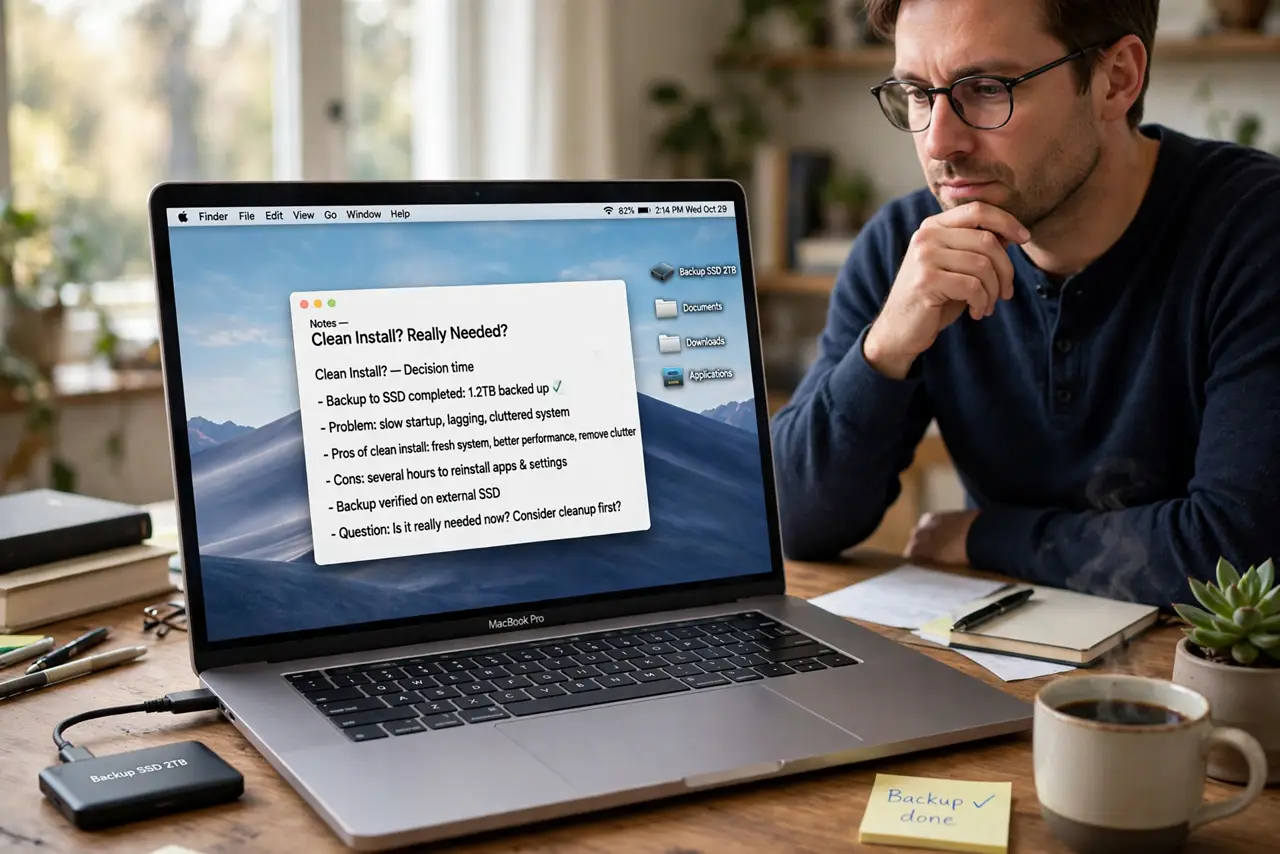
- Decide it is really needed. Clean installs fix deep system corruption and years of cruft — they do not fix failing hardware or single broken apps. If one app misbehaves, reinstall the app; if the whole system feels rotten, consider the clean install.
- Back up everything, twice if paranoid. A full Time Machine backup is mandatory — the erase wipes the disk completely. Also manually copy irreplaceable files elsewhere; two copies of what matters is the rule before any erase.
- Sign out of iCloud and services. Sign out of iCloud, iMessage, and deactivate licensed apps before erasing. Skipping this can lock activations or leave the Mac tied to your account — Apple's erase assistant usually handles it, but verify.
- Boot Recovery and erase. Restart into macOS Recovery (Apple silicon: hold power; Intel: Command+R), open Disk Utility, erase the internal disk, then choose Reinstall macOS. Follow the prompts — it downloads a fresh copy.
- Set up as new, migrate selectively. Resist restoring everything blindly — that reimports the cruft. Set up as a new Mac, reinstall apps fresh, and copy back only documents you need. Selective migration is the point of the exercise.
- Know the beta/downgrade connection. Clean installs are also the path for downgrading macOS and escaping a bad beta — same erase-and-reinstall mechanics, different target version.
What NOT to do
- Do not clean-install for one broken app. Reinstall the app — wiping the Mac for a single program is burning the house for a spider.
- Do not erase without a verified backup. 'I think Time Machine ran' is not verified — check the backup first.
- Do not restore everything from backup afterward. Blind full restores reimport the cruft you just erased — migrate selectively.
- Do not start at 10pm before a deadline. Clean installs take hours plus a day of re-setup — schedule them, do not squeeze them.
Frequently asked questions
Will a clean install speed up my Mac?
Often yes — fresh systems shed years of background junk. But if the slowness is an old hard drive or full storage, the install alone will not fix physics.
Clean install vs reset — different?
On modern Macs, 'Erase All Content and Settings' is the fast path to a fresh system without USB installers. A true clean install via Recovery is the deeper, classic method.
Do I need a USB installer?
Usually not anymore — internet Recovery downloads macOS directly. USB installers are for offline installs or multiple Macs.