macOS Betas? The Risks
Apple's next macOS looks shiny in the keynote, and the public beta is one download away. Tempting — but betas are unfinished software: apps break, batteries drain, and occasionally data is at risk. Running a beta on your only Mac is a gamble most people should not take. Here is the honest risk rundown and the safe way to try one.
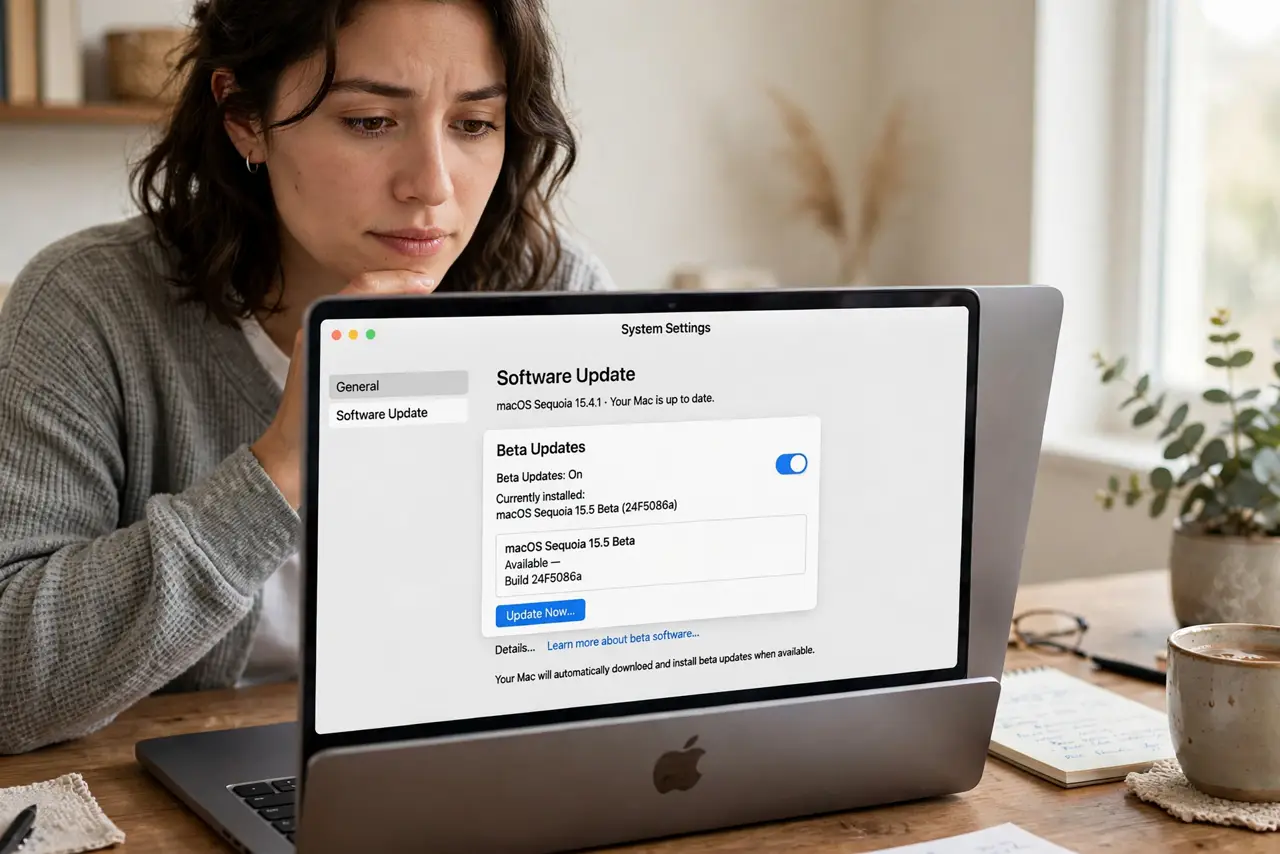
TL;DR / Quick Fix
Quick fix: macOS betas are unfinished test versions — expect broken apps, bugs, and battery drain. Never install one on your only Mac without a full backup, and know that going back requires erasing the Mac. Curious users should wait for the public beta and skip the earliest builds.
Follow these steps
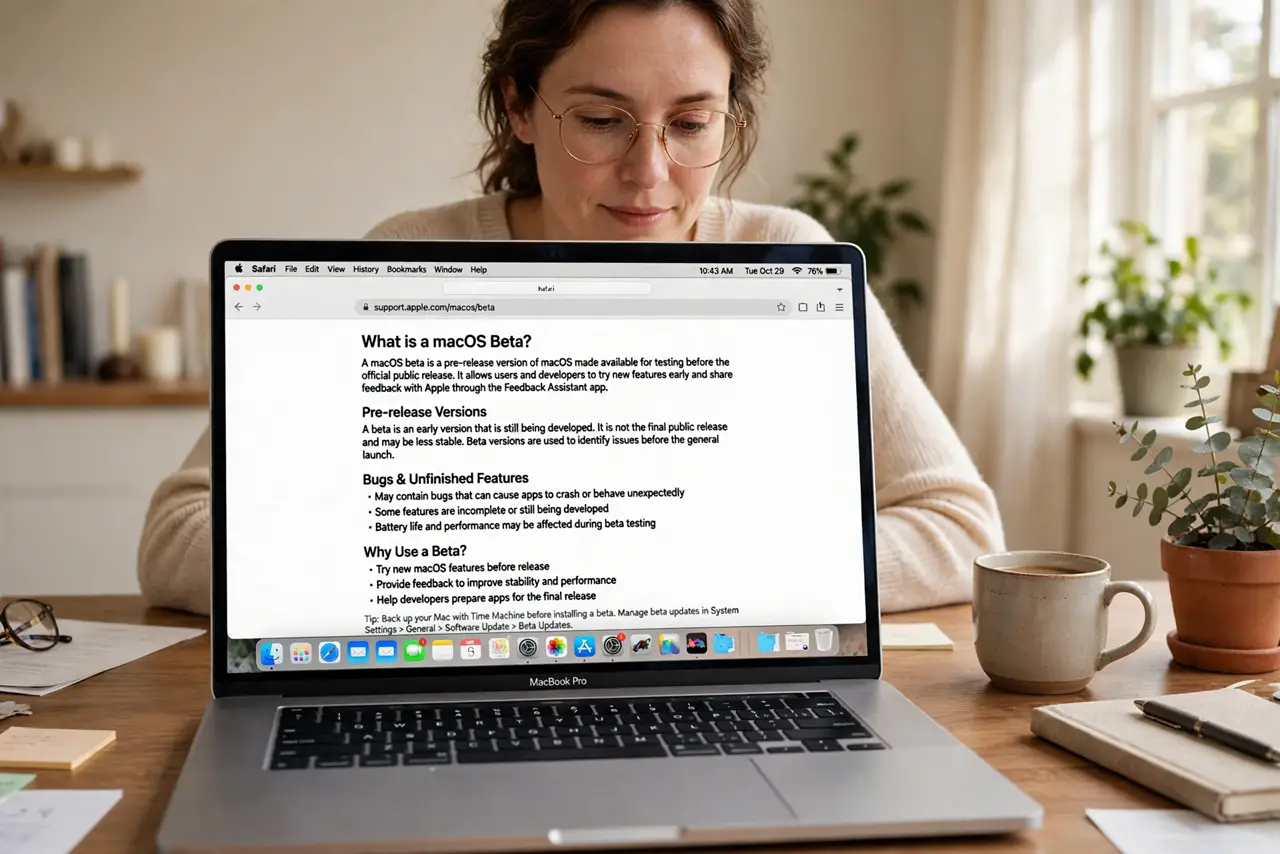
- Understand what a beta is. Betas are pre-release versions Apple gives developers and volunteers to test. Features are unfinished, bugs are guaranteed, and some third-party apps simply will not work until their developers catch up.
- Back up before touching anything. A complete Time Machine backup is non-negotiable before installing a beta. If the beta corrupts something or you want out, the backup is your escape route. No backup, no beta — simple rule.
- Never beta your only Mac. If you depend on one machine for work or school, do not put a beta on it. Borrowed trouble is still trouble — a broken VPN client or printer driver during deadline week is a self-inflicted wound.
- Prefer the public beta over developer seeds. Developer betas are the roughest; public betas arrive later and slightly polished. If you must try, wait for the public beta — and even then, skip the first one or two releases.
- Know the way back is painful. Downgrading from a beta is not a button — it usually means erasing the Mac and restoring from your pre-beta backup. Understand this BEFORE installing; see the downgrade guide for what that entails.
- Report bugs if you participate. The point of a public beta is feedback — use the Feedback Assistant when things break. Silent beta users get the bugs without contributing the fix.
What NOT to do
- Do not install a beta on your work-critical Mac. One broken app during a deadline is all it takes to regret it.
- Do not skip the backup. 'It will probably be fine' is famous last words in beta season.
- Do not install day-one developer betas out of curiosity. The first builds are the roughest — patience is a feature.
- Do not assume your apps will work. Check your must-have apps' compatibility statements before installing, not after.
Frequently asked questions
Is the public beta safe enough?
Safer than developer seeds, still not safe — apps break and bugs abound. Safe enough for a spare Mac, not for your livelihood machine.
Will a beta slow my Mac?
Often yes — debug code and unoptimized features cost performance and battery. Release versions are faster than their betas.
Can I leave the beta program?
Yes — unenroll in Software Update settings, and you will get the final release when it ships. But you stay on the beta build until then.