Clean Up Photos on Mac
That perfect shot has a stranger's elbow in the corner, a trash can behind the picnic, or a car ruining the landscape. The Mac Photos app has a Clean Up tool that erases unwanted objects and fills the background automatically — no photo editor needed. Here is how to use it well and where it struggles.

TL;DR / Quick Fix
Quick fix: open the photo in Photos, click Edit, and use Clean Up to brush away photobombers — the Mac fills the background automatically. Zoom in for precise edges and undo if it guesses wrong. It works best on simple backgrounds; busy scenes may need a second pass.
Follow these steps
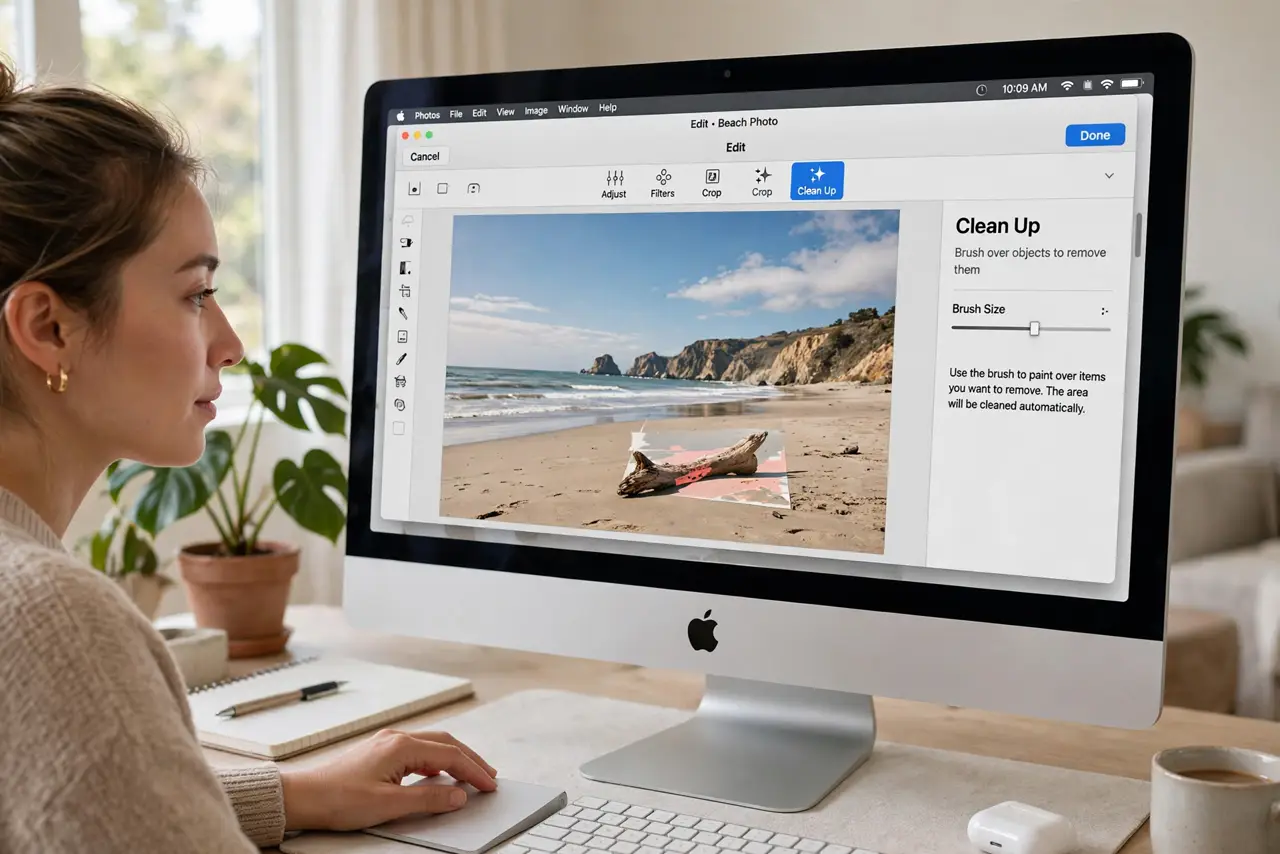
- Open the photo and enter Edit. Double-click the photo in the Photos app, then click Edit in the toolbar. Clean Up lives in the editing tools alongside crop and filters.
- Select the Clean Up tool. Click Clean Up in the sidebar. The Mac may auto-detect distracting objects and highlight them — you can accept its suggestions or brush manually.
- Brush over the intruder. Paint over the photobomber, trash can, or stray object. The tool erases it and reconstructs the background from surrounding pixels. The iPhone version works the same way on mobile.
- Zoom in for edges. Zoom to 100 percent around tricky edges — hair, fences, railings. Small careful strokes beat big sloppy ones every time.
- Undo and retry when it guesses wrong. If the fill looks smeared or warped, undo and try a smaller brush or a different angle. Two careful passes beat one aggressive one.
- Save a copy for important photos. For shots that matter, duplicate the photo before editing. Clean Up is non-destructive in Photos, but a duplicate is cheap insurance.
What NOT to do
- Do not expect miracles on busy backgrounds. Clean Up excels on skies, sand, and walls — complex crowds and intricate patterns can smear.
- Do not use huge brush strokes. Big brushes pull in unrelated pixels and create obvious warps — work small and precise.
- Do not forget the original is safe. Photos edits are non-destructive, so experiment freely — Revert to Original is always there.
- Do not remove things dishonestly. Erasing a photobomber is fine; altering documentary or evidence photos is not.
Frequently asked questions
Why does the fill look blurry?
The background there was complex and the tool guessed. Undo, use a smaller brush, and try again — or accept that some removals need a real editor.
Does Clean Up work on old Macs?
It needs Apple Intelligence on a supported Mac. Older Macs will not show the tool — third-party editors fill the gap.
Can I remove shadows too?
Sometimes — soft shadows on simple surfaces clean up well. Hard shadows with sharp edges usually leave traces.