Make Memory Movies
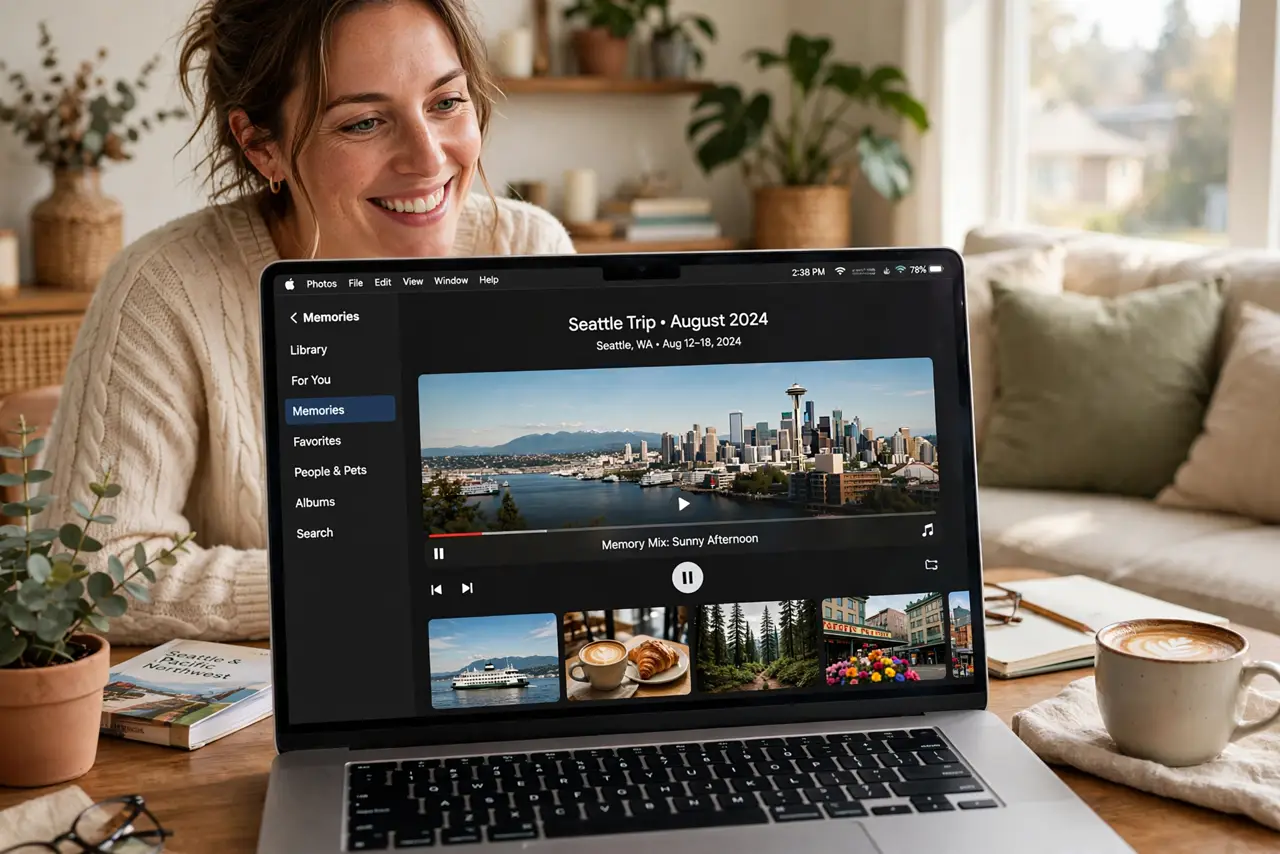
Thousands of photos sit in your library, opened never again after the week they were taken. The Mac Photos app can turn them into Memory movies — automatic little films with music, pacing, and titles, ready to share. Here is how to make one, customize it, and share it with the people in it.
TL;DR / Quick Fix
Quick fix: open Photos, go to the Memories tab, and tap Create to turn a trip or event into a movie — the Mac picks music and pacing automatically. Swap the soundtrack and trim clips to taste. Share it straight to a shared album so family sees it too.
Follow these steps
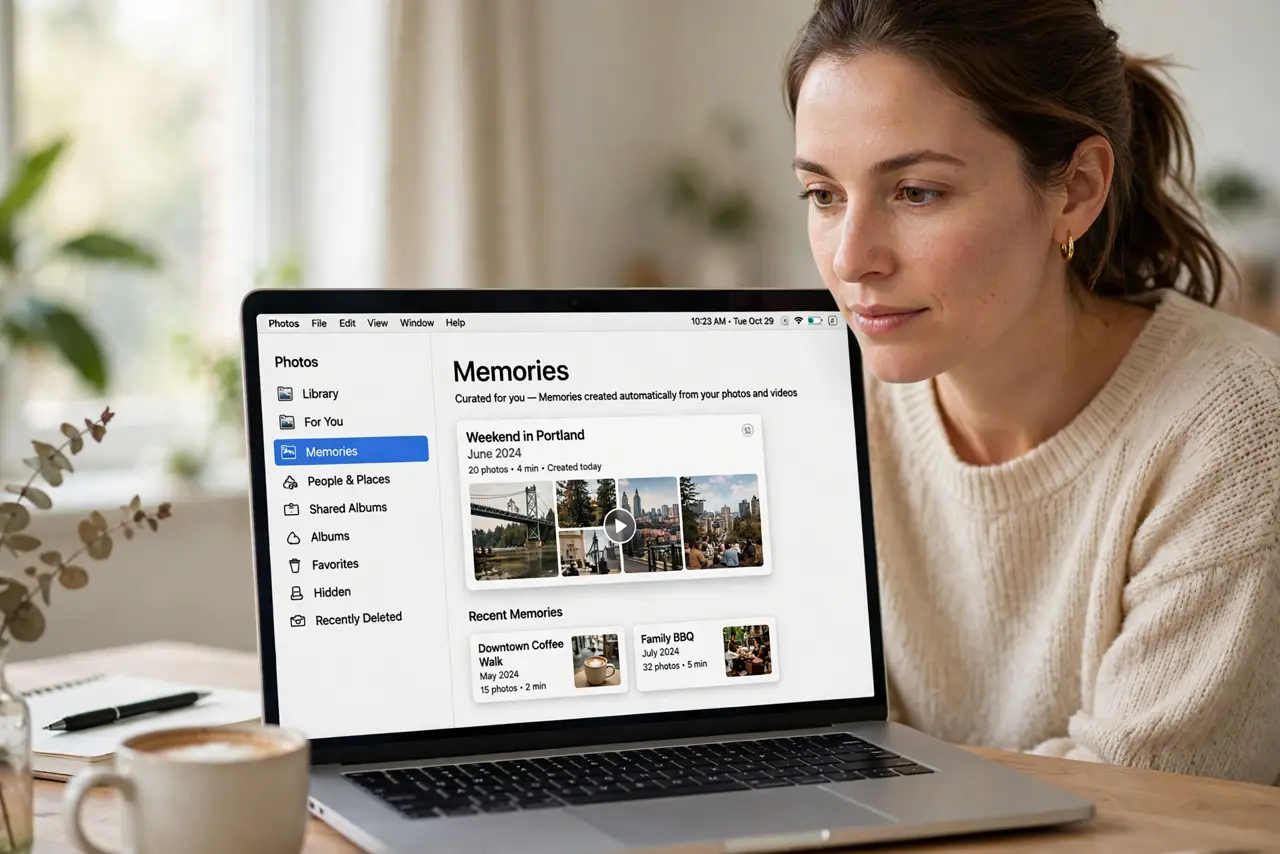
- Open the Memories tab. In the Photos app sidebar, click Memories. The Mac has probably already made some automatically — watch one to see the style before creating your own.
- Create a memory from an event. Find a trip, holiday, or album in your library, open it, and look for the Create or memory option. The Mac assembles the photos and picks music automatically.
- Change the mood. Memories offer mood and music options — dreamy, upbeat, gentle. One tap re-cuts the whole movie to the new feel; try several before settling.
- Trim and reorder. Remove the blurry shots and duplicates the automatic cut kept. A minute of trimming turns a decent memory into a good one.
- Share to a shared album. Send the finished movie to a shared album so everyone in the photos gets it. If the album is not updating for someone, check the shared album troubleshooting steps.
- Save the keepers. Export favorite memories as video files for safekeeping outside Photos. Automatic creations can change or vanish with library rebuilds.
What NOT to do
- Do not expect a perfect film automatically. Auto-memories are a starting point — a minute of trimming makes all the difference.
- Do not share without checking the photos. Automatic selections sometimes include the blurry, the unflattering, or the private — review before sending.
- Do not forget music licensing for public posts. The built-in soundtracks are fine for family sharing, not necessarily for public video posts.
- Do not let memories sit unwatched. The point is revisiting — share them, or they are just another unseen corner of the library.
Frequently asked questions
Can I pick which photos go in?
Yes — start from an album containing exactly the photos you want, then create the memory from that album.
Why is there no Memories tab?
Update macOS — Memories need a recent version. Very old libraries may need to finish indexing first.
Can I add my own music?
Yes, you can usually pick from your music library for personal movies. Built-in tracks are simplest for sharing.