Open Windows Shared Folders
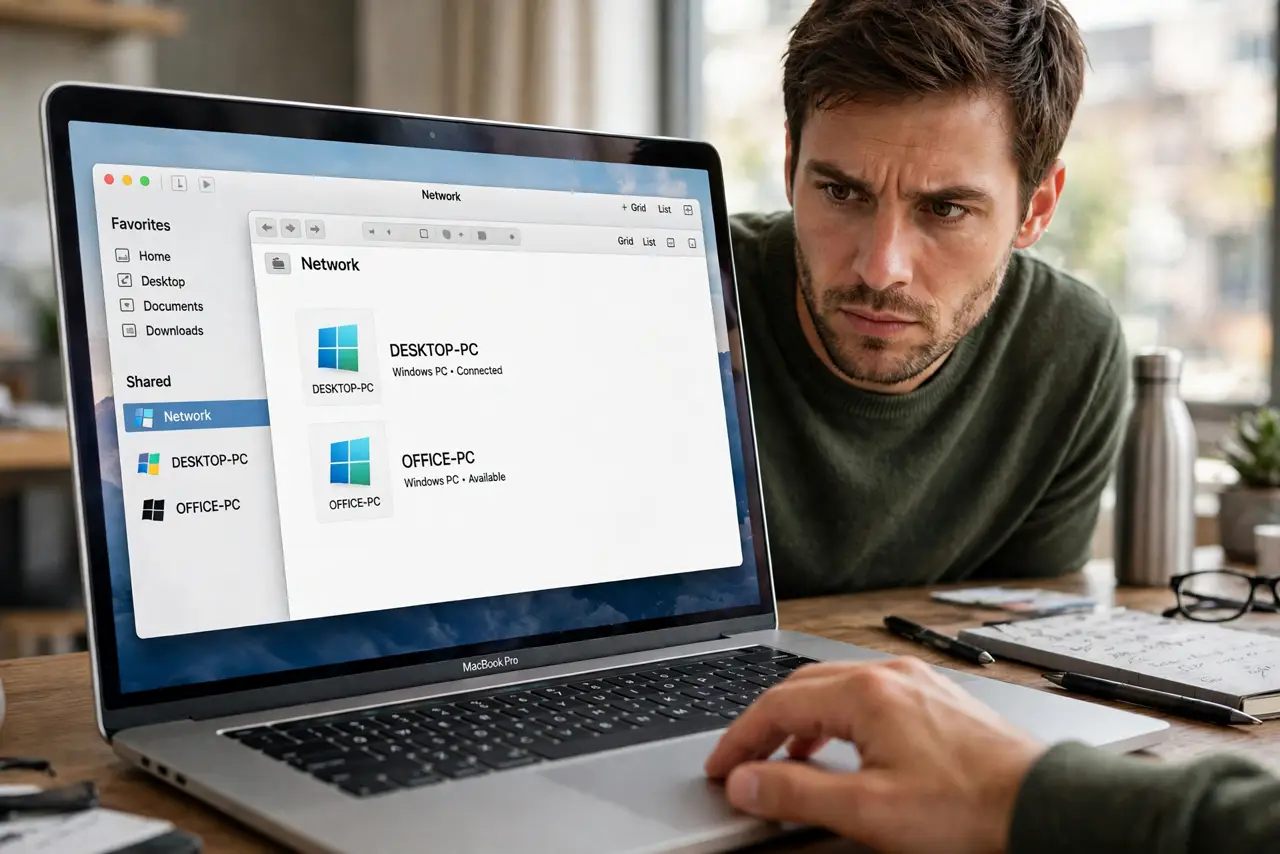
The Windows PC on your network is sharing folders, your Mac can see it in Finder — and then connection failed, or it asks for credentials you do not have. Mac-to-Windows sharing trips over protocol mismatches, workgroup names, and Windows permission quirks. The fix is a short checklist, and once it connects, you can save it as a favorite.
TL;DR / Quick Fix
Quick fix: in Finder press Command-K, type smb:// followed by the Windows PC's name or IP, and connect with a Windows username and password. Make sure sharing is enabled on the Windows side and both devices are on the same network. Save it as a favorite once it works.
Follow these steps
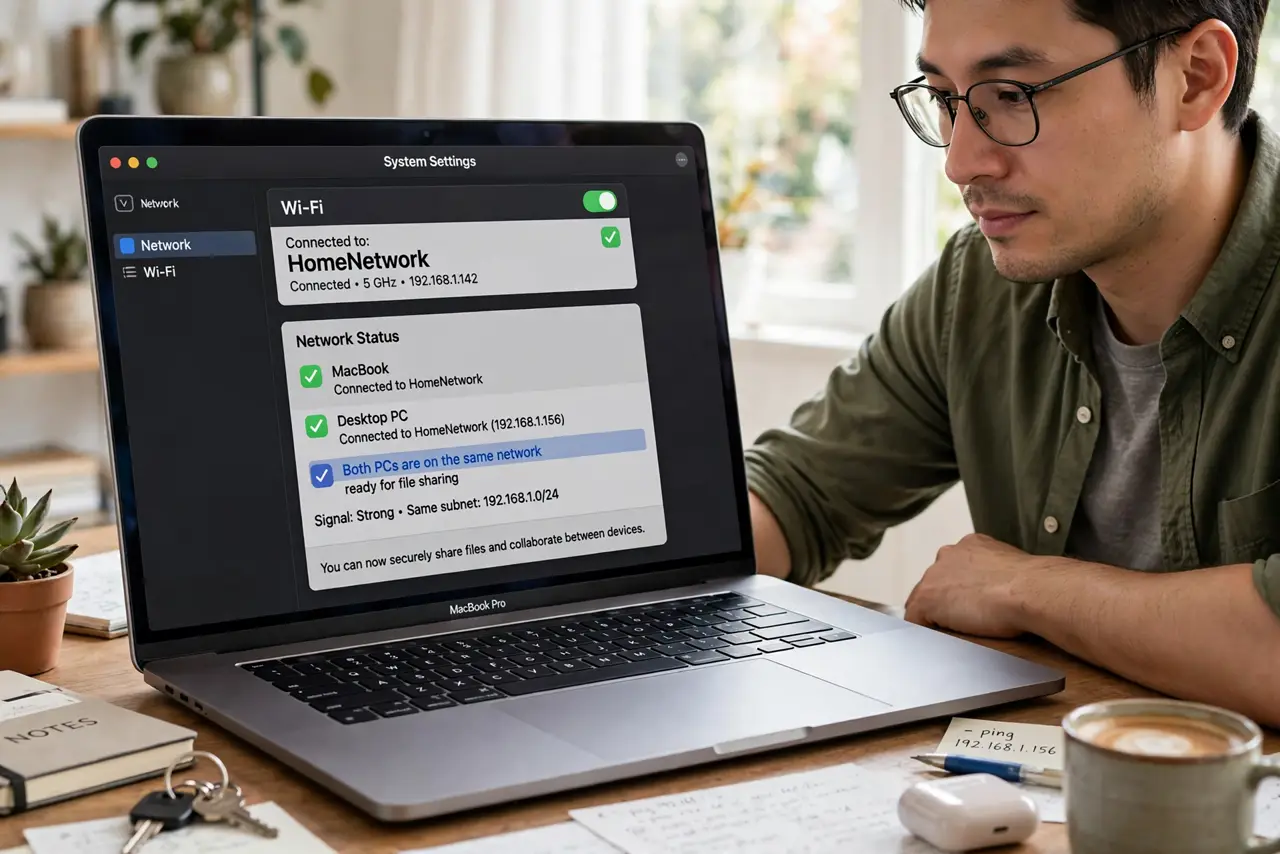
- Confirm both PCs are on the same network. Sharing does not cross networks — both devices must be on the same Wi-Fi or wired network. A Mac on the guest network will never see the main network's shares.
- Enable sharing on the Windows PC. On the Windows side, the folder must actually be shared — right-click it, Properties, Sharing, Share. No share configured, nothing to connect to.
- Connect with Command-K. In Finder, press Command-K (Connect to Server) and type smb://PC-NAME or smb://192.168.1.x. SMB is the protocol Windows speaks — AFP is long dead for this.
- Use Windows credentials. When prompted, enter a username and password that exists on the Windows PC — not your Mac login. If the Windows account has no password, set one; empty passwords are rejected.
- Save it as a favorite. Once connected, drag the share to the Finder sidebar or add it to the Command-K favorites. Next time it is one click instead of retyping.
- Check the firewall if it refuses. If the Mac cannot see the PC at all, the Windows firewall may be blocking file sharing. On the Windows side, allow File and Printer Sharing through the firewall — see screen sharing prompts for the Mac-side equivalent.
What NOT to do
- Do not keep typing the wrong protocol. It is smb:// — not afp://, not cifs:// typed wrong. One wrong prefix, endless failure.
- Do not use your Mac credentials on the Windows prompt. The Windows PC knows nothing about your Mac user — use a Windows account.
- Do not share with Everyone read/write casually. On Windows, check who the share is actually shared with — open shares invite ransomware.
- Do not forget the PC name can change. If it worked yesterday and fails today, the PC may have a new IP — use the computer name instead.
Frequently asked questions
Why does it ask for a password I never set?
Windows requires credentials for network shares. Create a password on the Windows account you connect with — passwordless accounts are blocked from network logons.
Can I connect the other way — Windows to Mac?
Yes — enable File Sharing on the Mac and connect from Windows with smb:// plus your Mac's address. The credentials then are your Mac login.
It connects but shows no files — why?
You connected as a guest or a limited user. Reconnect with an account that actually has permission to the shared folder.