Share Mac Files on the Network
Your files live on the Mac, but the Windows laptop across the room cannot see them — and emailing files to yourself is getting old. macOS can share folders over the network to Windows, other Macs, and phones with a few toggles. Set it up once, and every device in the house reaches the same files without cables or cloud uploads.
TL;DR / Quick Fix
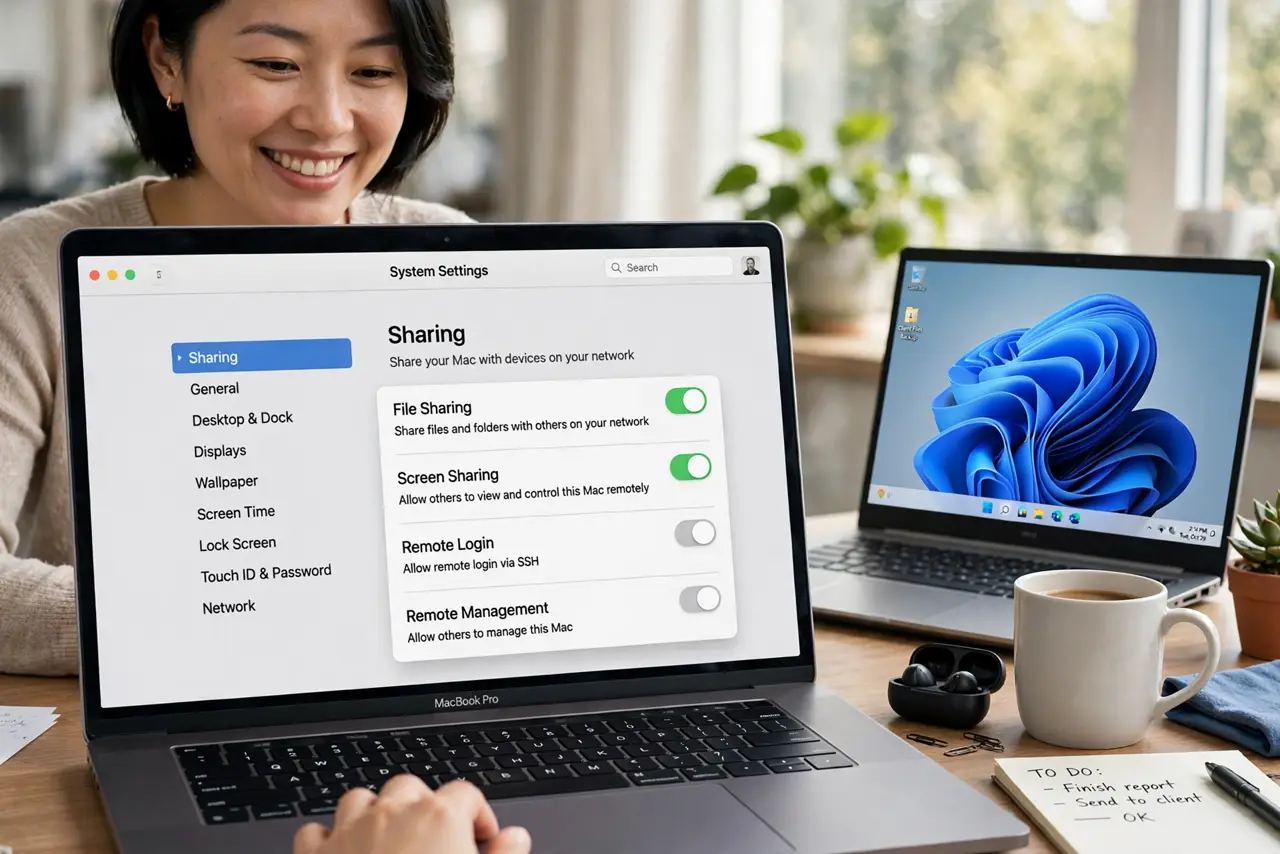
Quick fix: on the Mac open System Settings, go to General, then Sharing, turn on File Sharing, and add the folders to share. Windows PCs connect via smb:// plus your Mac's address; other Macs see it in Finder's Network. Use a strong account password.
Follow these steps
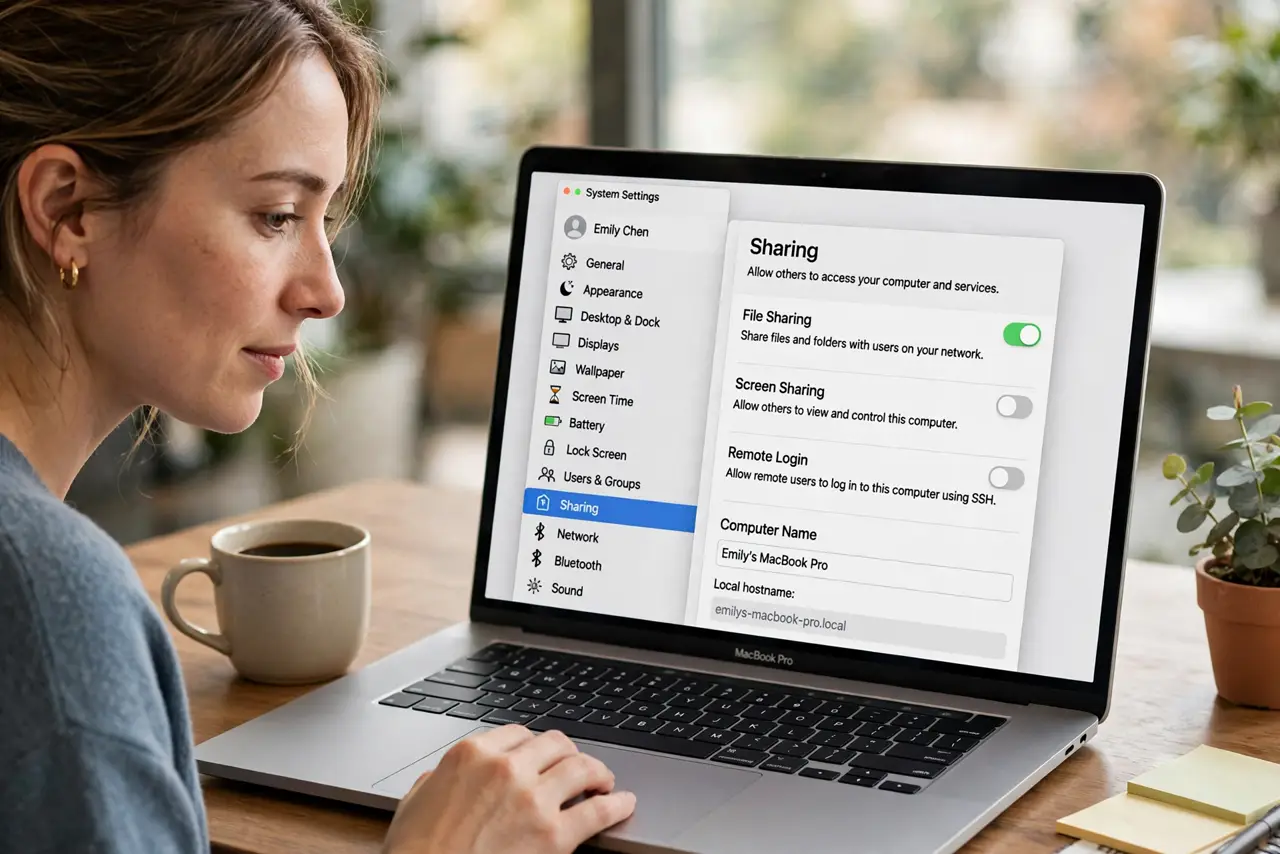
- Open the Sharing settings. Go to System Settings, General, Sharing. This one pane controls every sharing service on the Mac — file sharing lives here.
- Turn on File Sharing. Toggle File Sharing on. Click the info button to choose exactly which folders are shared and which users may access them — share deliberately, not everything.
- Add folders and set permissions. Add the folders you want to share and assign each user Read or Read and Write. Guests get nothing unless you explicitly allow it.
- Note your Mac's network address. The Sharing pane shows your Mac's address — something like smb://192.168.1.x. That is what other devices will connect to.
- Connect from Windows. On the Windows PC, type the smb address into File Explorer's address bar and sign in with your Mac username and password. See connecting the other direction if the Mac needs Windows files instead.
- Connect from another Mac or phone. Other Macs find the share automatically in Finder's Network section. Phones can connect with a file manager app that speaks SMB — same address, same credentials.
What NOT to do
- Do not share your entire home folder. Share specific folders only — a whole-home share exposes far more than intended.
- Do not use a weak Mac password with sharing on. Network shares are only as secure as the account guarding them.
- Do not leave sharing on for networks you do not trust. Turn it off on public Wi-Fi — hotel networks are not your living room.
- Do not enable guest access casually. Anonymous shares invite anyone nearby to browse — require a login.
Frequently asked questions
Why can't the Windows PC see my Mac?
Both must be on the same network, File Sharing must be on, and the Windows firewall must allow it. Work through that checklist in order.
Is sharing over Wi-Fi slow?
For documents and photos, no. For huge video files, wired ethernet is noticeably faster — Wi-Fi is convenient, cable is quick.
Can I access the files from outside my home?
Not with plain file sharing — it is local-network only, which is also why it is safe. Remote access needs a VPN, a different setup entirely.