Merge Duplicate Contacts
Three entries for the same person — one with the old number, one with the email, one mysteriously empty. Duplicate contacts multiply across iCloud, Google, and old imports. The Contacts app merges them properly: one card, everything kept, nothing lost.
TL;DR / Quick Fix
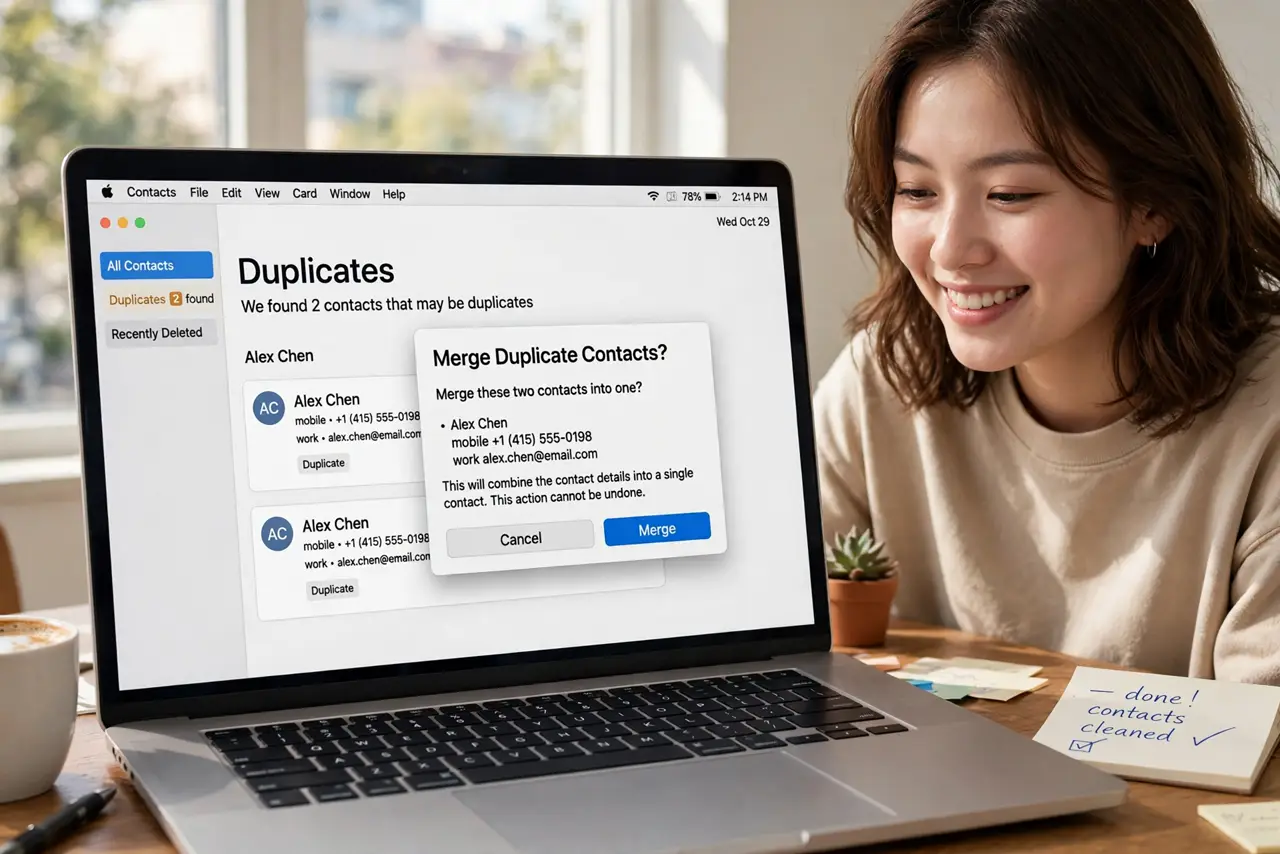
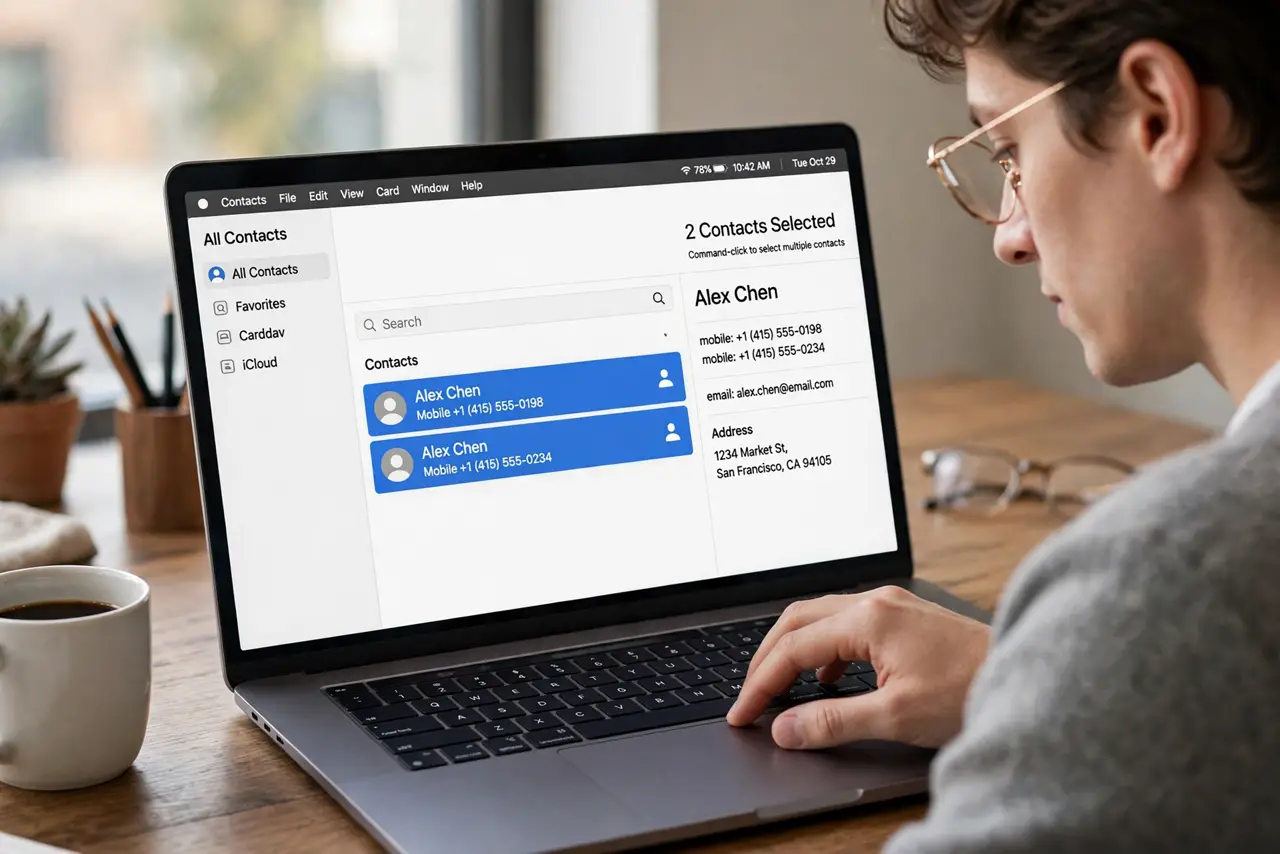
Quick fix: in Contacts, select the duplicates with Command-click, then choose Card > Merge Selected Cards. For a whole address book, use Card > Look for Duplicates and let the Mac find them all. Merging combines info — nothing is deleted.
Follow these steps
- Select the duplicate cards. In Contacts, Command-click the cards for the same person. Two or three at a time is manageable.
- Choose Card > Merge Selected Cards. The menu merges them into one card, combining phone numbers, emails, and addresses. Nothing is thrown away.
- Or scan the whole book. Card > Look for Duplicates finds every suspected pair in the address book. Review the list before confirming — it is cautious, not perfect.
- Check the merged card. Open the result and eyeball it: right numbers, right emails, no stowaway fields from a namesake.
- Fix the source of the duplicates. Duplicates usually come from syncing two accounts with overlapping contacts — see the iCloud sync notes to stop regrowth.
- Back up before a big merge. File > Export > Contacts Archive. A hundred merges deep is a bad time to discover a mistake.
What NOT to do
- Do not delete duplicates by hand one by one. Merging preserves data; deleting gambles that you picked the fuller card.
- Do not merge namesakes. Two different people sharing a name are not duplicates — check the details before merging.
- Do not ignore the regrowth. Merging without fixing the sync source means doing it all again next month.
- Do not merge during a sync storm. Wait for iCloud to finish syncing first — merging mid-sync can resurrect the 'deleted' copies.
Frequently asked questions
Will merging delete any phone numbers?
No — merging combines. Every number and email from every card lands on the merged card.
Why do duplicates keep coming back?
Two synced accounts hold overlapping contacts. Fix the sync overlap and the regrowth stops.
Can I undo a merge?
Not directly — which is why the archive backup matters. Restore the archive if a merge went wrong.