Get iPhone Texts on Your Mac
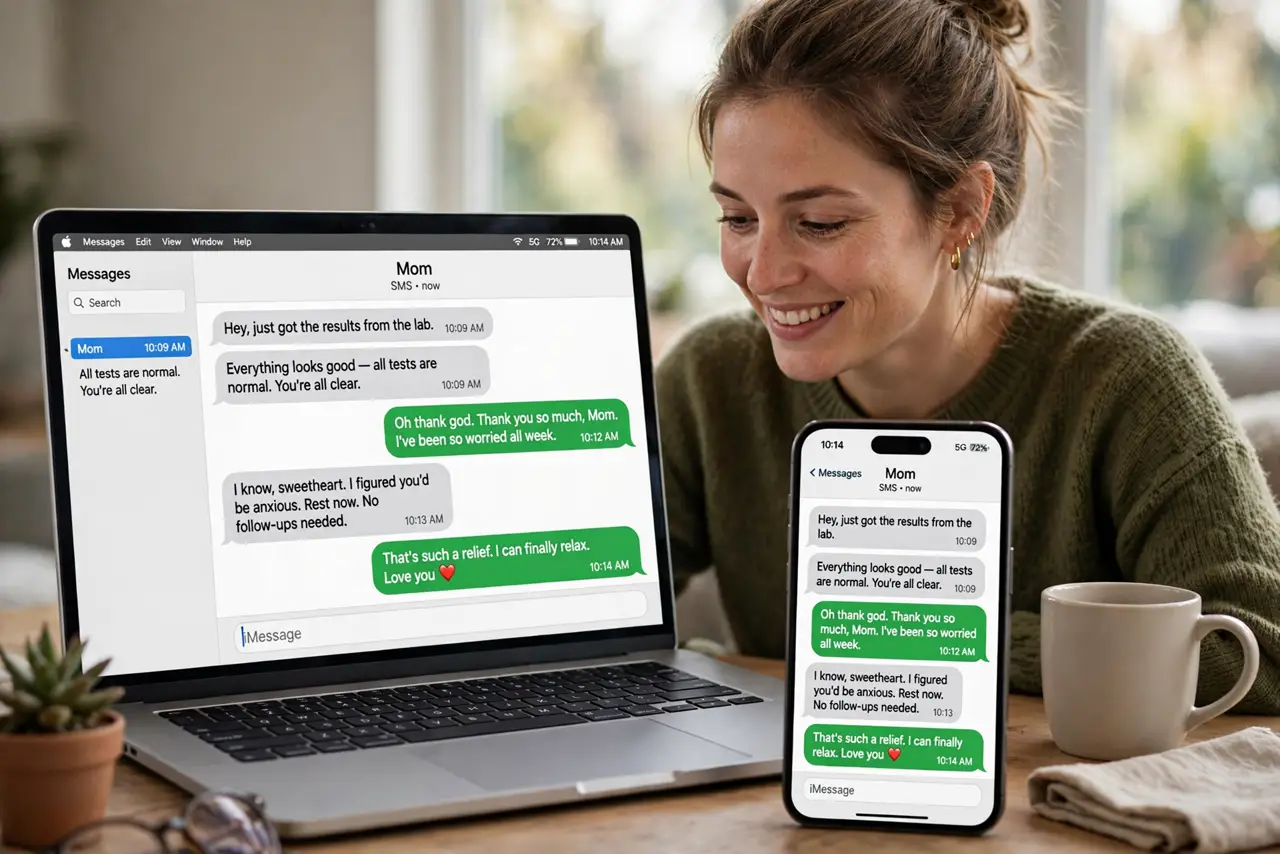
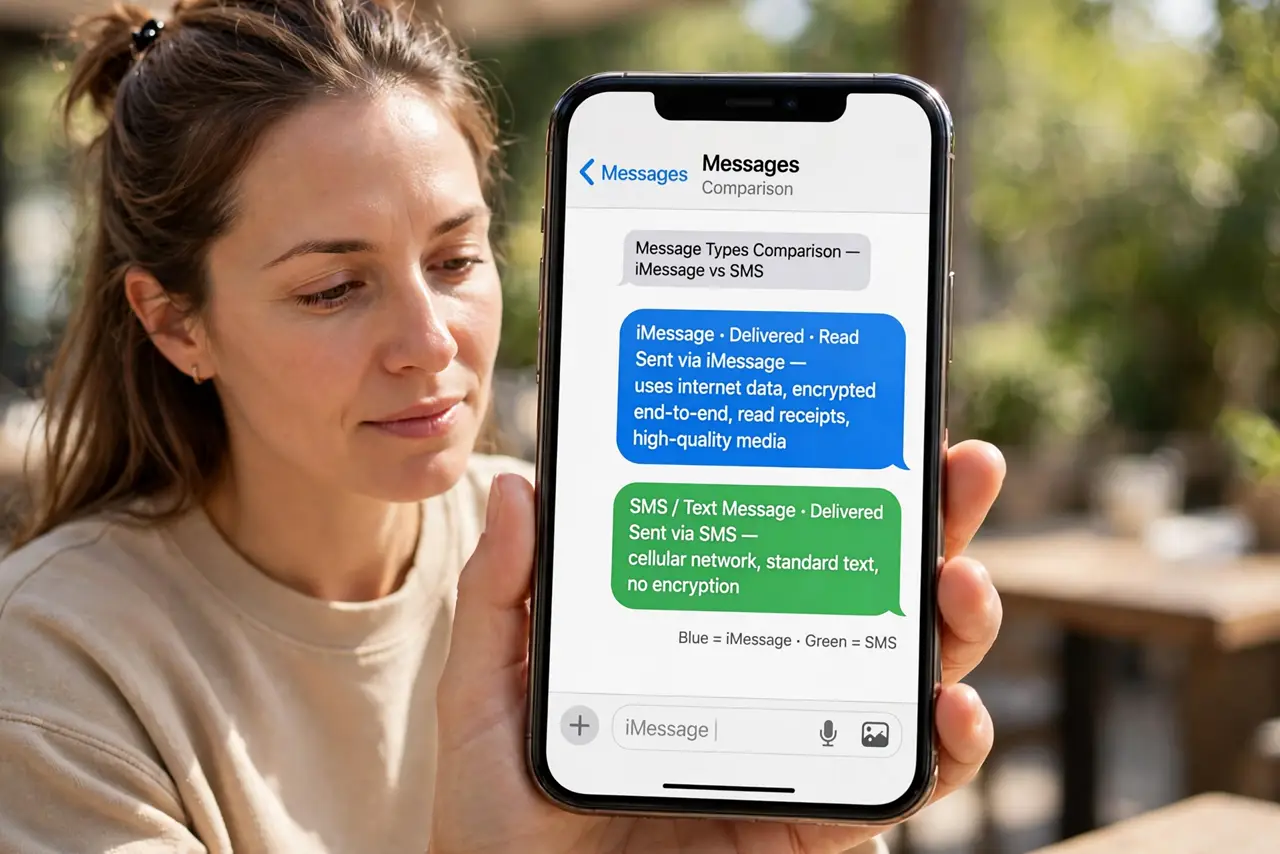
Blue bubbles arrive on the Mac; green ones do not. That split is Text Message Forwarding — a separate switch from iMessage sync — and it is off by default. Flip it once on the iPhone, approve on the Mac, and every text lands everywhere.
TL;DR / Quick Fix
Quick fix: on the iPhone, open Settings > Messages > Text Message Forwarding and turn on your Mac. Approve with the code shown on the Mac. Both devices need the same Apple ID, and the iPhone must stay powered with cellular or Wi-Fi.
Follow these steps
- Understand the two kinds of messages. iMessages (blue) sync via iCloud automatically. SMS texts (green) need Text Message Forwarding — a separate relay through your iPhone.
- Open Text Message Forwarding on the iPhone. Settings > Messages > Text Message Forwarding. Your Mac should appear in the list — if it does not, check the same Apple ID on both.
- Turn on your Mac and approve. Flip the switch for your Mac, then enter the verification code that appears on the Mac screen into the iPhone.
- Keep the iPhone powered and connected. Forwarding relays through the iPhone — if it is off or has no signal, green bubbles stop arriving on the Mac until it returns.
- Check Messages settings on the Mac. On the Mac: Messages > Settings > iMessage — confirm you are signed in with the same Apple ID and can be reached at your number.
- Test with a green bubble. Ask someone without an iPhone to text you. If it lands on the Mac, forwarding works; if only blue bubbles arrive, the switch is still off.
What NOT to do
- Do not confuse this with iCloud Messages sync. That toggle syncs blue bubbles; green bubbles need Forwarding — two switches, two jobs.
- Do not approve the code on a stranger's Mac. The code pairs forwarding to that specific computer — check the device name first.
- Do not turn the iPhone off and expect texts on the Mac. No iPhone, no relay — the Mac cannot fetch SMS on its own.
- Do not delete the thread on one device expecting it to vanish everywhere. SMS threads do not sync deletions the way iMessages do.
Frequently asked questions
Why do only some texts arrive on my Mac?
The blue ones are iMessage; the missing green ones are SMS waiting on Text Message Forwarding. One switch, one fix.
Does forwarding use my cellular plan?
Yes — the iPhone sends and receives the actual SMS. Standard carrier text rates apply on the iPhone's plan.
Can I reply to green bubbles from the Mac?
Yes. Once forwarding is on, replies typed on the Mac route back through the iPhone and send as SMS.