Continuity Camera Will Not Connect? Fix It
When Continuity Camera will not connect, your iPhone does not appear as a camera choice on the Mac, even though both devices are nearby. Continuity needs the same account, Wi-Fi, and Bluetooth on both devices, plus a camera choice in the app, so one missing piece breaks the whole link.
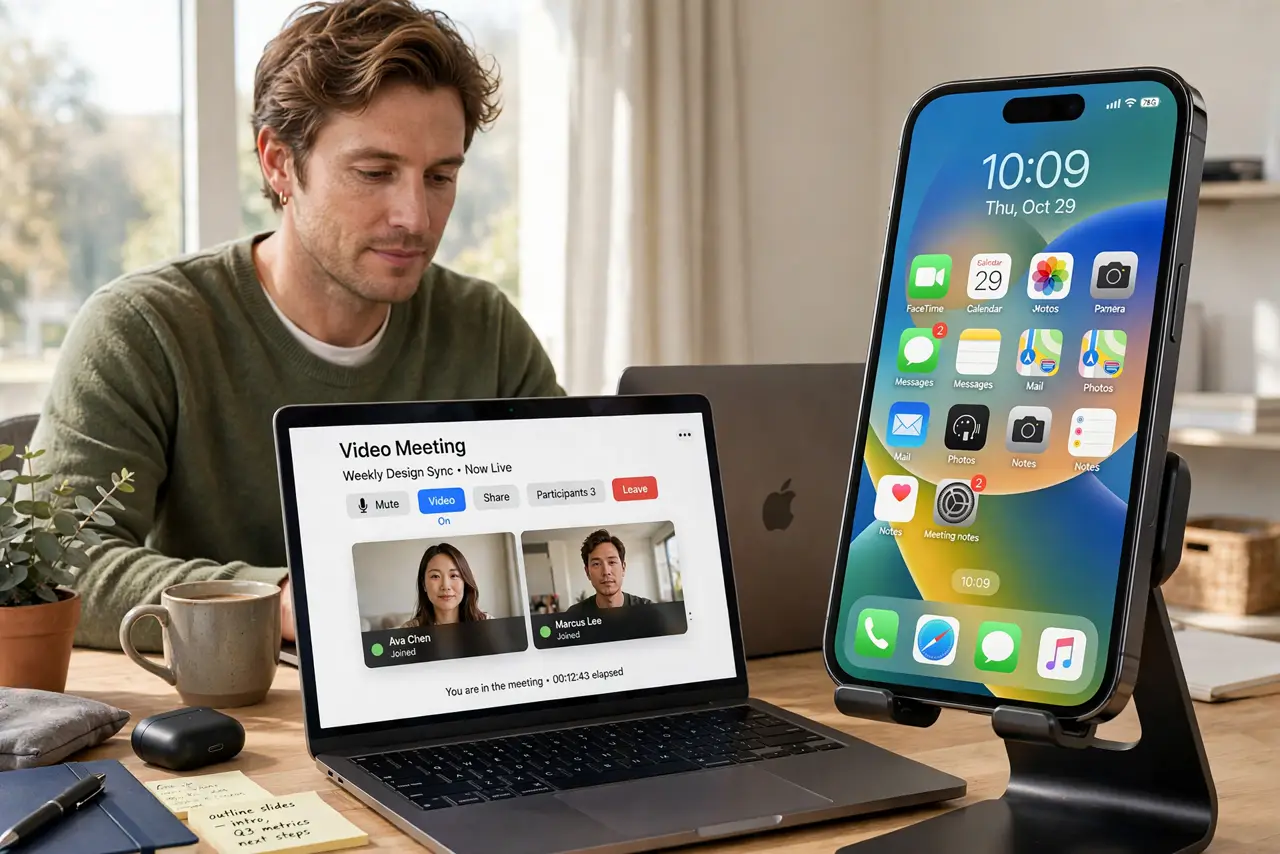
TL;DR / Quick Fix
Quick fix: confirm both devices are signed in to the same Apple Account, with Wi-Fi and Bluetooth on, then open a video app on the Mac, open its camera menu, and choose your iPhone. If the iPhone still does not appear, restart both devices and try the camera menu again.
Follow these steps
- Confirm the same Apple Account. On both devices, check the signed-in Apple Account. Continuity Camera only works when the Mac and iPhone share the same account.
- Turn on Wi-Fi and Bluetooth on both. Confirm Wi-Fi and Bluetooth are on, on both devices, even if you are not connected to a Wi-Fi network. Continuity uses both radios to find and link the devices.
- Keep the devices close together. Place the iPhone near the Mac, unlocked, with its rear cameras facing you. Distance, a locked phone, or a phone in a pocket can all block discovery.
- Choose the iPhone in the video app. Open a video app on the Mac, open its Video or Camera menu, and choose your iPhone from the list. The iPhone will not take over automatically until you select it.
- Restart both devices if it still hides. Restart the iPhone and the Mac, then open the video app camera menu again. A fresh start on both sides clears a discovery state that settings alone may not reset.
- Check Continuity Camera settings on the Mac. Open System Settings, then General, then AirDrop and Handoff, and confirm Continuity Camera options are available. If the Mac is too old for the feature, the iPhone will never appear, no matter how correct the settings are.
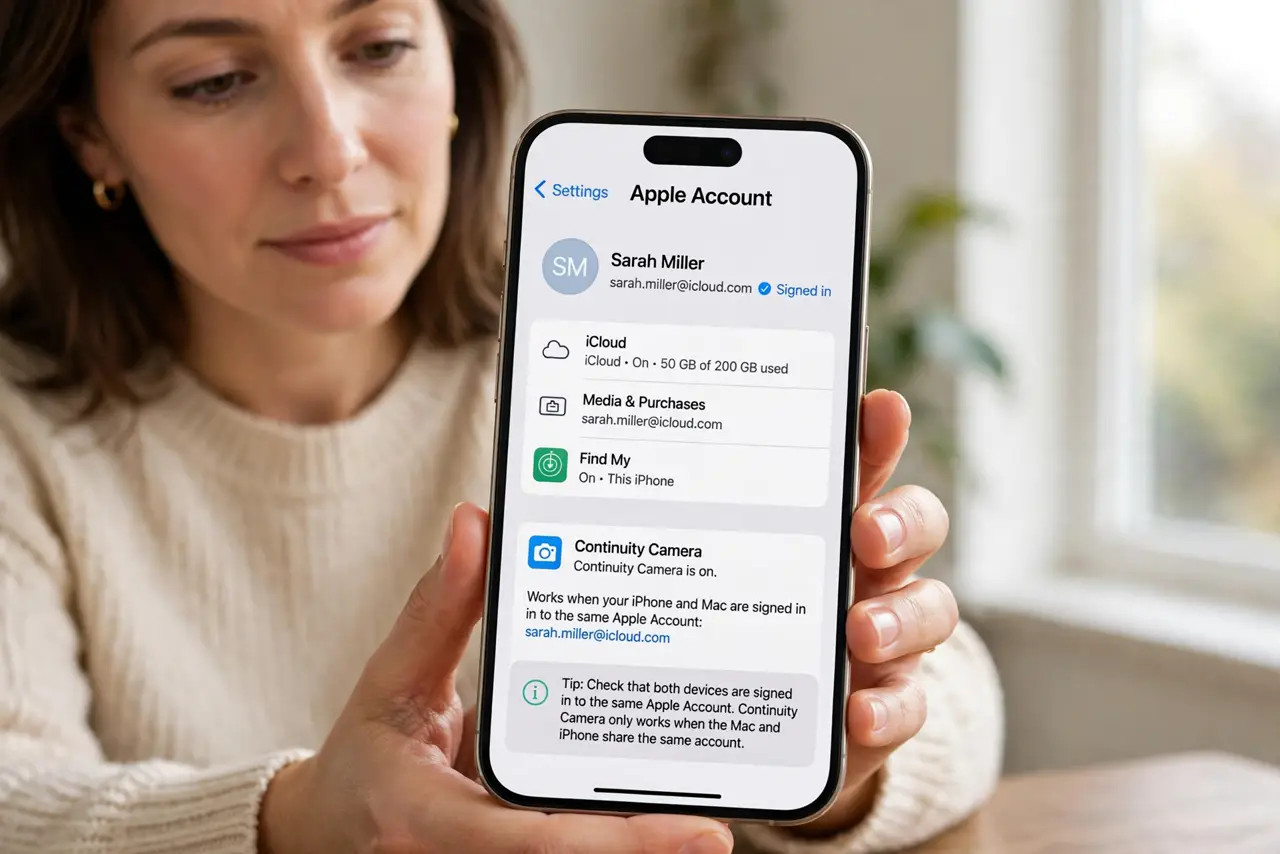
What NOT to do
- Do not buy a webcam because Continuity Camera failed once. A settings, account, or restart fix usually restores the link, and a new webcam is a separate purchase you may not need.
- Do not sign out of your Apple Account on both devices at once to fix discovery. Signing out removes the very link Continuity needs, and signing back in takes far longer than a restart.
- Do not turn off Wi-Fi to test Continuity. Continuity needs Wi-Fi on for discovery, even when the devices communicate over a direct link afterwards.
- Do not keep the iPhone locked and face down while testing. An unlocked phone nearby, with cameras facing you, is part of how Continuity finds and uses the phone.
Frequently asked questions
Why does my iPhone not appear as a camera?
Usually the accounts differ, Wi-Fi or Bluetooth is off on one device, or the phone is locked or too far away. Check those first, then choose the iPhone in the app camera menu.
Does Continuity Camera need the internet?
No, it needs Wi-Fi and Bluetooth on for discovery, but the video link itself is local between the two devices.
Can I use Continuity Camera with any video app?
Most Mac video apps that offer a camera menu support it. Open the app camera menu and look for your iPhone by name.