Use iPhone as Mac Webcam
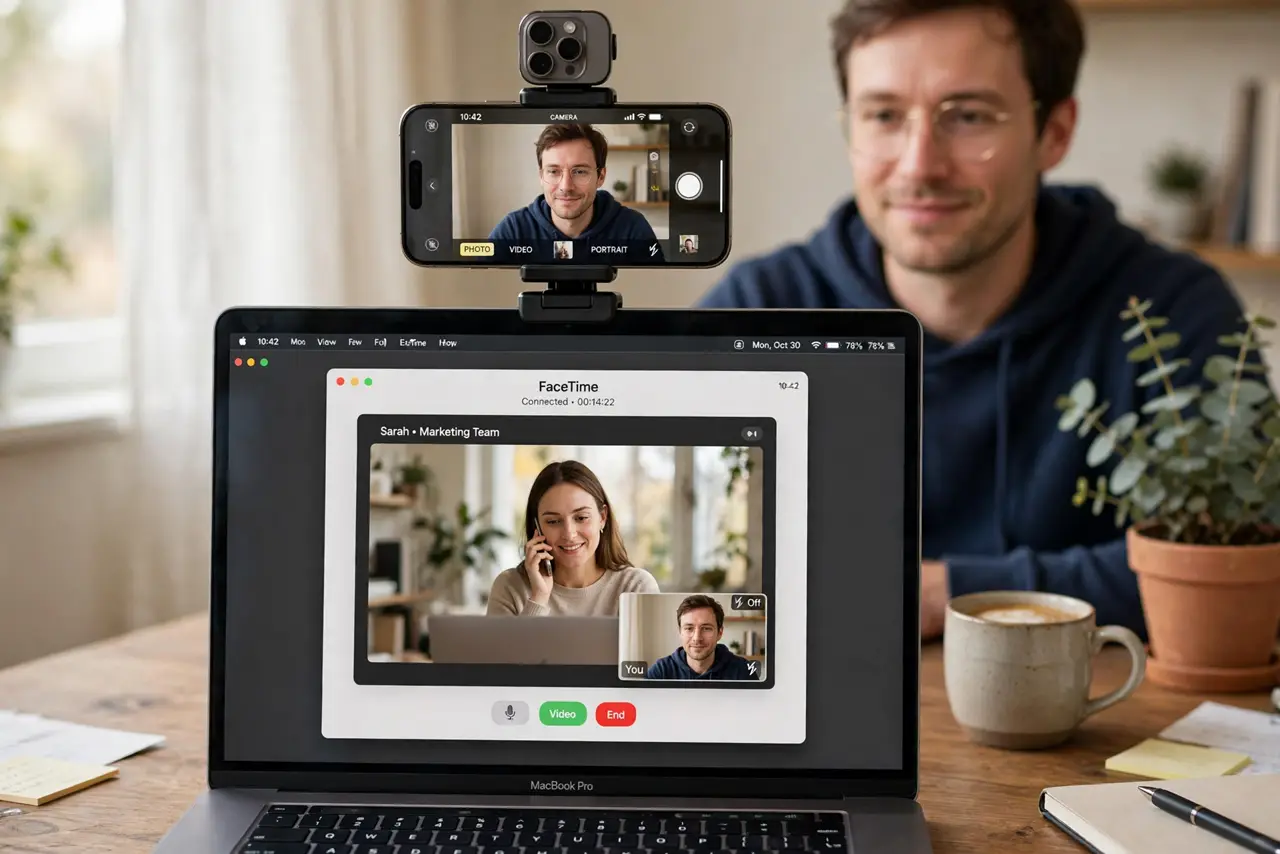
Your Mac's built-in webcam is fine, but your iPhone's camera is dramatically better — sharper, better in low light, with portrait blur. Continuity Camera turns the iPhone into a wireless Mac webcam automatically. If the iPhone never appears as a camera option, the usual culprits are Wi-Fi, Bluetooth, or the Apple Account.
TL;DR / Quick Fix
Quick fix: keep your iPhone nearby, unlocked, with Wi-Fi and Bluetooth on and the same Apple Account as your Mac. Then pick your iPhone as the camera in video app settings. Mount it on the Mac or a tripod for a steady shot — Desk View adds a top-down angle.
Follow these steps
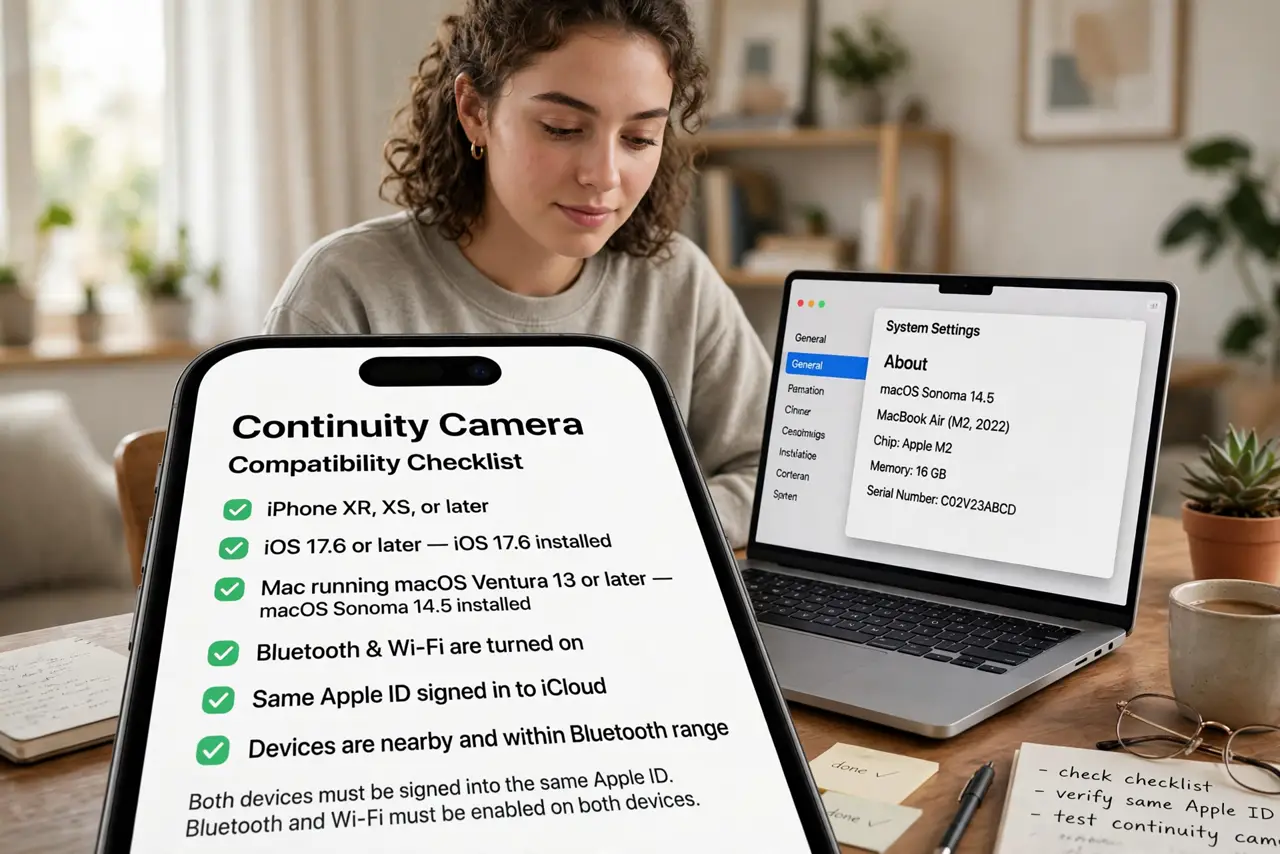
- Meet the requirements. You need a compatible iPhone and Mac, both signed into the same Apple Account, with Wi-Fi and Bluetooth on. The iPhone should be nearby — same desk, not another room.
- Select the iPhone as your camera. Open your video app — FaceTime, Zoom, Teams — go to its video or camera settings, and choose your iPhone from the camera list. It appears automatically when everything is ready.
- Mount the iPhone steadily. Prop it on the Mac's lid with a mount, or use a small tripod at eye level. A wobbling handheld phone ruins the upgrade the better camera gives you.
- Try Desk View for demos. In FaceTime or the Control Center video effects, enable Desk View to show a top-down view of your desk alongside your face — great for demos, covered in the Desk View guide.
- Use portrait and lighting effects. Continuity Camera brings Portrait mode blur, Center Stage tracking, and Studio Light to any Mac. Find them in the video menu in the menu bar during a call.
- Fix the missing-camera case. If the iPhone never appears, toggle Wi-Fi and Bluetooth off and on, confirm the same Apple Account, and restart both devices. The connection troubleshooter covers the stubborn cases.
What NOT to do
- Do not expect it to work across different Apple Accounts. Same account on both devices is a hard requirement.
- Do not leave the iPhone face-down or far away. It needs to be near, upright, and ideally unlocked the first time.
- Do not run it on a nearly dead battery. The camera plus wireless streaming drains the phone — plug it in for long calls.
- Do not forget to switch back. After the call, your video apps may keep defaulting to the iPhone — check the camera setting next time.
Frequently asked questions
Does Continuity Camera work with Zoom and Teams?
Yes — any Mac app that lets you pick a camera can use the iPhone. Just select it in that app's video settings.
Why is there a delay in the video?
Wireless transmission adds a small lag. For the lowest latency, connect the iPhone to the Mac with a USB cable.
Can I use the rear camera?
Yes — Continuity Camera uses the iPhone's rear cameras by default, which is exactly why the quality jump is so big.