Boost Interface Contrast
Buttons blend into backgrounds, window borders vanish, and text feels washed out — the Mac interface can be genuinely hard to see, especially on bright screens or aging eyes. The fix lives in Accessibility: a contrast slider that makes every edge and label pop. If colors themselves are the problem rather than contrast, try Mac color filters.
TL;DR / Quick Fix
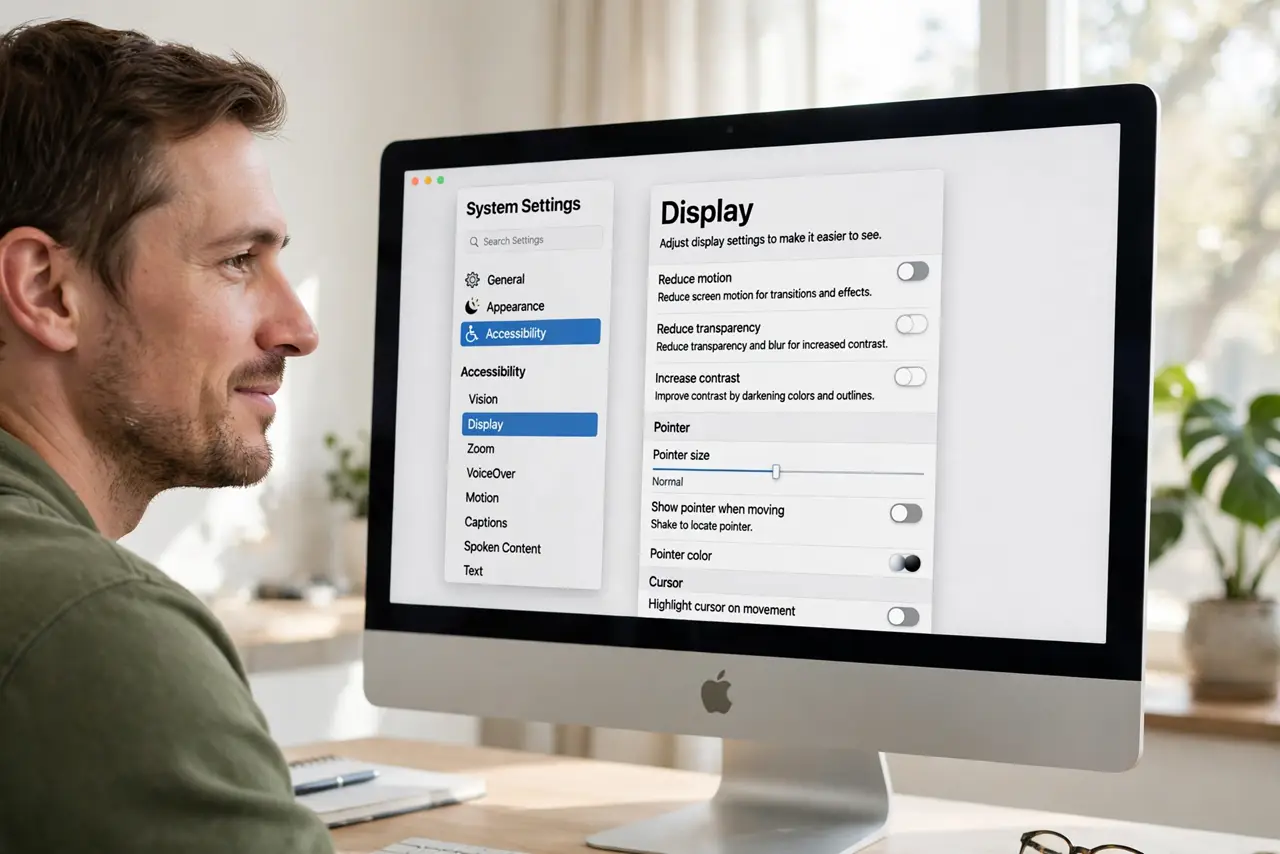
Quick fix: open System Settings, go to Accessibility > Display, and turn on Increase contrast — use the slider to taste. Pair it with Reduce transparency and bolder text for maximum clarity. It makes buttons, borders, and text pop without changing your actual colors.
Follow these steps
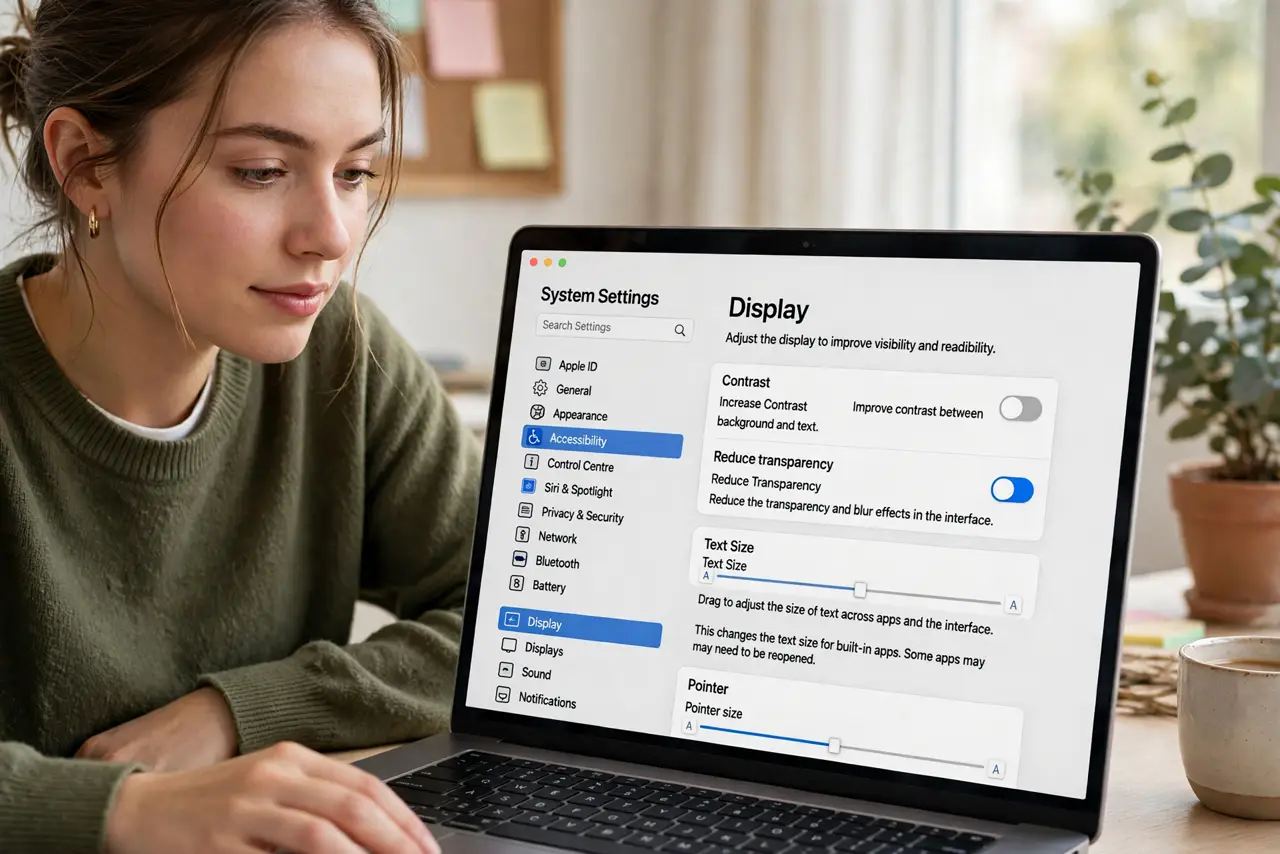
- Open the Accessibility Display settings. Go to System Settings > Accessibility > Display. Everything you need — contrast, transparency, text size — lives on this one pane.
- Turn on Increase contrast. Enable the Increase contrast option and drag the slider until borders and buttons stand out clearly. Small moves make a big difference; you do not need the maximum.
- Reduce transparency. Turn on Reduce transparency on the same pane. Frosted menu bars and sidebars look pretty but murder readability — solid backgrounds are easier on the eyes.
- Make text bolder and bigger. Enable Bold text if offered, and bump the text size a notch. Larger, heavier type plus stronger contrast is the combination that fixes most readability complaints.
- Try Dark Mode. Dark Mode flips the palette so text glows against dark backgrounds. Some people read light-on-dark far more easily — try it for an afternoon before deciding.
- Pair with color filters if needed. If specific colors are still hard to tell apart, add color filters on top of the contrast boost. The two settings stack nicely.
What NOT to do
- Do not max out contrast if you edit photos or video. Extreme contrast distorts colors — use a moderate setting for creative work.
- Do not confuse contrast with Zoom. Zoom magnifies; contrast clarifies edges. They solve different problems.
- Do not ignore Reduce motion if animations bother you. It is on the same Accessibility pane and helps dizziness.
- Do not edit system files to force contrast. The supported Accessibility settings do everything safely.
Frequently asked questions
Will this change how my photos look?
Only the interface chrome gets punchier — your actual photos and videos keep their true colors at moderate settings.
What is the difference between contrast and color filters?
Contrast strengthens edges and text; color filters remap colors for color blindness. Different tools, often used together.
Why does everything look washed out suddenly?
A macOS update sometimes resets display settings — recheck this pane after major upgrades.