The Cursor Is Too Small on a Big Display
On a large display, a normal pointer can shrink into a speck that you keep losing. The fix is a larger pointer and, if needed, a display setting that makes everything easier to see — no new hardware required.

TL;DR / Quick Fix
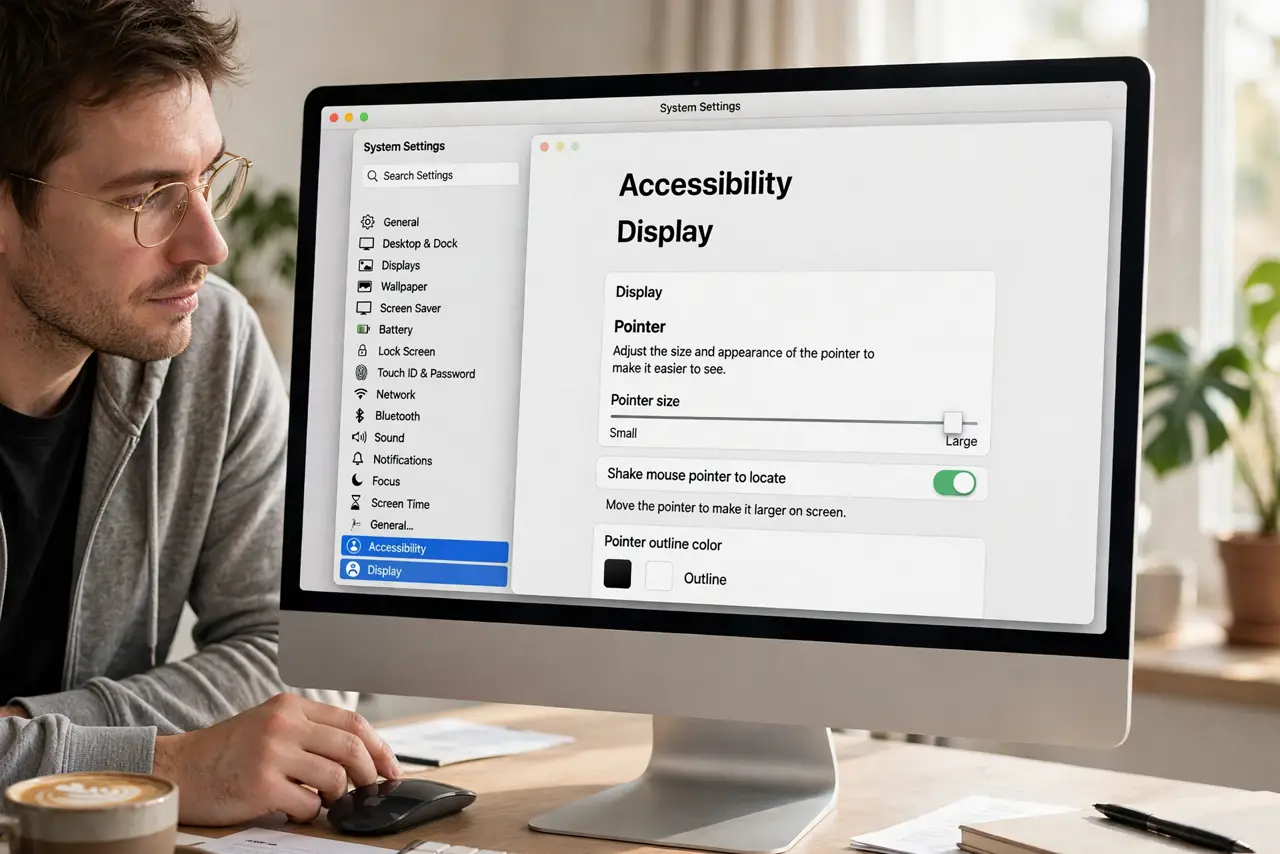
Quick fix: open System Settings, then Accessibility, then Display, and drag the pointer size slider larger until the cursor is easy to spot. Turn on Shake mouse pointer to locate it, then test on your big display and adjust once more if needed.
Follow these steps
- Make the pointer bigger. Open System Settings, then Accessibility, then Display, and drag the Pointer size slider to the right. Move the mouse and check that you can spot the cursor at a glance on the big display.
- Turn on Shake to locate it. In the same Accessibility Display pane, turn on Shake mouse pointer to locate. Shake the mouse briefly and the pointer grows for a moment, which helps on a wide screen even after you enlarge it.
- Check the display resolution. Open System Settings, then Displays, and confirm the resolution matches the display. A resolution that is too high shrinks everything, including the pointer, so pick the recommended setting for that screen.
- Raise the overall display scaling. If text also looks tiny, use the Larger Text or scaled resolution option in Displays. Larger text helps the pointer stand out, because the whole screen stops competing for your attention.
- Try a high-contrast pointer outline. In Accessibility, then Display, look for pointer outline and contrast options. A clear outline keeps the pointer visible against bright windows and dark backgrounds alike.
- Test across both displays if you use two. Move the pointer from the laptop screen to the big display and back. If it only vanishes on one screen, the problem is that display's scaling, not the pointer setting itself.
What NOT to do
- Do not buy a new mouse to fix a small pointer. A different mouse moves the same small pointer, so change the size setting first and see the difference.
- Do not set the resolution to the lowest value just to enlarge the pointer. That blurs text and wastes a good display, while pointer size alone usually solves it.
- Do not turn on every accessibility option at once. Change one setting, test it, and keep only the ones that actually help you find the pointer.
- Do not ignore a pointer that disappears on one display only. That points to a display or cable issue, not to the pointer size setting.
Frequently asked questions
Why is the pointer tiny only on the big display?
Because the big display runs at a higher resolution, so the same pointer covers fewer visible pixels and looks smaller.
Will a bigger pointer slow the Mac down?
No. Pointer size is a display setting, and enlarging it has no noticeable effect on speed.
What if I still lose the pointer?
Turn on Shake mouse pointer to locate and check the display scaling, since a tiny pointer plus a wide screen is easy to lose.