Customize the Dock
The Dock is the first thing you see on your Mac, and by default it's crowded with apps Apple chose for you. A few minutes of customization turns it into a launcher that matches how you actually work — your apps, your order, your size. It's one of the quickest Mac wins there is.
TL;DR / Quick Fix
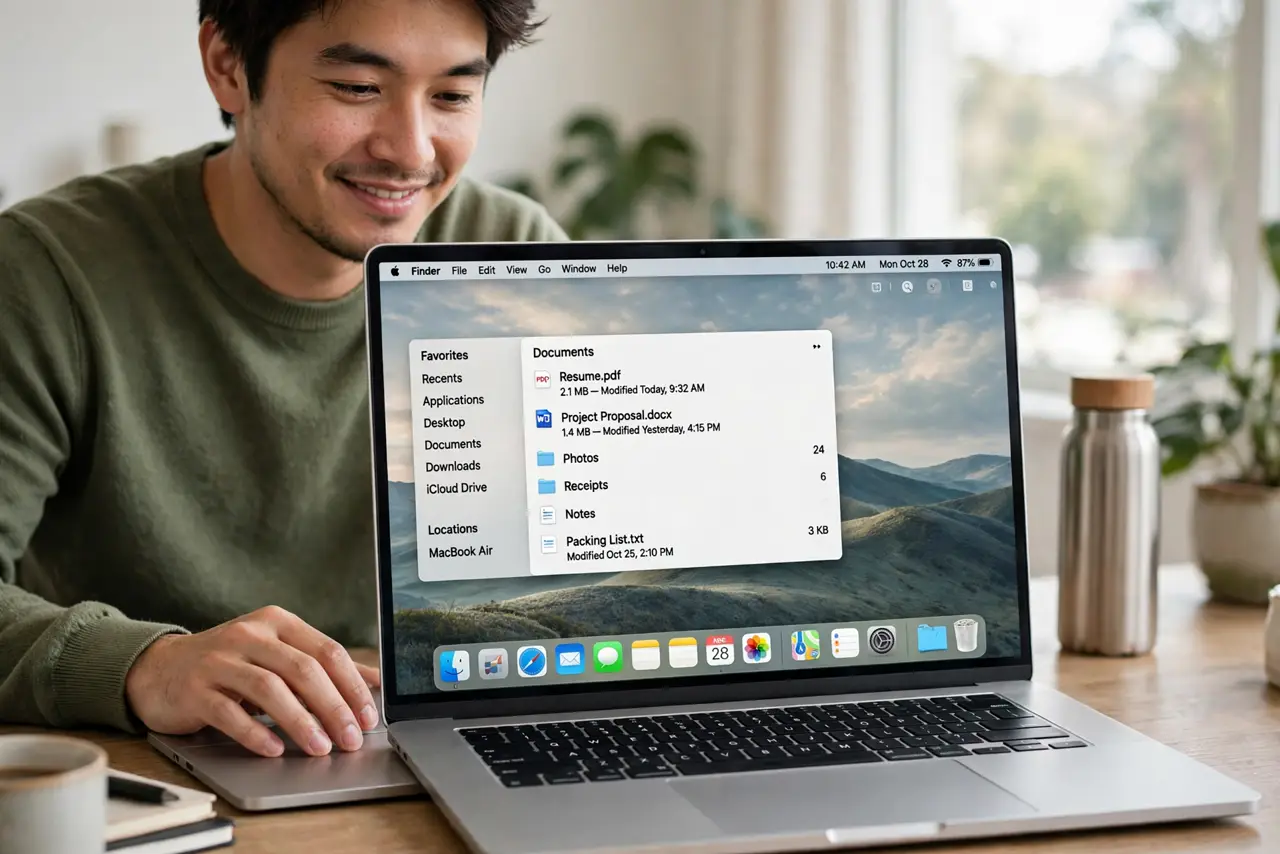
Quick fix: drag apps in or out of the Dock to add or remove them, right-click the divider for size and magnification settings, and turn on auto-hide for more screen space. Keep it to the apps you open daily — a short Dock is a fast Dock.
Follow these steps
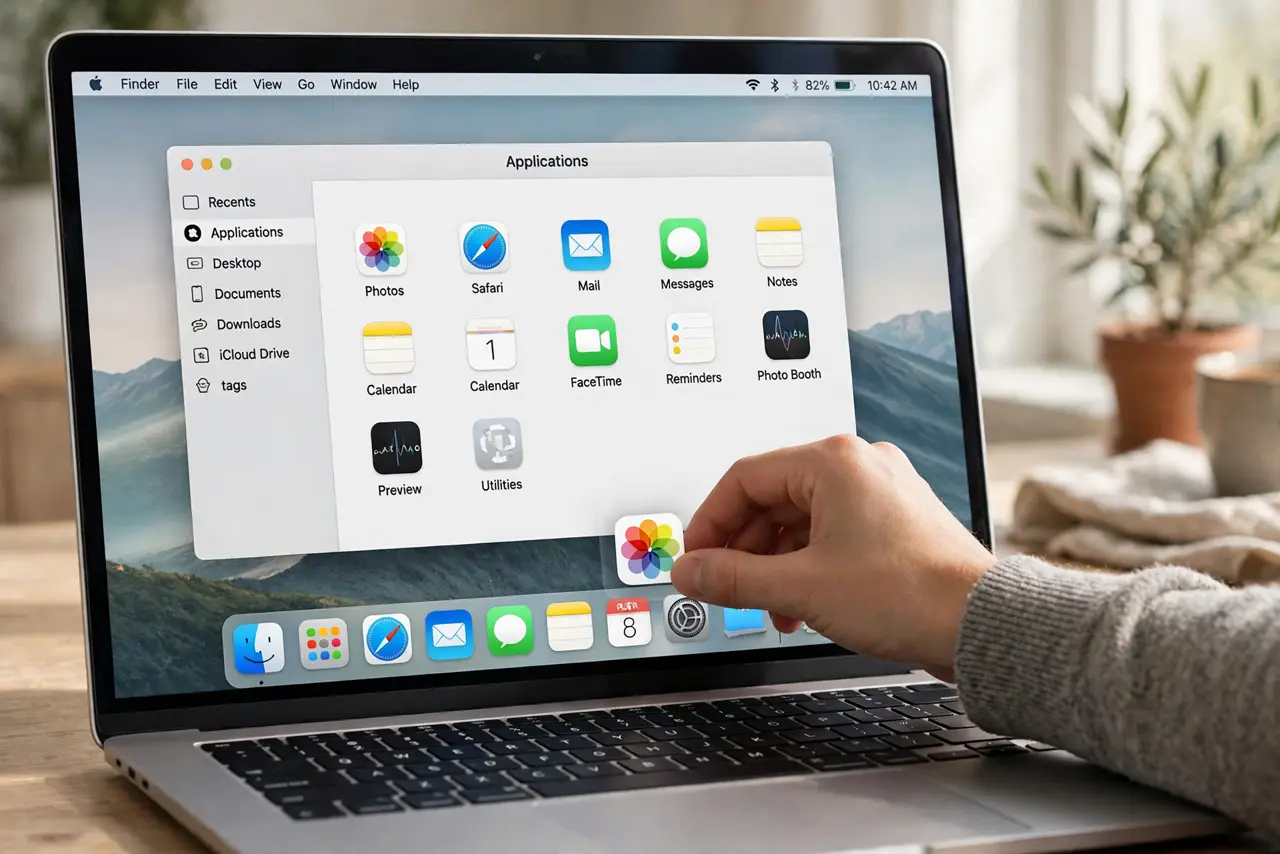
- Add apps by dragging. Open an app, then right-click its Dock icon and choose Options, Keep in Dock. Or drag any app from Finder or Launchpad straight into the Dock — left of the divider line.
- Remove apps by dragging out. Drag an unwanted icon up out of the Dock until you see Remove, then release. This only removes the shortcut — the app stays installed and safe in Applications.
- Rearrange into your workflow order. Drag icons left and right to reorder. Group by task — browsers together, work apps together — so your hand learns where everything lives.
- Tune size and magnification. Right-click the divider line and open Dock settings. A smaller Dock with magnification gives you precision plus readability — see magnification quirks if it behaves oddly.
- Consider auto-hide. In Dock settings, turn on the automatically-hide option to reclaim screen space, especially on smaller MacBooks. If the hide delay annoys you, there are delay tweaks to speed it up.
- Add spacers for visual groups. A terminal command adds blank spacers between icon groups, turning a long Dock into organized sections. It's reversible and surprisingly satisfying — see dock spacers.
What NOT to do
- Do not fill the Dock with every app you own. A Dock with 40 icons is just a second Launchpad — keep it to daily drivers and let the rest live in Launchpad or Spotlight.
- Do not delete apps from the Dock by dragging to Trash. Dragging out of the Dock removes the shortcut; dragging to Trash deletes the actual app — very different outcomes.
- Do not ignore the right side of the divider. That's where folders, minimized windows, and the Trash live — putting a Downloads folder there is genuinely useful.
- Do not crank magnification to maximum. Extreme magnification makes the Dock jumpy and hard to aim at — moderate settings feel best in practice.
Frequently asked questions
Can I move the Dock to the side?
Yes — in Dock settings you can position it left, bottom, or right. Side placement suits ultrawide monitors well; see moving the dock for the tradeoffs.
Why do icons keep bouncing?
Bouncing means an app wants your attention — a finished download, an incoming call. You can disable the bounce per app; see stop the bouncing if it drives you mad.
The Dock won't hide in fullscreen — why?
Usually a stuck app or a notification badge is holding it open. Quitting the nagging app or restarting the Dock from Activity Monitor fixes it — see fullscreen hide issues.