Desktop Stacks Sort Files Wrong? Fix It
You turned on Desktop Stacks and the piles sort in a baffling order, hiding the file you need. Stacks group and sort by rules you can change: kind, date, or tags. This guide sets the grouping that matches how you think.

TL;DR / Quick Fix
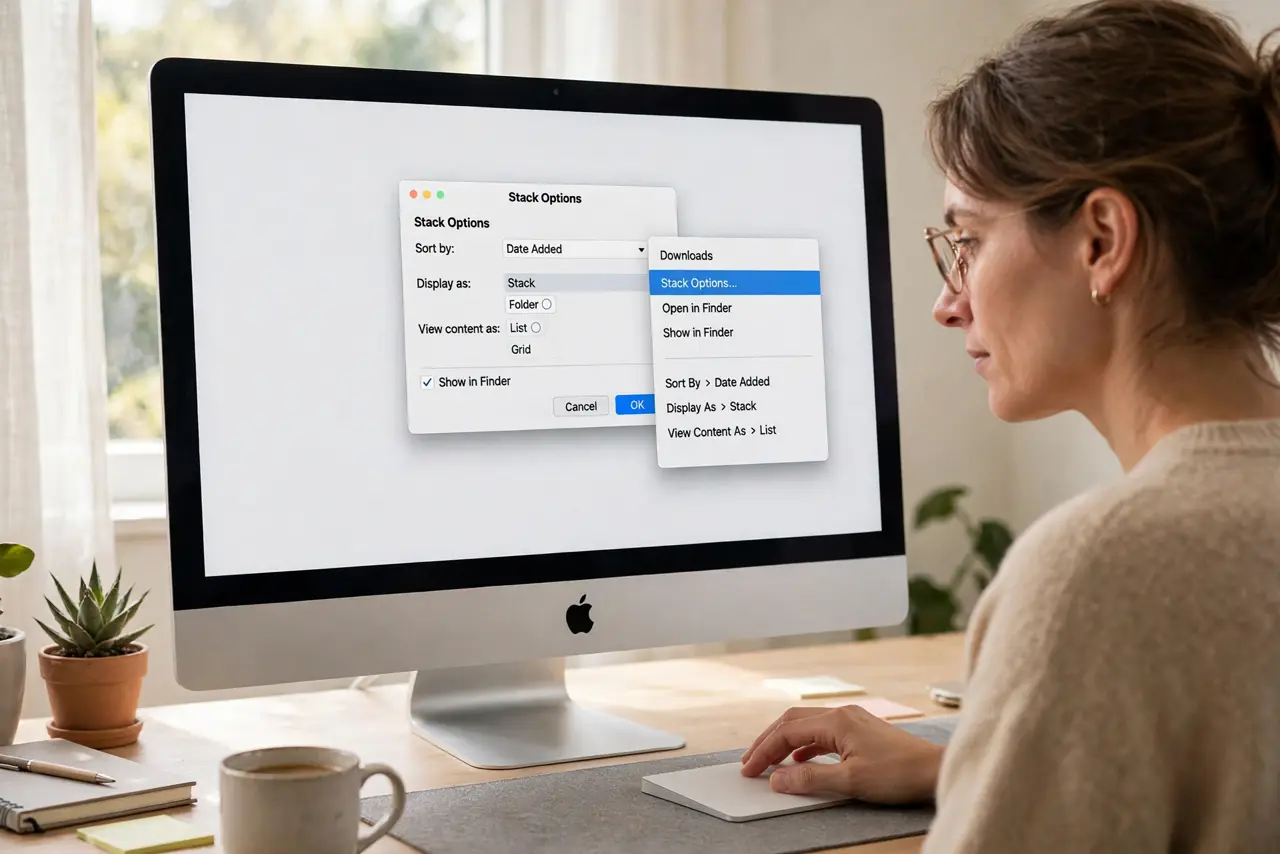
Quick fix: right-click the desktop, choose Group Stacks By, and pick the grouping that fits you — usually Kind or Date Last Opened. Then choose Sort By to order inside each stack, and expand a stack to verify your files land where expected.
Follow these steps
- Open the stack options. Right-click any empty desktop area and look at Group Stacks By and Sort By. These two menus control everything about stack order.
- Pick a grouping that matches you. Group by Kind if you think in file types, or by Date Last Opened if you think in recency. The wrong grouping is why the order feels random.
- Set the inner sort order. Use Sort By to order files inside each stack: name, date, or size. A sensible grouping with a bad inner sort still feels wrong.
- Expand stacks to verify. Click a stack to fan it out and check your files land sensibly. Verification beats assuming the new order works.
- Consider tags for power sorting. If you tag files, grouping by Finder tags creates meaningful piles automatically. Tags turn stacks from tidy into smart.
- Turn stacks off if they fight you. Stacks are optional. A sorted-by-name desktop with no stacks beats a clever system you cannot read.
What NOT to do
- Do not reorganize files to fit bad stacks. Fix the grouping instead; moving files around a confusing system just relocates the confusion.
- Do not use date added for active work. Date added buries edited files under newer downloads; date modified usually serves better.
- Do not stack the desktop and forget it. Stacks hide clutter rather than organize it, so archive old files periodically.
- Do not expect stacks in Finder windows. Stacks are a desktop-only feature; Finder windows use their own view options.
Frequently asked questions
How do Desktop Stacks sort files?
By the Group Stacks By rule you choose, then the Sort By order inside each stack. Both are changeable with a right-click.
Can I sort stacks by tags?
Yes. Group Stacks By offers Tags, which piles files by their Finder tag colors and names.
Why do my stacks look different after an update?
Updates can reset the grouping. Revisit the right-click menu and set it again.