Mac File Sizes Look Wrong? It's Base 10
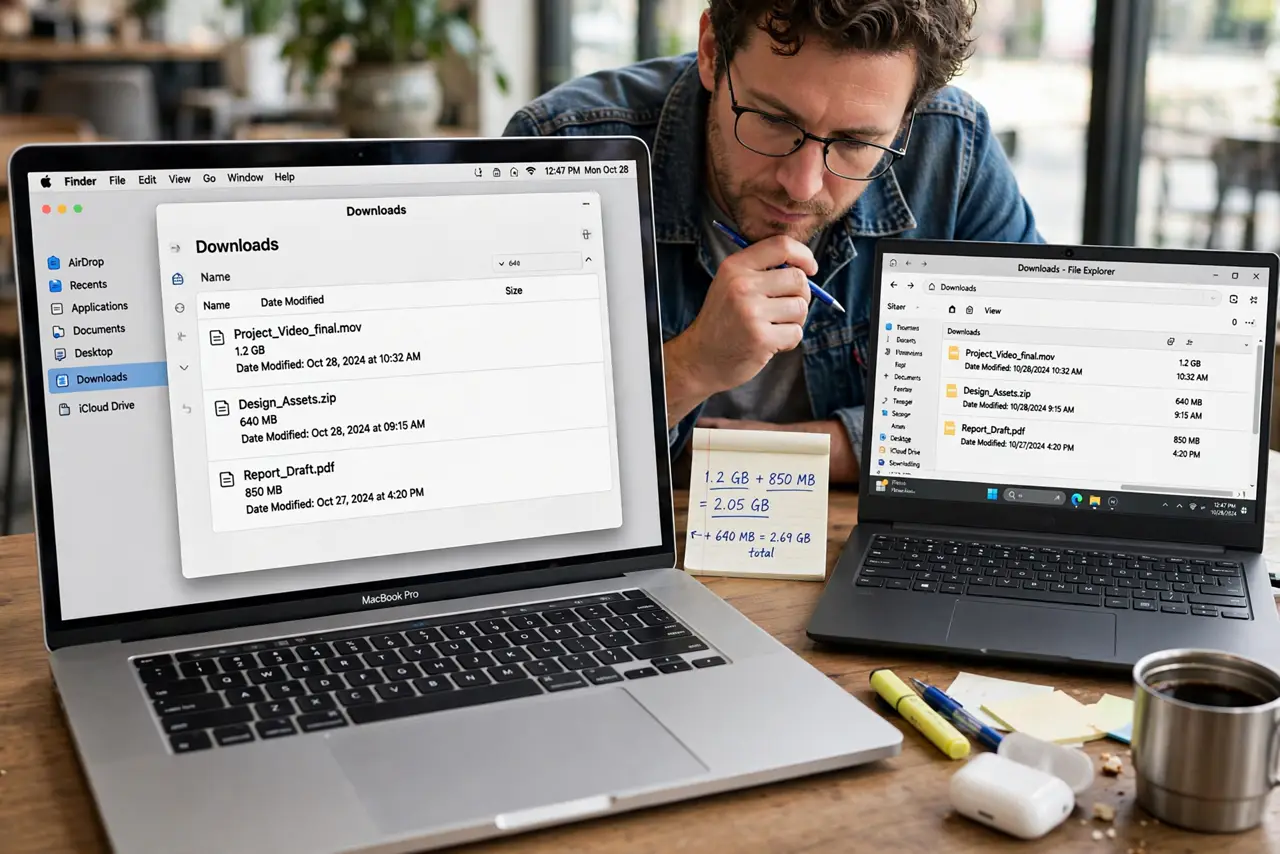
A 1TB drive shows less on Windows, or a file's size differs between your Mac and a PC. Nobody is lying; macOS counts in base 10 while Windows counts in base 2. This guide explains the math so the numbers stop looking broken.
TL;DR / Quick Fix
Quick fix: know that macOS counts 1GB as 1,000MB while Windows counts 1GB as 1,024MB, so the same drive always shows a smaller number on Windows. Multiply or divide by 1.024 per step to convert, and stop worrying — nothing is missing.
Follow these steps
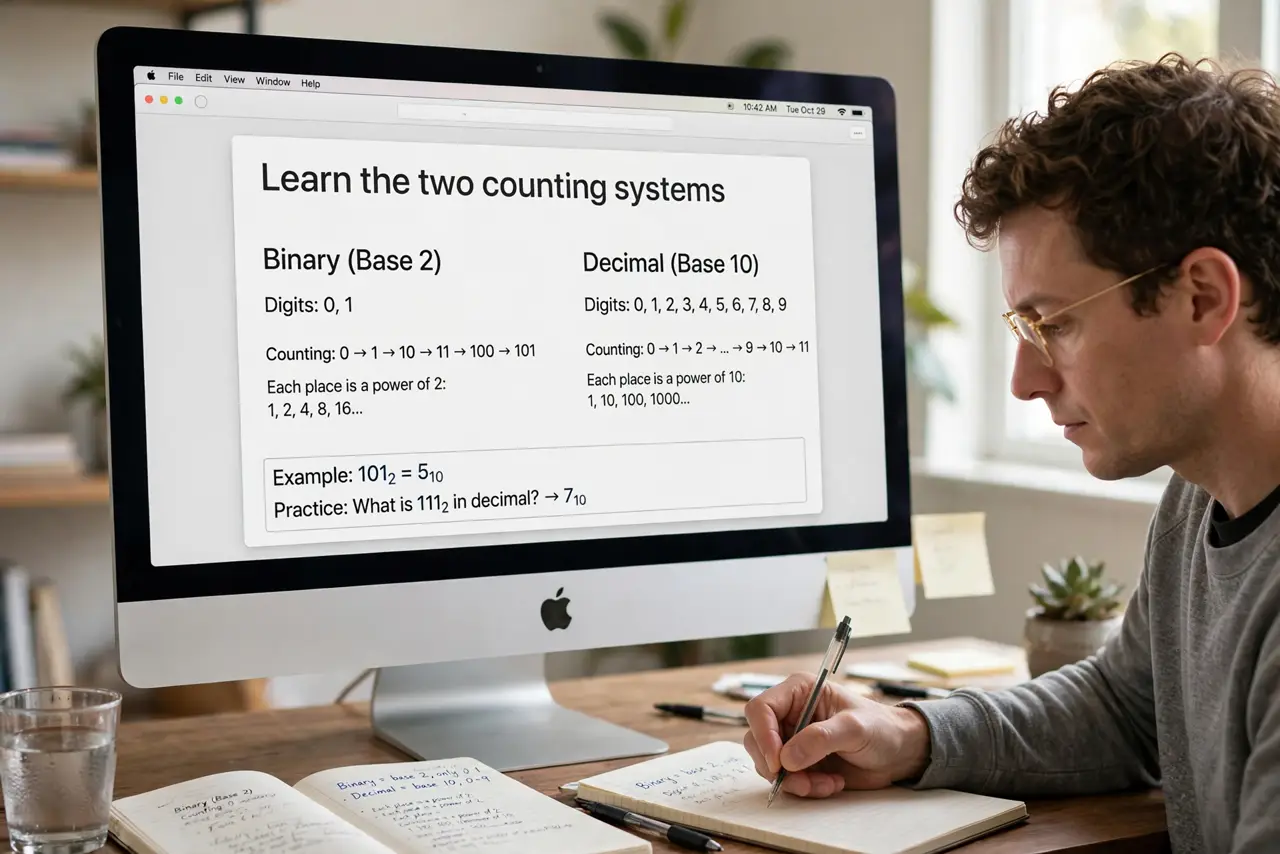
- Learn the two counting systems. macOS uses base 10: 1GB equals 1,000MB. Windows uses base 2: 1GB equals 1,024MB. The same bytes get different labels, which is the entire mystery.
- Do the quick conversion. To go from a Mac number to the Windows equivalent, divide by 1.024 for each step up. A 500GB Mac drive reads about 465GB in Windows, and every byte is still there.
- Check drive sizes with this in mind. That new 1TB drive showing 931GB on Windows lost nothing; the label math changed. Manufacturers advertise in base 10, matching the Mac's counting.
- Explain it to avoid false alarms. When someone says files vanished after moving to Windows, check the totals with base conversion first. Most size scares dissolve with the math.
- Watch for real discrepancies. If the converted numbers still do not match, then investigate. Base math explains the standard gap; a startup disk full with mismatched numbers needs the storage view, not arithmetic.
- Use Get Info consistently. Compare sizes using one system at a time. Mixing Mac and Windows numbers in one comparison guarantees confusion.
What NOT to do
- Do not reformat a drive over a size mismatch. The numbers differ by convention, and reformatting erases data for no gain.
- Do not assume the drive is defective. A smaller-than-box number on Windows is universal, not a sign of bad sectors.
- Do not trust rounded marketing sizes. Box sizes are base 10 and rounded up; the usable number is always a bit lower.
- Do not mix the two systems in one spreadsheet. Pick base 10 or base 2 and convert everything to it before comparing.
Frequently asked questions
Why does my 1TB drive show 931GB?
Because the box uses base 10 and Windows counts in base 2. Divide by 1.024 three times and 1TB becomes about 931GiB.
Which system is correct?
Both. They are just different units for the same bytes, like miles versus kilometers.
Does this affect file transfers?
No. Files copy byte-for-byte; only the displayed size labels differ between systems.