Dictate in Other Languages
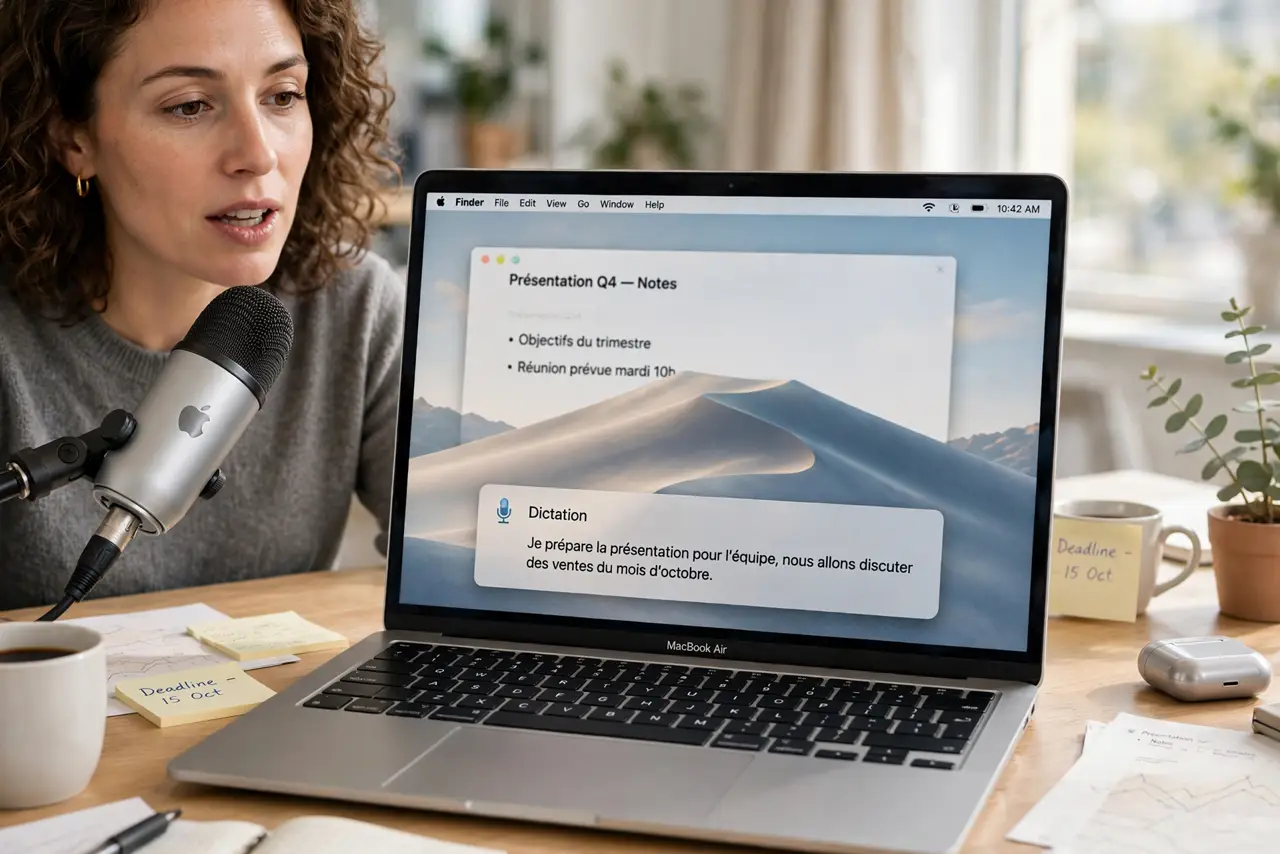
You think in Spanish but type emails in English — or you switch languages mid-document and the Mac keeps 'hearing' the wrong one. macOS dictation supports dozens of languages, and switching between them is a keyboard shortcut away once set up. This guide adds your languages, switches fluently, and fixes the misheard words. For hands-free control beyond dictation, explore custom voice commands.
TL;DR / Quick Fix
Quick fix: open System Settings, go to Keyboard, then Dictation, and add each language you speak under the language options. Switch languages with the dictation shortcut's language picker. Speak punctuation aloud — 'comma,' 'new paragraph' — for clean results in any language.
Follow these steps
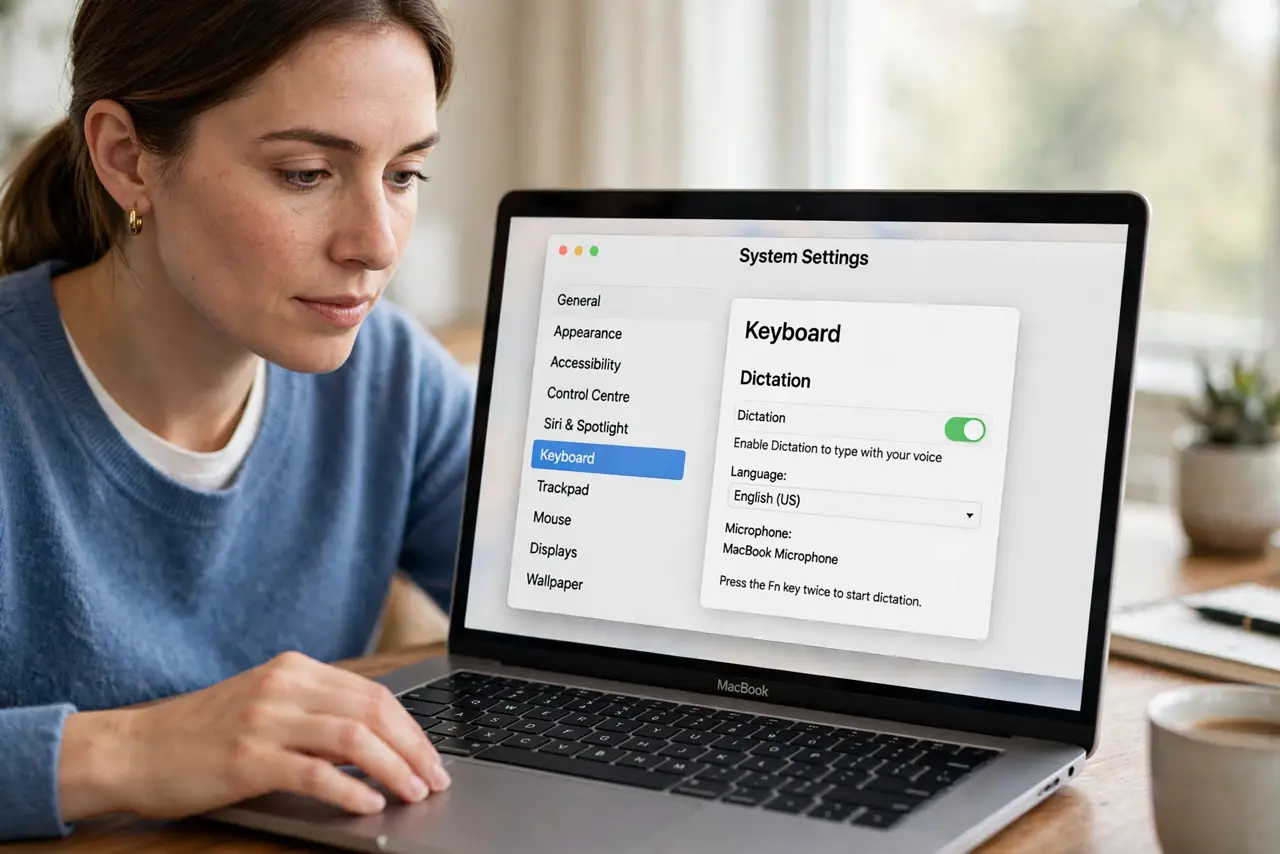
- Enable dictation. Go to System Settings, then Keyboard, then Dictation, and turn it on. Choose the dictation shortcut — pressing the mic key twice is the classic.
- Add your languages. In the dictation language options, add every language you speak. Download any required language packs while on Wi-Fi — offline packs are large.
- Switch languages fluently. When dictation is active, the language picker lets you switch mid-session. Set it before you start speaking — the recognizer commits to one language at a time.
- Speak punctuation. Say 'comma,' 'period,' 'new paragraph' aloud in the target language. Dictation inserts the marks — without them you get a wall of unpunctuated text.
- Correct the misheard. The recognizer learns from corrections. Fix errors by keyboard and it adapts to your voice and vocabulary over days, not minutes.
- Mind the privacy. Dictation processes on-device for many languages now, but some still use servers. Check the fine print if you dictate sensitive material.
What NOT to do
- Do not dictate sensitive material without checking the processing location. Some languages still route audio to servers — know before you speak secrets.
- Do not expect perfect code-switching. Mid-sentence language jumps confuse the recognizer — finish the thought, switch, continue.
- Do not mumble and blame the software. Dictation needs clear, steady speech — mumbling in any language produces creative fiction in every language.
- Do not forget the shortcut. Hunting through menus for dictation defeats the purpose — learn the key combo until it is reflex.
Frequently asked questions
Which languages are supported?
Dozens, including all major European, Asian, and Middle Eastern languages. Check the dictation language list for the exact roster.
Why does dictation misunderstand me?
Usually background noise, mumbling, or the wrong language selected. Fix those three before blaming the software.
Can I dictate offline?
With downloaded language packs, yes for supported languages. Without the pack, dictation needs an internet connection.