Custom Voice Commands
Voice Control on the Mac does more than dictate — it can run your Mac by voice, and custom commands teach it your personal vocabulary: 'open my invoices,' 'start focus mode,' 'type my address.' For repetitive tasks or hands-busy moments, a spoken command beats ten clicks. This guide creates custom commands, chains actions, and avoids the misfire traps. For dictation in multiple languages, see dictate in other languages.
TL;DR / Quick Fix
Quick fix: open System Settings, go to Accessibility, then Voice Control, and turn it on — then open Commands to create custom ones. Give each a distinct spoken phrase and attach actions like opening apps or pressing keys. Test each command aloud; distinct phrasing prevents misfires.
Follow these steps
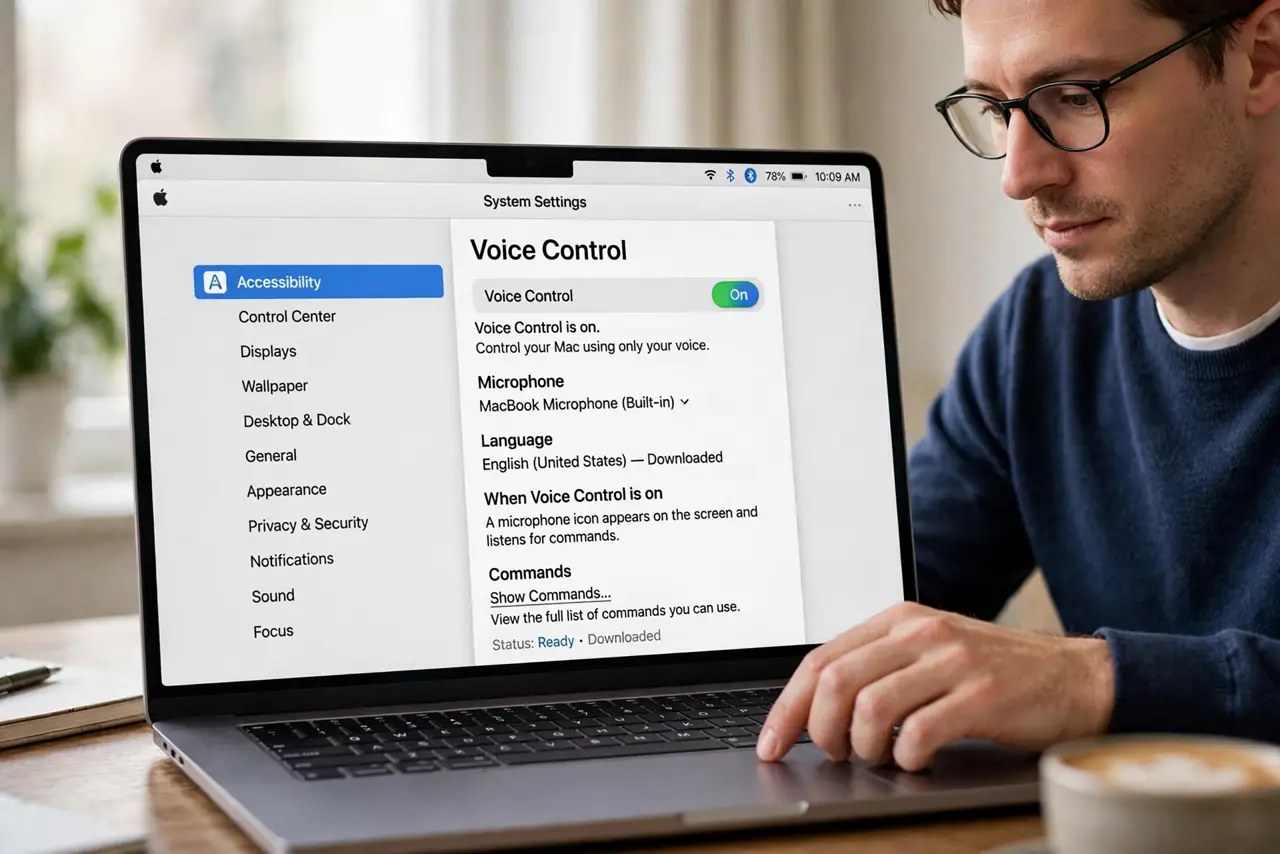
- Turn on Voice Control. Go to System Settings, then Accessibility, then Voice Control, and enable it. A microphone indicator appears — the Mac is now listening for commands.
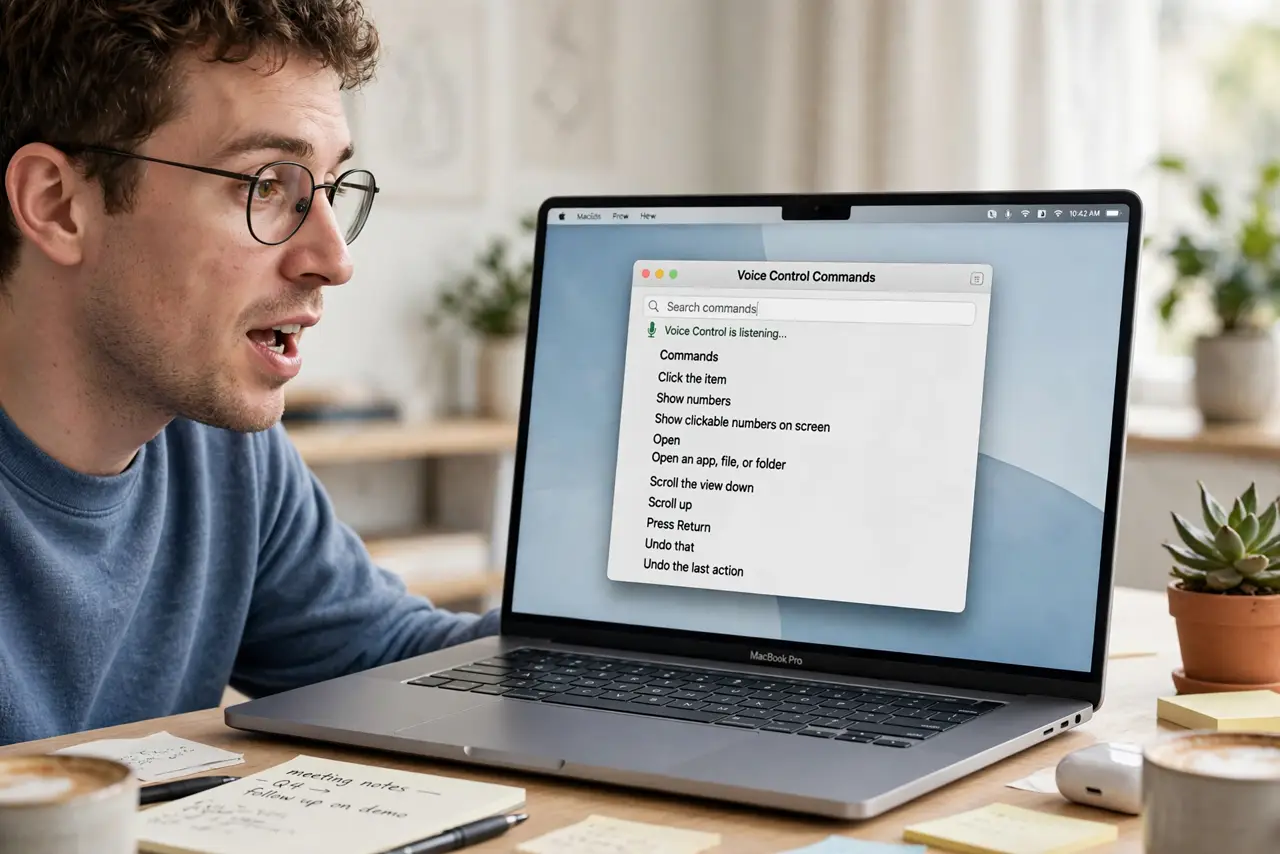
- Open the Commands list. Click Commands to see the built-in vocabulary. Browse it first — many things you want may already exist before you build custom ones.
- Create a custom command. Click the plus, type the exact phrase that triggers it ('open invoices'), choose the action — open app, press keys, run shortcut — and save.
- Chain actions. One command can perform several actions in sequence: open the app, wait, press keys. Build your morning routine into a single spoken phrase.
- Use distinct phrasing. Commands misfire when phrases sound alike. 'Open mail' and 'open maps' are risky neighbors — rename one to something unmistakable.
- Test and refine. Say each command in your normal voice, in your normal room. Background noise and mumbling cause most misfires — adjust phrasing, not volume.
What NOT to do
- Do not create commands that sound like dictation. 'Type hello' as a command fights with dictating the words 'type hello' — keep vocabularies separate.
- Do not use it for passwords. Speaking credentials aloud is observable — type sensitive input by hand, always.
- Do not enable it in shared spaces without thought. A coworker's conversation can trigger your commands — the Mac cannot tell voices apart reliably.
- Do not stack twenty commands at once. Five reliable ones beat twenty flaky ones — grow the set as each proves itself.
Frequently asked questions
Does Voice Control work offline?
Mostly yes — the core engine runs on-device. Some advanced features may need connectivity, but basic commands work offline.
Can it distinguish my voice from others?
Not reliably. Anyone speaking the trigger phrase nearby can fire your commands — a real consideration in shared rooms.
What is the difference from Siri?
Siri answers questions and does webby tasks; Voice Control operates the Mac itself — clicks, keys, apps. Different tools, complementary.