Dictate Offline on Mac
Mac dictation keeps warning it needs the internet, or you'd just rather your voice never leaves the machine. macOS can dictate fully offline once you download the language pack — same feature, no cloud. Here's how to switch it on and what changes.
TL;DR / Quick Fix
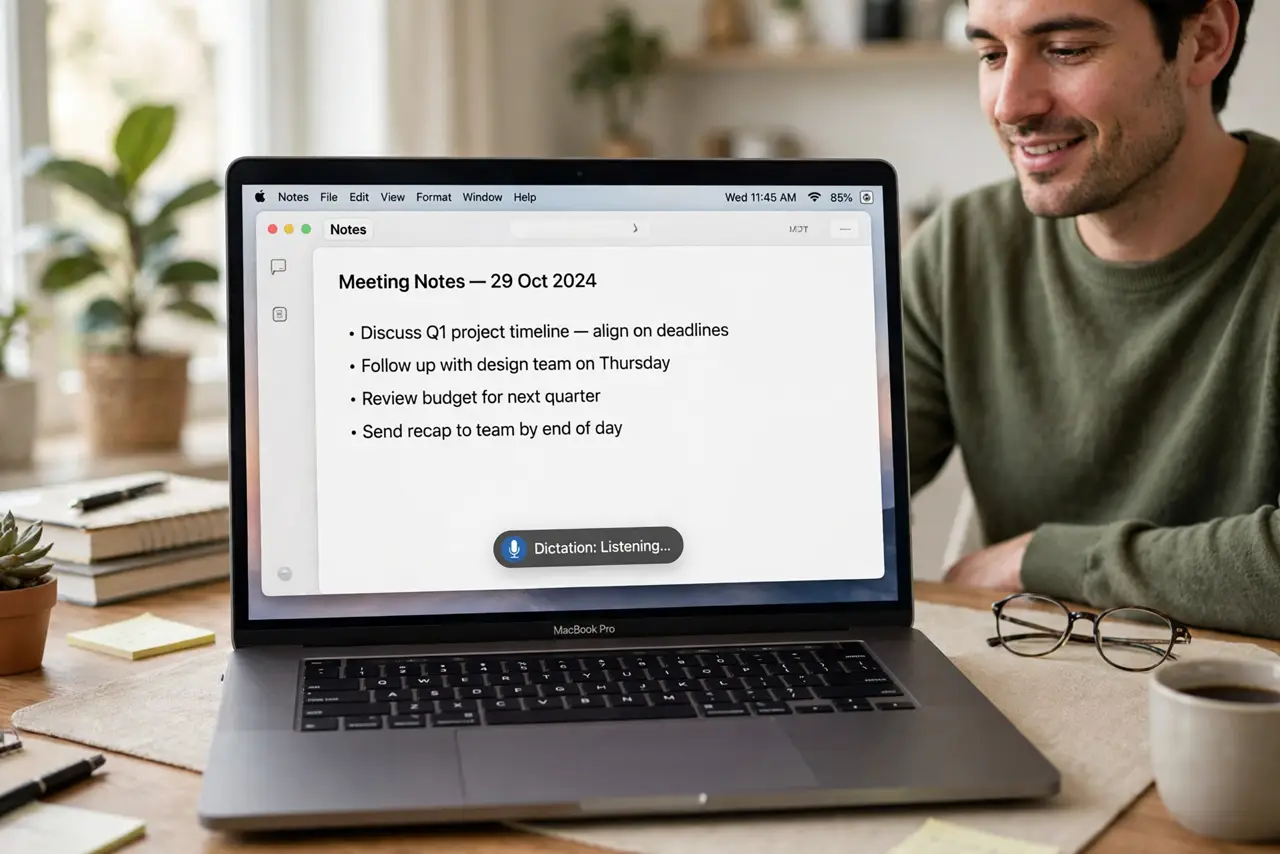
Quick fix: open System Settings, go to Keyboard, turn on Dictation, and download your language for offline use. Press the Fn key twice to start dictating anywhere you can type. Speak punctuation — say 'comma' and 'period' — since offline mode won't guess it for you.
Follow these steps
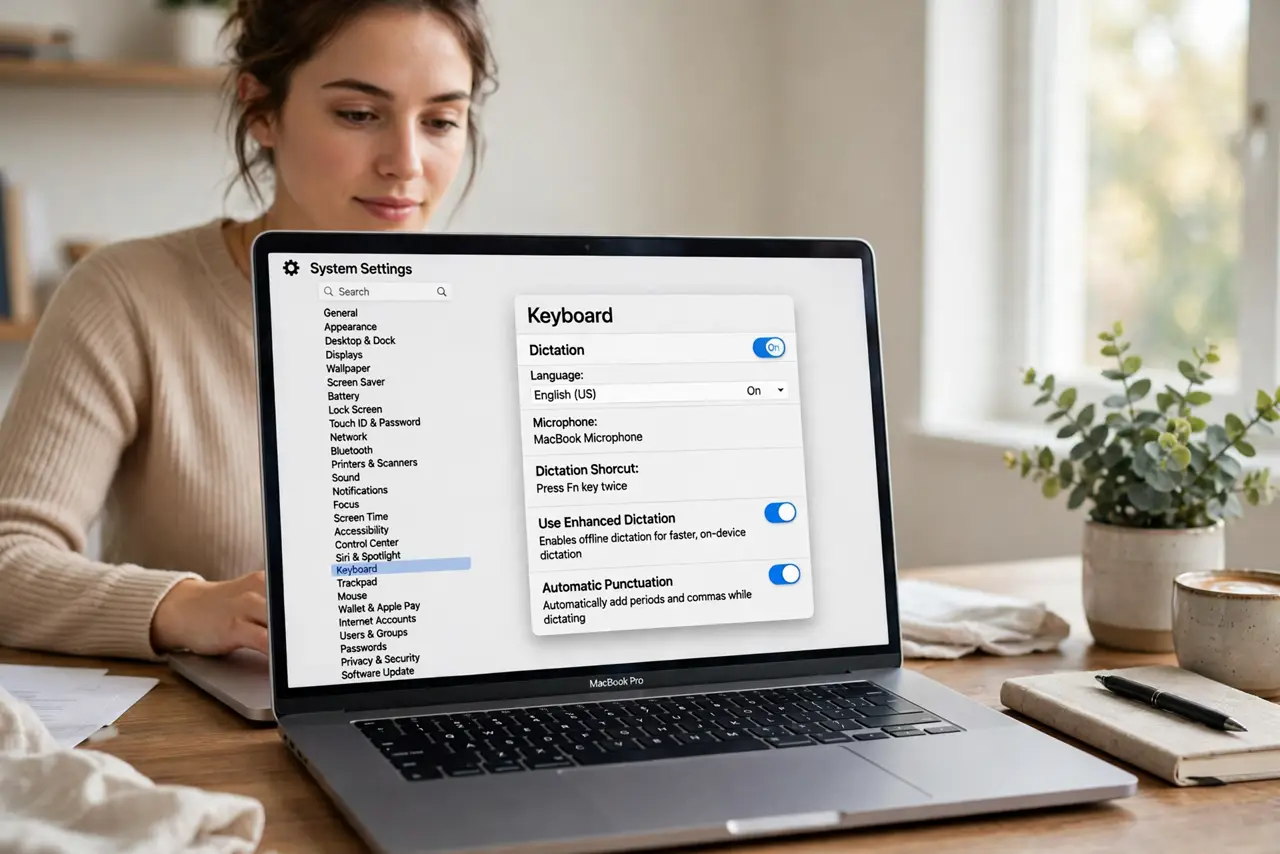
- Open System Settings to Keyboard. Apple menu, System Settings, then Keyboard in the sidebar. Dictation settings live here, not in Accessibility.
- Turn on Dictation. Flip the Dictation toggle on. macOS will offer the feature — accept, and note the option about offline use.
- Download your language for offline use. Choose your language and download its offline pack. Without the download, dictation phones home to Apple's servers — the pack is what keeps it on-device. If dictation misbehaves, see the offline troubleshooting.
- Start dictating with Fn twice. Click where you can type, then press the Fn key twice. The microphone indicator appears — speak naturally, then press Fn again or click Done.
- Speak your punctuation. Say 'comma,' 'period,' 'new paragraph' as you go. Offline mode is literal — it types what you say, so punctuation must be spoken.
- Know the accuracy tradeoff. Offline dictation is private but slightly less sharp on unusual words than the cloud version. For everyday writing it's excellent; for jargon-heavy work, speak clearly and edit after.
What NOT to do
- Do not expect offline mode to guess punctuation. It types literally what you say — 'comma' and 'period' must be spoken aloud.
- Do not skip the language download. Without the offline pack, dictation silently uses the cloud — the download is the whole point.
- Do not dictate passwords or secrets aloud. Microphones, ears, and open offices exist — type sensitive strings by hand.
- Do not assume it works identically in every app. It works anywhere you can type, but some apps with custom text fields behave oddly — test yours.
Frequently asked questions
Which languages work offline?
Most major languages offer offline packs — check the language list in the Dictation settings on your macOS version.
Is offline dictation really private?
Yes — with the language pack downloaded, processing stays on your Mac and nothing is sent to Apple for transcription.
Why does it still ask for internet sometimes?
The offline pack may be missing for your language, or a setting reverted. Re-check the download in Keyboard settings.