Change the Color Profile
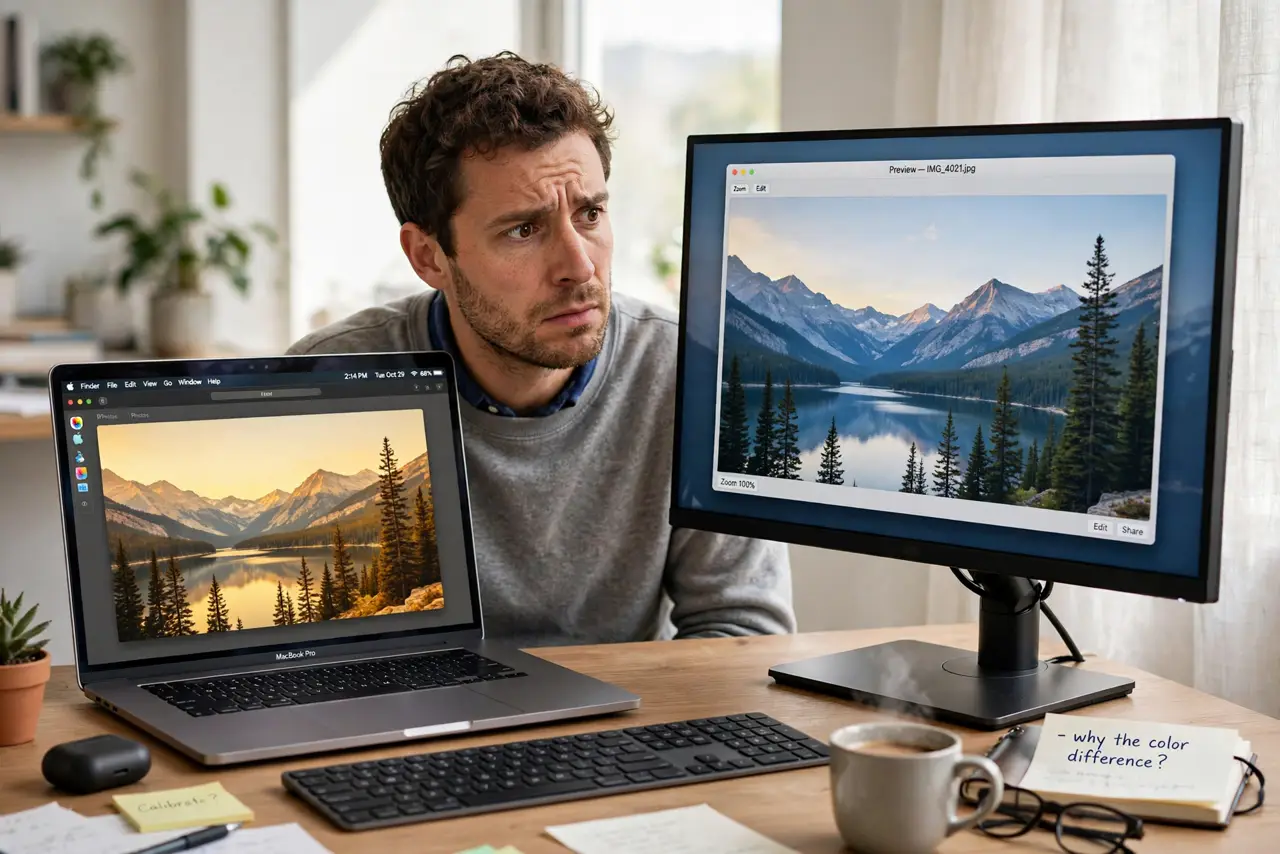
Photos look right on your Mac but wrong everywhere else — or an external monitor shows everything slightly green. The color profile is the translation table between your screen and standard colors, and the wrong one makes every app lie to you. Choosing the right profile is quick once you know where it hides.
TL;DR / Quick Fix
Quick fix: open System Settings, go to Displays, and choose a color profile that matches your screen or printer. The default is usually right for the built-in display. Switch profiles only when colors look wrong on an external monitor or before color-critical photo work.
Follow these steps
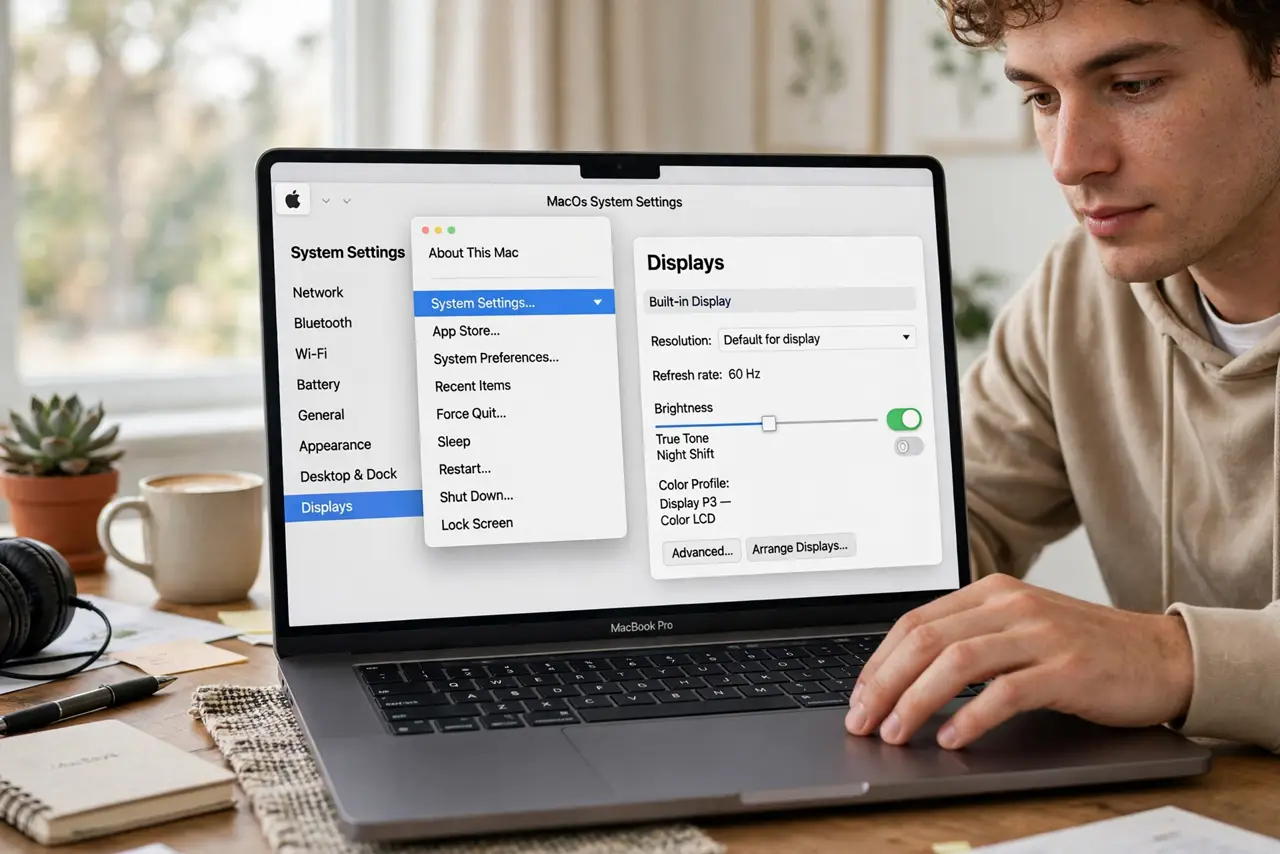
- Open Displays settings. Click the Apple menu, choose System Settings, then Displays. Select the display you want to adjust if you have more than one.
- Find the color profile list. Look for the Color profile dropdown. It lists the profiles macOS knows for that display.
- Leave the built-in display on its default. Apple calibrates built-in displays at the factory. The default profile is almost always the most accurate choice — change it only with reason.
- Match external monitors to their profile. A monitor showing a green or magenta cast is usually on a generic profile. Pick the one named for your monitor model.
- Turn off True Tone before judging color. True Tone shifts colors with room light, which makes profile comparisons meaningless. Disable it while you evaluate.
- Recheck after major display changes. New monitor, new cable, new dock — any of these can reset the profile. A quick glance at the dropdown after hardware changes saves confusion.
What NOT to do
- Do not download random ICC profiles from the internet. Mismatched profiles make color worse, not better — use the ones macOS provides.
- Do not 'fix' a tinted screen by cranking brightness. Brightness changes luminance, not color cast — the profile is the right tool.
- Do not calibrate by eye with a web tutorial. Eyeball calibration drifts with room light and mood; it is worse than the factory default.
- Do not change the built-in display profile because a photo looked off. Check the photo's own color space first — sRGB versus wide-gamut mismatches are the usual cause.
Frequently asked questions
What is a color profile, exactly?
A small file describing how your specific display turns numbers into colors. Apps use it to translate image data into what your screen can actually show.
Why do colors differ between my two monitors?
Different panels render color differently, and each needs its own profile. Matching them perfectly usually requires a hardware calibrator.
Can the wrong profile damage my display?
No — profiles only change the color math, never the hardware. The worst case is ugly colors until you switch back.