True Tone? What It Does
Your Mac's screen looks crisp white at noon and oddly warm at night — or was it the other way around? That shifting is True Tone, which reads the ambient light and tints the display to match. It is easy on the eyes for reading, but it quietly sabotages color-accurate work. Know what it does and when to switch it off.
TL;DR / Quick Fix
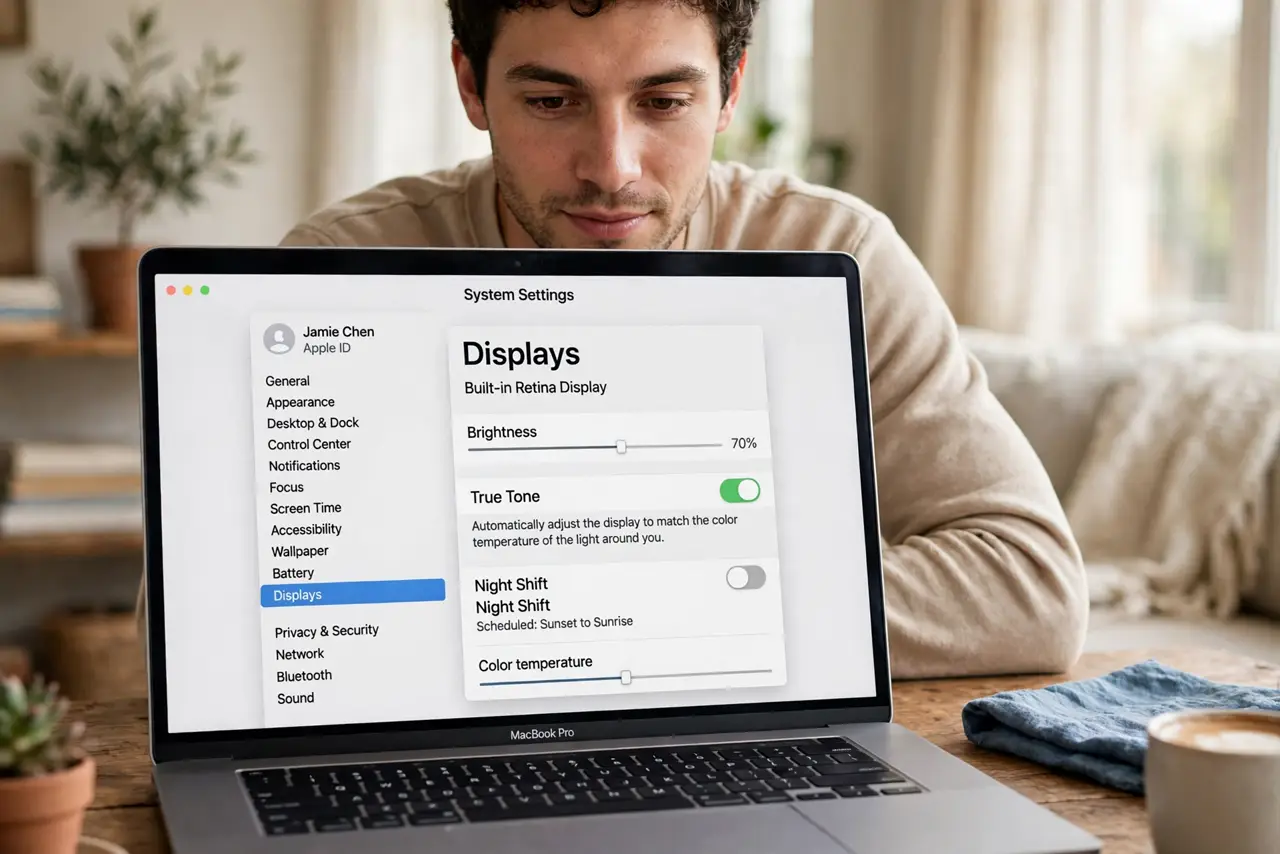
Quick fix: True Tone adjusts your Mac's display color to match the light around you, so whites look natural indoors and out. Find it in System Settings under Displays. Leave it on for reading and everyday work; turn it off temporarily when you edit photos, since it shifts colors.
Follow these steps
- Find the True Tone toggle. Open System Settings and go to Displays. True Tone sits near the top — one switch, no submenu.
- Understand what it measures. Sensors around the display sample the room's light color. Warm lamplight gets a warm screen; cool daylight gets a cool screen. Whites always look 'paper-like' for the environment.
- Leave it on for reading and browsing. Documents, email, and the web look more natural with True Tone on, especially under indoor lighting. Eye strain drops for many people.
- Turn it off for color-critical work. Photo editing, design, and print proofing need stable colors. True Tone shifting mid-edit means the colors you see are not the colors in the file — check your color profile too.
- Do not confuse it with Night Shift. Night Shift warms the screen on a schedule to help sleep. True Tone reacts to the room instantly. They stack — both can be on at once.
- Toggle it per situation, not forever. There is no prize for one permanent choice. On for the evening read, off for the photo edit — the switch is two clicks away.
What NOT to do
- Do not calibrate your display with True Tone on. Calibration needs a stable target — True Tone keeps moving it.
- Do not assume the screen is broken when colors shift. Nine times out of ten it is True Tone or Night Shift doing its job.
- Do not turn it off permanently 'for accuracy' if you never edit photos. For everyday use, the adaptive look is the more accurate-feeling one.
- Do not confuse a warm screen with a failing backlight. Backlight failure shows as dimness or uneven patches, not an even warm tint.
Frequently asked questions
Does True Tone drain the battery?
Negligibly. The sensors sip power — far less than the display backlight itself. Battery life is effectively unchanged.
Why is my screen still warm with True Tone off?
Check Night Shift — it is the other warmth source, and it follows a sunset schedule independently.
Do external monitors get True Tone?
Only Apple displays with the right sensors. Third-party monitors keep whatever color they shipped with.