DMG Files? Basics
You downloaded a Mac app and got a .dmg file — a mysterious disk image that opens a window telling you to drag something somewhere. DMG is simply Apple's way of packaging software for download: a virtual disk that holds the app installer. Once you know the two-step ritual, it takes ten seconds. Here is what DMGs are and how to handle them safely.
TL;DR / Quick Fix
Quick fix: a DMG is a virtual disk image Macs use to deliver apps — double-click it, then drag the app into the Applications folder. After installing, eject the disk image and delete the DMG. Only download DMGs from the developer's official site.
Follow these steps
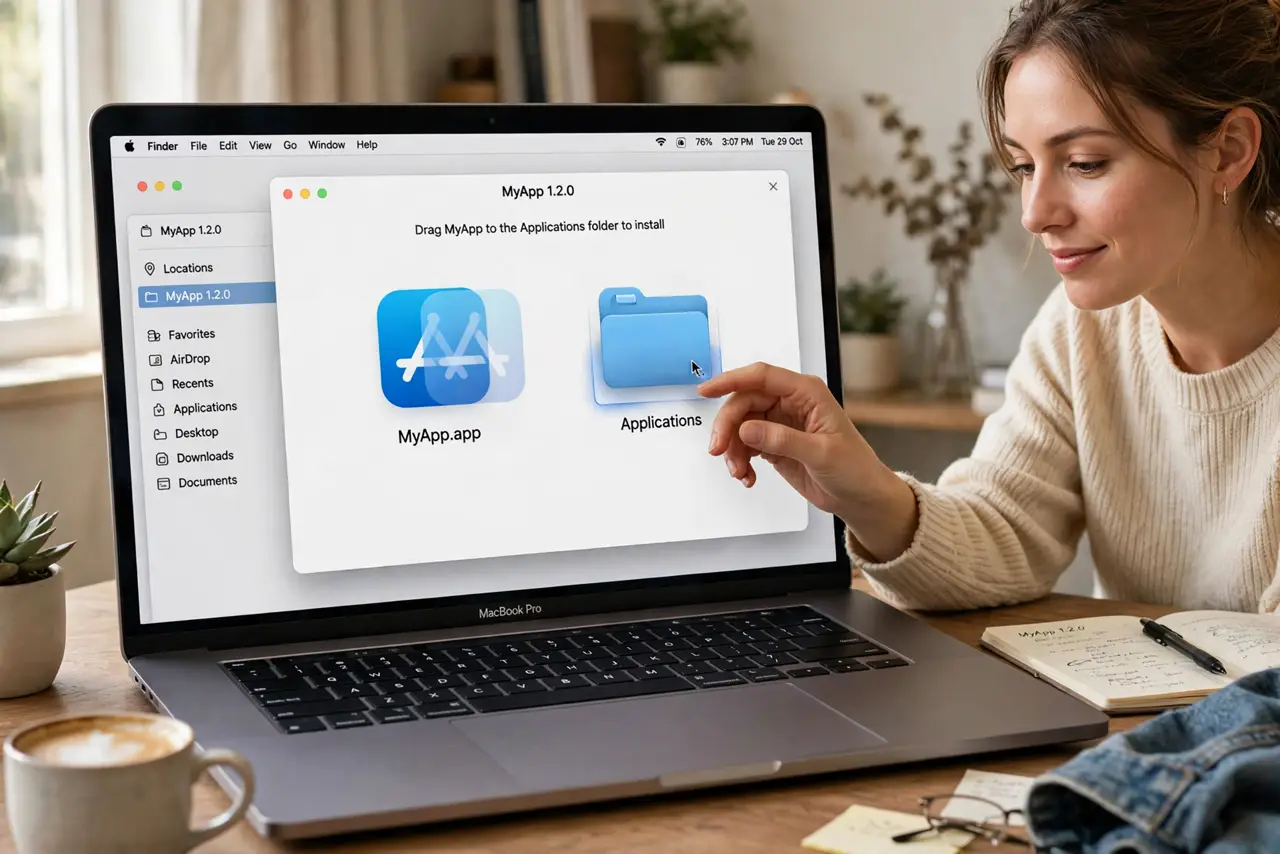
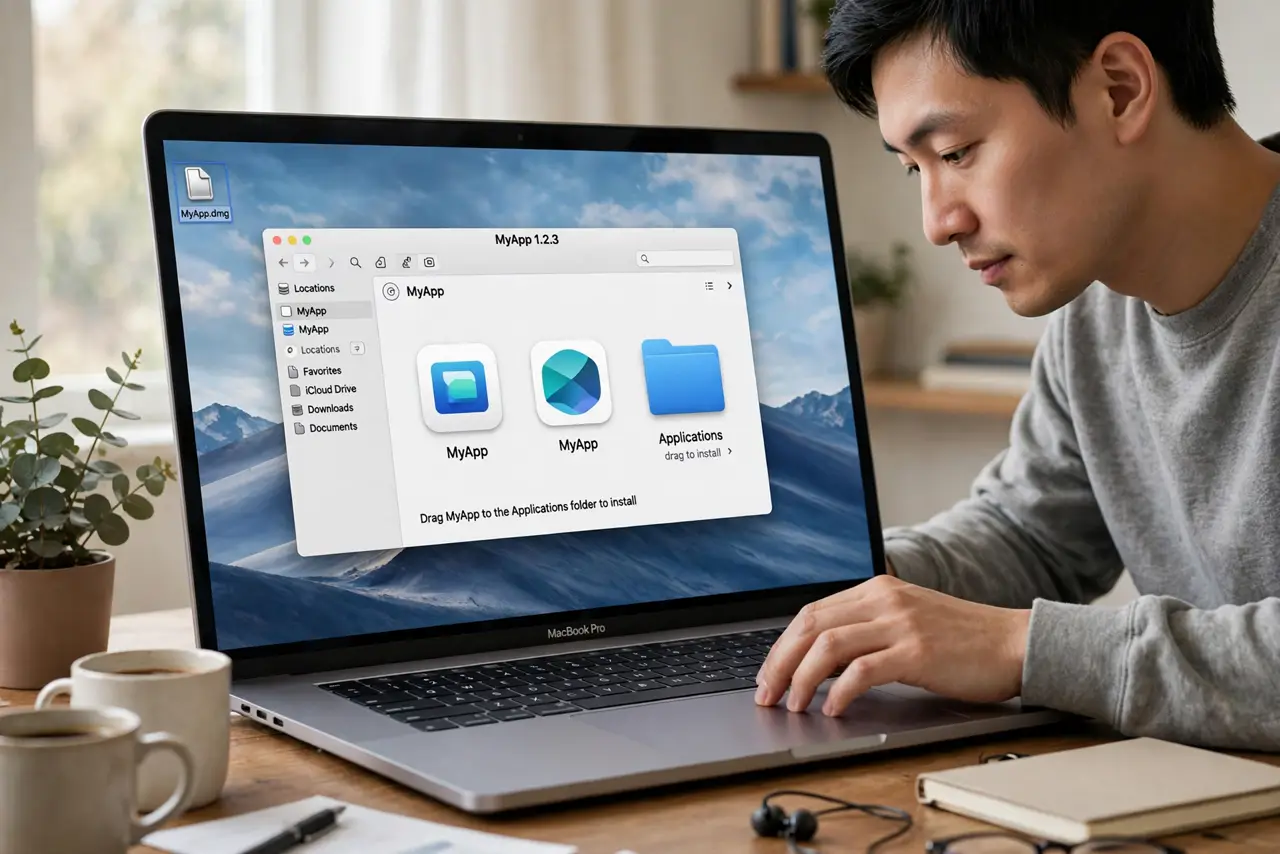
- Open the DMG. Double-click the .dmg file. macOS mounts it like a plugged-in drive and opens a window — usually showing the app icon and an arrow pointing to an Applications folder shortcut.
- Drag the app to Applications. Drag the app icon onto the Applications folder in that window. This copies it to your Mac properly. Do not run the app from inside the DMG window — it will misbehave and lose settings.
- Eject the disk image. After copying, eject the mounted DMG from Finder's sidebar (or drag it to the trash, which becomes an eject icon). Leaving mounted images around clutters your desktop.
- Delete the DMG file. Once the app runs fine from Applications, the DMG in your Downloads folder is just taking up space. Delete it — you can always download it again.
- Handle the security warning calmly. First launch of a downloaded app shows a warning that it came from the internet. That is normal Gatekeeper behavior. Only proceed if you got the DMG from the developer's official site — see installing apps safely for the full checklist.
- Know when to prefer the App Store. The Mac App Store handles installation and updates automatically with sandboxing. Direct DMG downloads give you the newest version faster but put the trust decision on you.
What NOT to do
- Do not run apps from inside the mounted DMG. Copy to Applications first — running from the image causes lost settings and update failures.
- Do not download DMGs from random download sites. Repackaged installers are a classic malware vector — official site or App Store only.
- Do not bypass Gatekeeper for an app you do not trust. Right-click-open overrides exist for legitimate unsigned apps, not for sketchy downloads.
- Do not keep the DMG after installing. It is installer clutter — eject the image and delete the file once the app works.
Frequently asked questions
Why does macOS say the DMG is damaged?
The download may be incomplete — re-download it. If it persists from the official site, the file may be too old for your macOS version; check the developer's compatibility notes.
Can I delete the DMG after installing?
Yes. The installed app in Applications is independent of the DMG. Eject the mounted image, delete the .dmg file, done.
What is the difference between DMG and PKG?
A DMG is a disk image you drag from; a PKG runs an installer wizard. Both are legitimate — PKGs just install more automatically, so scrutinize their source equally.