Silence Alerts While Presenting
You are sharing your screen in a meeting and a personal message banner slides in for the whole room to read. Do Not Disturb exists precisely for this — and macOS can switch it on automatically whenever you mirror a display. Set it once and present without fear.

TL;DR / Quick Fix
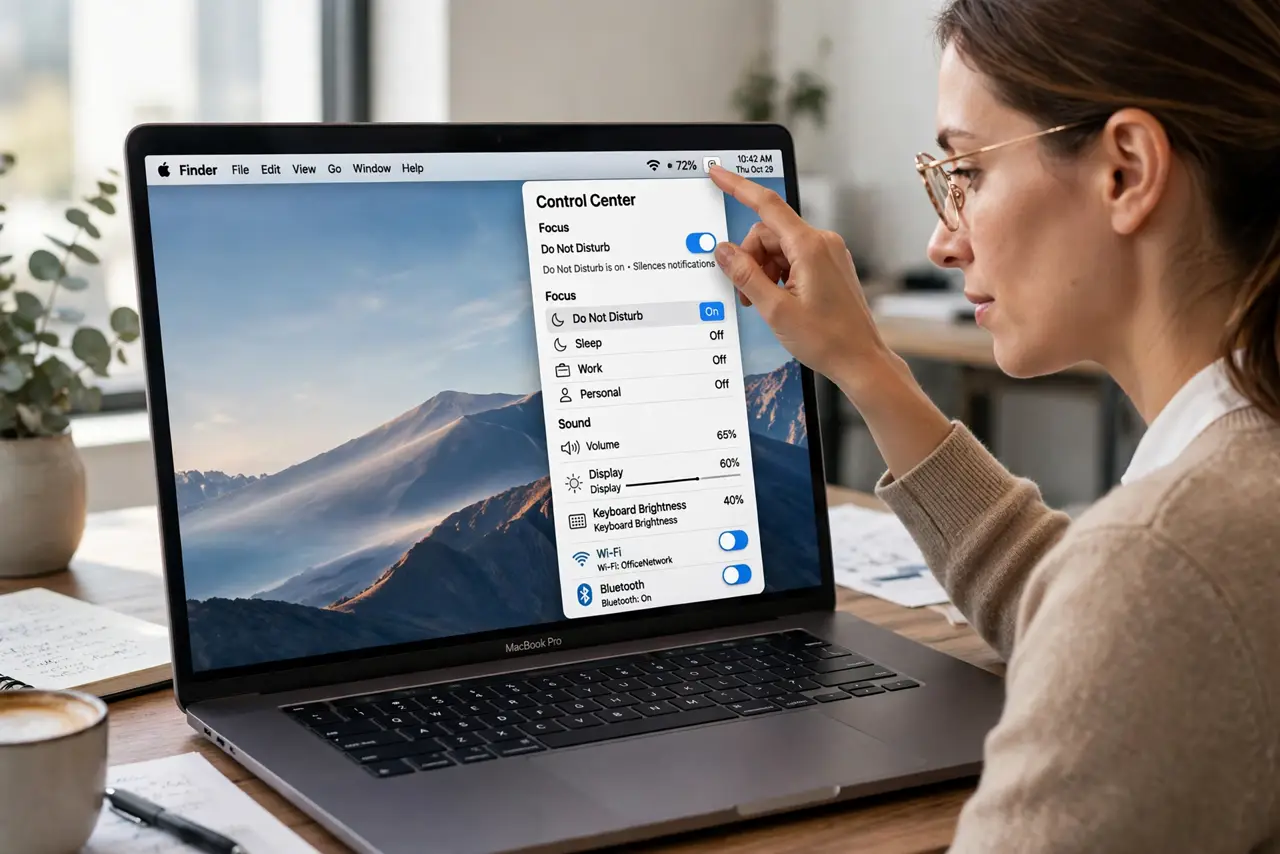
Quick fix: open System Settings > Focus > Do Not Disturb and add a schedule, or turn it on manually from Control Center before you share your screen. macOS can also enable it automatically while mirroring a display. Either way, banners stay silent until you switch it off.
Follow these steps
- Turn it on manually before presenting. Click Control Center in the menu bar, open Focus, and enable Do Not Disturb. Thirty seconds of prevention.
- Set up automatic mirroring silence. In Focus settings, add an automation so Do Not Disturb engages when a display is mirrored or connected. The presentation scenario is exactly what this is for.
- Add a schedule as backup. A recurring meeting block with Do Not Disturb scheduled covers the days you forget the manual toggle.
- Allow truly urgent calls. In the Focus allow-list, keep family or your manager able to break through. Silence is for banners, not emergencies.
- Check it before you share. Glance at the menu bar: the Focus icon shows when Do Not Disturb is active. One look beats one embarrassment.
- Switch it off after. Do Not Disturb does not expire on its own unless scheduled. Turn it off when the meeting ends or you will miss the afternoon.
What NOT to do
- Do not rely on full-screen alone. Full-screen apps hide the Dock but notification banners still slide over them.
- Do not forget screen recording. Recordings capture banners too — Do Not Disturb protects demos and tutorials equally.
- Do not leave it on indefinitely. A forgotten Do Not Disturb silences the messages you actually wanted after the meeting.
- Do not assume mirroring apps do this. Zoom and Meet do not auto-silence your Mac — the system setting is what protects you.
Frequently asked questions
Will Do Not Disturb hide my shared screen content?
No — it only suppresses notification banners and sounds. Your presentation shares exactly as before.
Does it silence sounds too, or just banners?
Both. Notification sounds are suppressed along with their banners while the Focus is active.
Can I automate it for every meeting?
Calendar-based automation is limited, but the mirror-display trigger plus a schedule covers nearly every presenting scenario.