Add Spacers to Organize the Dock
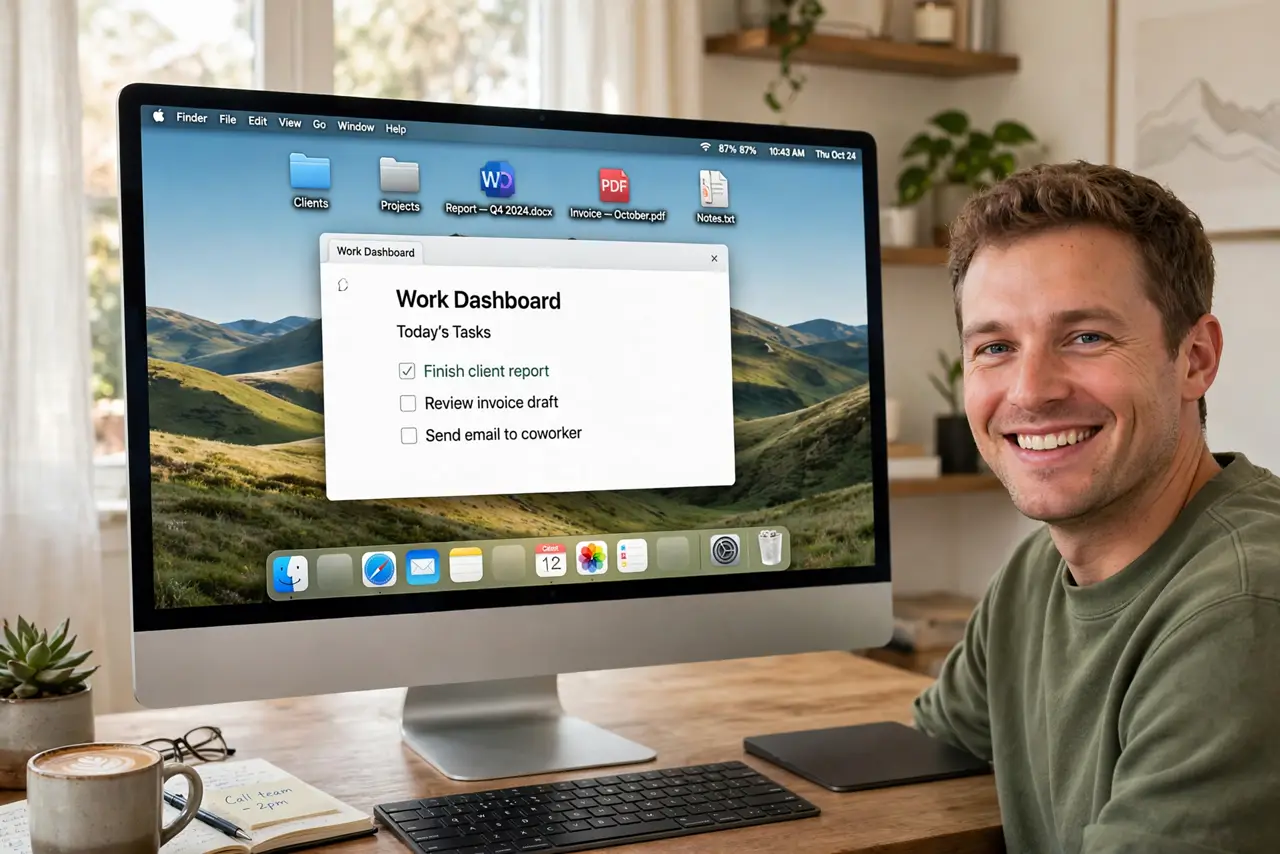
Your Dock is one long undifferentiated parade of icons — work apps, chat apps, and games all mashed together. Invisible spacer tiles create breathing room between groups, turning the parade into neat sections. It takes one Terminal command per spacer, and they drag like normal icons.
TL;DR / Quick Fix
Quick fix: in Terminal, add a spacer tile with the defaults command, then killall Dock — a blank gap appears among your icons. Drag it between app groups to separate them. Add several for clear zones; right-click a spacer and choose Remove from Dock to delete it.
Follow these steps
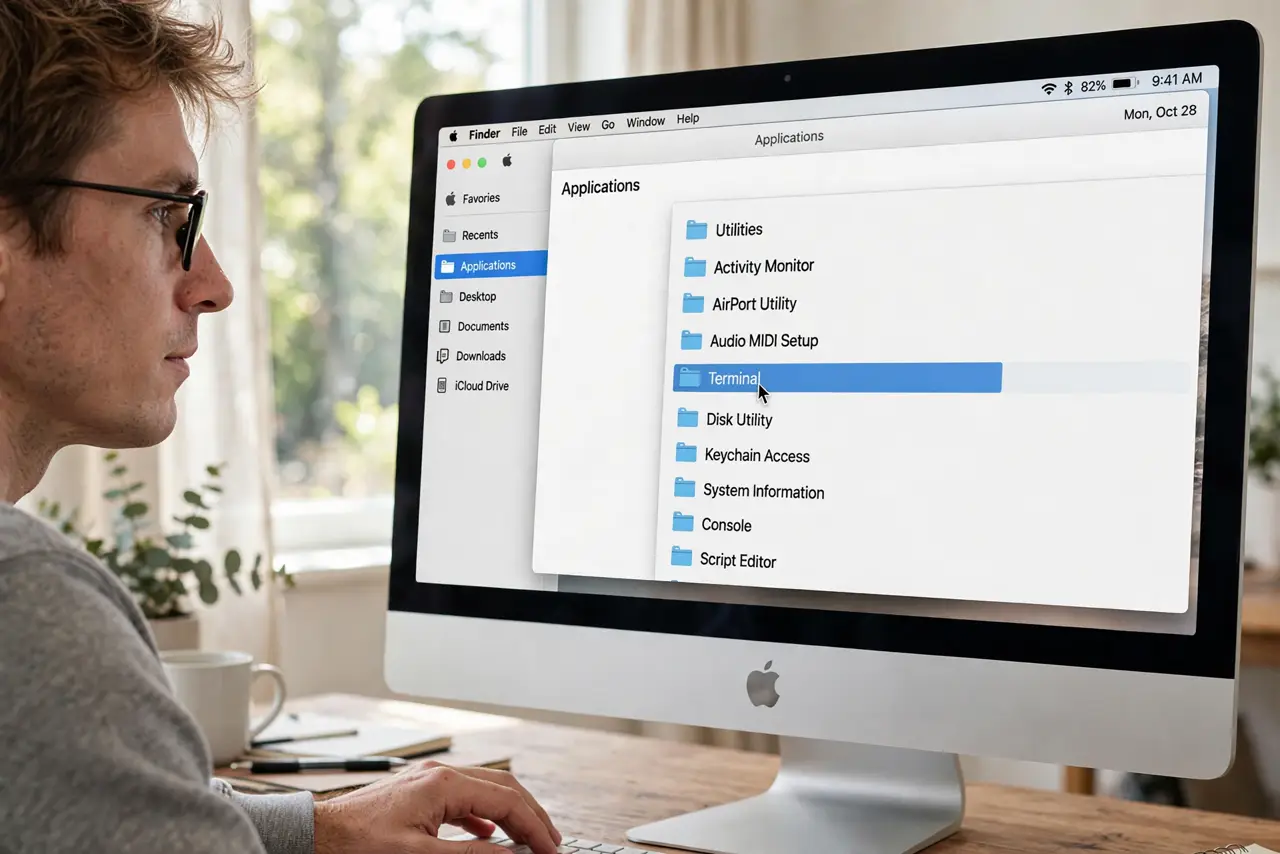
- Open Terminal. Launch Terminal from Applications > Utilities or via Spotlight.
- Add a spacer tile. Run the defaults command that appends a spacer tile to the Dock's app list. It writes one invisible entry — nothing visible happens yet.
- Restart the Dock. Run killall Dock. The Dock blinks and relaunches, now with a blank gap sitting at the end near the divider.
- Drag it into place. Drag the spacer between app groups like any icon — work apps on one side, fun apps on the other.
- Add more for more zones. Repeat the command for each gap you want. Three or four spacers turn a long Dock into readable sections.
- Remove one anytime. Right-click a spacer and choose Remove from Dock. Spacers are pure decoration — removing them affects nothing.
What NOT to do
- Do not fear killall Dock. It restarts the Dock process only — no apps quit and no work is lost.
- Do not run spacer commands from untrusted scripts. The single documented defaults command is all you need.
- Do not expect spacers to sync. They live in this Mac's Dock preferences, not in iCloud.
- Do not confuse spacers with separators. The thin divider lines are automatic; spacers are the wide blank gaps you add.
Frequently asked questions
Will spacers survive a reboot?
Yes — they are saved in the Dock preferences like any icon arrangement. Only a Dock reset removes them.
Can I add spacers to the recent-apps section?
No, spacers live among your pinned apps. The recent-apps area is managed automatically.
The spacer did not appear — why?
You likely skipped killall Dock. The preference only takes effect when the Dock relaunches.