Dock Hides Too Slowly? Fix It
You turned on Dock autohide for the extra space, but the Dock lounges around for a full second before hiding — and takes its time reappearing. Apple exposes no slider for this; the delay lives in a hidden preference. One Terminal command sets it to instant.
TL;DR / Quick Fix
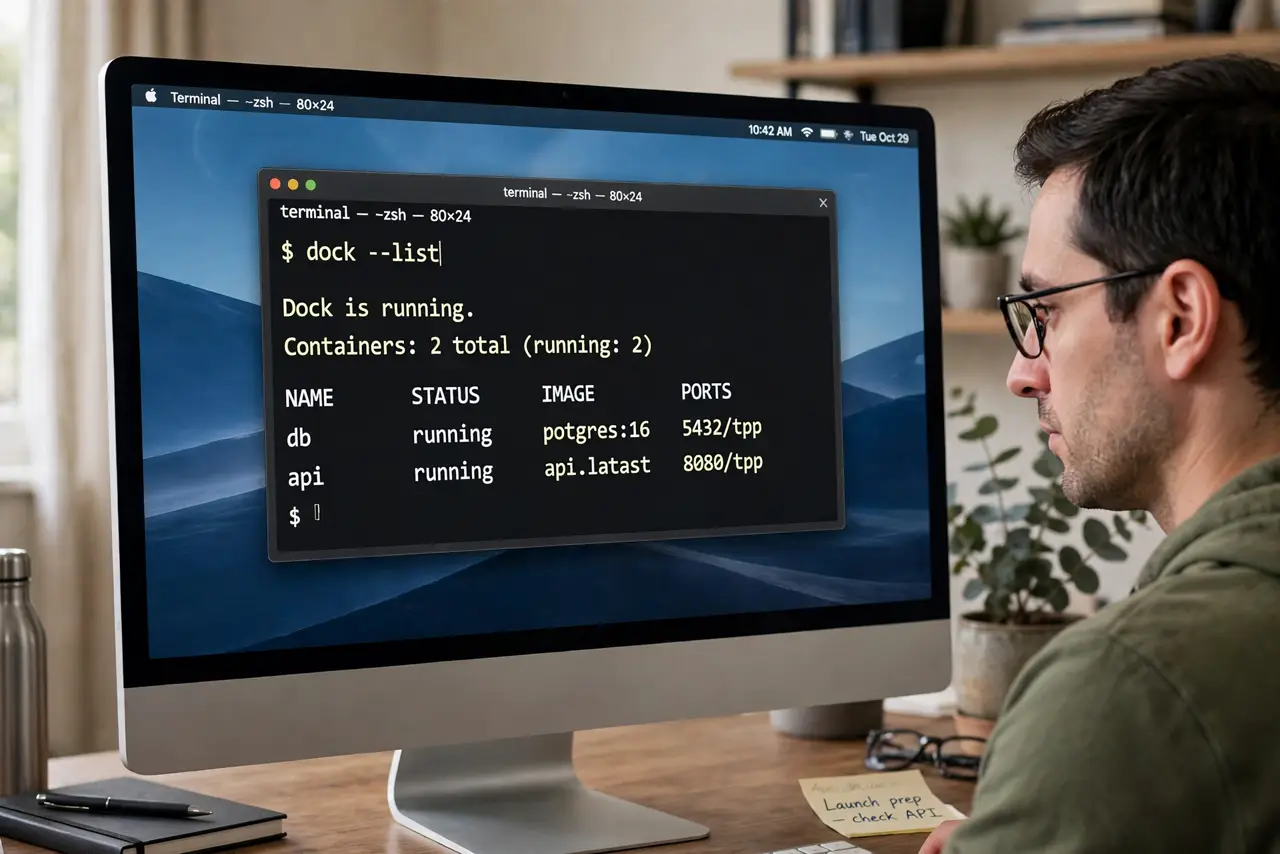
Quick fix: the Dock's hide delay has no Settings toggle — set it with one Terminal command: defaults write com.apple.dock autohide-delay -float 0, then killall Dock. Zero means instant. To restore, delete the setting the same way. Autohide itself must be on for the delay to matter.
Follow these steps
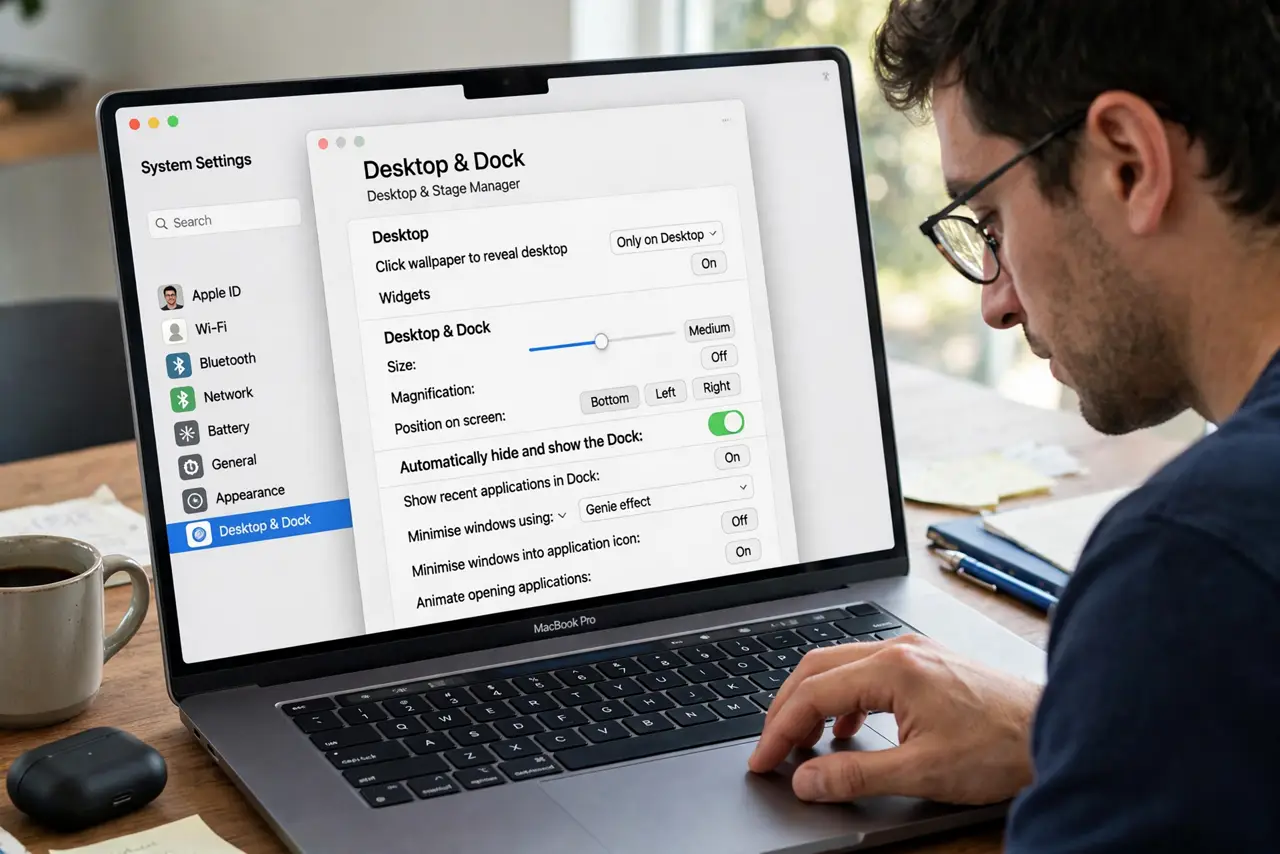
- Enable autohide first. In System Settings > Desktop & Dock, turn on Autohide the Dock. The delay setting does nothing if the Dock never hides.
- Open Terminal. Find Terminal in Applications > Utilities, or launch it from Spotlight.
- Set the delay to zero. Type defaults write com.apple.dock autohide-delay -float 0 and press Enter. This writes the hidden preference; nothing visible happens yet.
- Restart the Dock. Type killall Dock and press Enter. The Dock blinks and relaunches with instant hiding.
- Tune the animation too. The companion setting autohide-time-modifier controls the slide animation speed — set it to 0 as well for maximum snappiness.
- Restore the default anytime. Run defaults delete com.apple.dock autohide-delay followed by killall Dock. If the Dock ever refuses to hide, that guide covers the separate stuck case.
What NOT to do
- Do not set a negative delay. Zero is instant; negative values are undefined behavior for this preference.
- Do not fear killall Dock. It restarts the Dock process only — no apps quit, no work is lost.
- Do not run random defaults commands from forums. This specific key is well documented; others can scramble the Dock.
- Do not expect this to fix a Dock that will not hide at all. Delay tuning is for slow hiding; a stuck Dock is a different problem.
Frequently asked questions
Is using Terminal for this safe?
Yes — defaults write touches one documented preference, and the delete command reverses it exactly.
Why is there no slider in Settings?
Apple keeps fine-tuning out of the graphical settings. The preference exists; only the UI does not.
Will this survive macOS updates?
Usually yes, but major upgrades occasionally reset Dock preferences. Re-running the two commands takes ten seconds.