Dock Magnification Stuck On? Fix It
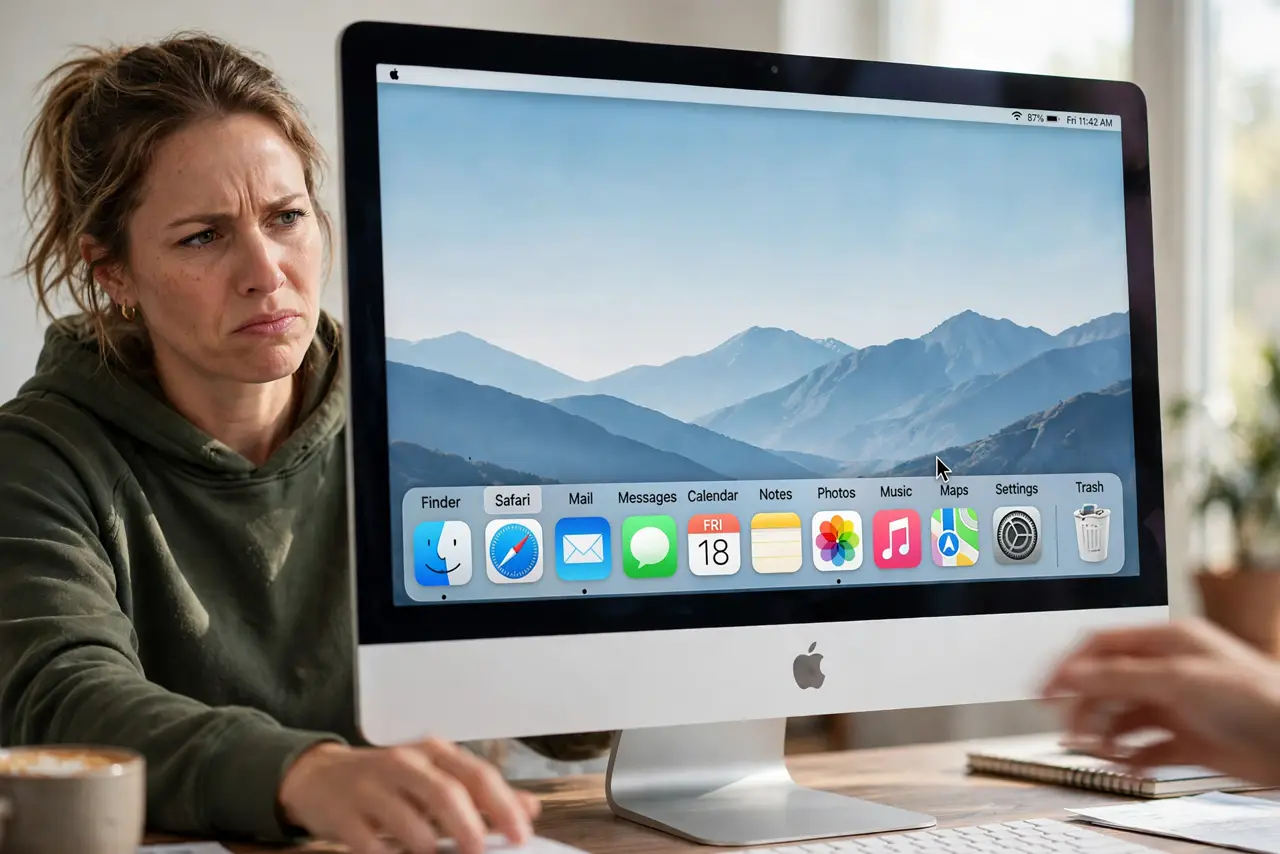
Dock icons balloon huge whenever the pointer nears them, and it started without you touching anything. Magnification got enabled by accident, often via an update or a misclick. This guide turns it off and tunes the dock back to calm.
TL;DR / Quick Fix
Quick fix: right-click the thin divider line in the dock, choose Dock Settings, and turn off Magnification. Drag the dock size slider down a notch while you are there, and the icons stop ballooning immediately with no restart required at all.
Follow these steps
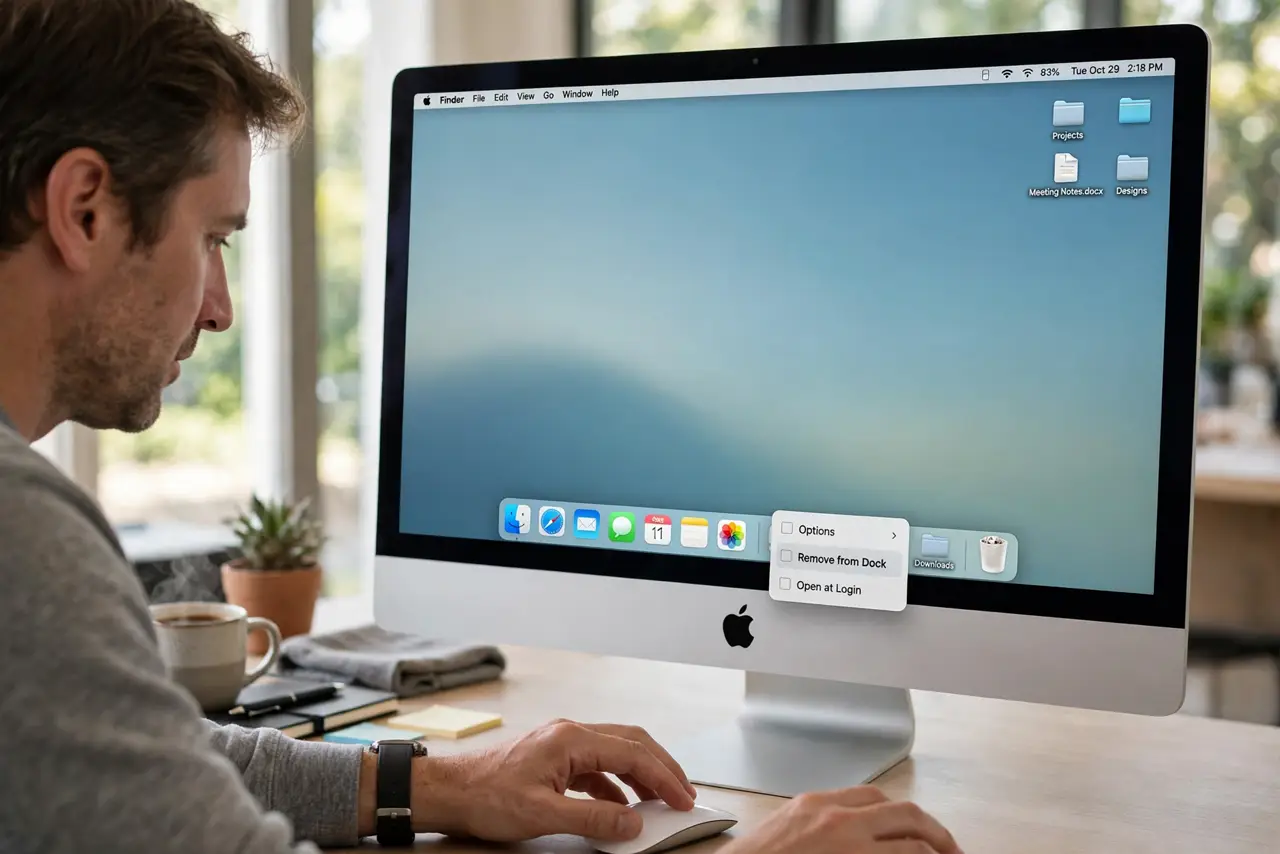
- Right-click the dock divider. Move the pointer to the thin divider line in the dock and right-click it. The quick menu there reaches dock settings faster than System Settings.
- Turn off Magnification. In the dock settings, toggle Magnification off. The ballooning stops instantly with no restart needed.
- Tune the dock size. Drag the size slider down a notch while you are there. A smaller dock with magnification off stays out of your way.
- Check for a stuck modifier key. Magnification can also trigger from accessibility zoom, which is a different feature. If icons still zoom, check Accessibility zoom settings too.
- Rule out a different dock problem. A dock that refuses to hide is the separate dock-hiding issue. Magnification only affects icon size near the pointer.
- Restart the Dock as a last resort. Open Terminal and run killall Dock. The dock relaunches fresh, clearing any stuck visual state without touching your apps.
What NOT to do
- Do not reinstall macOS for a dock quirk. Magnification is one toggle, and the nuclear option is never warranted.
- Do not confuse magnification with accessibility zoom. They look similar but live in different settings panes.
- Do not max the magnification slider instead. Huge icons are fun for a minute and annoying for a year.
- Do not ignore a physically stuck key. A stuck Option or Command key can trigger odd dock behavior that no setting fixes.
Frequently asked questions
Why did magnification turn on by itself?
Usually an accidental toggle during an update or a misclick in dock settings. It is one switch, easily flipped unknowingly.
Will turning it off affect anything else?
No. Only the hover-zoom effect changes; your apps, folders, and dock contents stay exactly as they were.
Can I keep magnification but make it subtle?
Yes. Leave it on with the magnification slider near minimum for a gentle effect.