Move Your Mac Dock Back to the Bottom
A Dock that suddenly sits on the left or right edge is easy to fix, and it is not a fault. Someone, or a setting change, moved it. You can put it back at the bottom in under a minute, with no restart needed.
TL;DR / Quick Fix
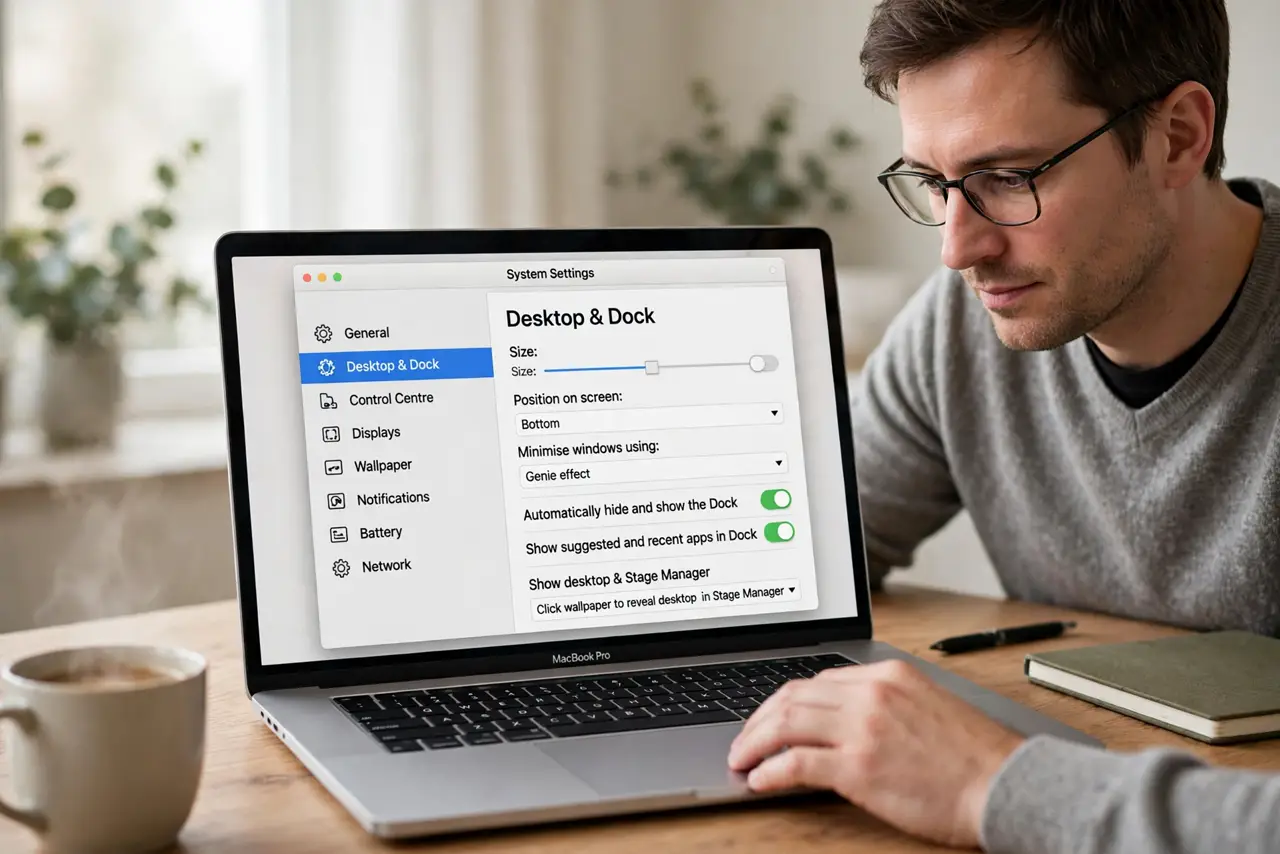
Quick fix: open System Settings, then Desktop and Dock, and set Position on screen to Bottom. Alternatively, right-click the divider in the Dock, choose Position on Screen, then Bottom. Check that the Dock now sits along the bottom edge where you expect it.
Follow these steps
- Open Desktop and Dock settings. Click the Apple menu, then System Settings, then Desktop and Dock. Scroll to the Dock section if it is not visible at once.
- Set Position on screen to Bottom. Find Position on screen and choose Bottom. The Dock should move to the bottom edge immediately, with no need to restart.
- Use the Dock menu as a shortcut. Alternatively, right-click the small divider line in the Dock, choose Position on Screen, then Bottom. This does the same job without opening Settings.
- Check the setting on each display. If you use more than one display, check where the Dock appears on each one. The Dock follows the primary display, so move it there if it looks misplaced.
- Adjust Dock size if it feels cramped. On the same settings page, adjust Dock size and magnification to taste. A bottom Dock that is too large can crowd the screen, so shrink it slightly if needed.
- Restart the Dock only if it sticks. If the Dock does not move, restart the Mac once. A stuck Dock position after a settings change is rare and usually clears with a restart.
What NOT to do
- Do not reset all system settings to fix the Dock. Position on screen is one simple setting, and a full reset would change far more than you need.
- Do not drag the Dock by hand. The Dock does not move by dragging, so pulling at it will only open apps or move icons by mistake.
- Do not install a Dock customization tool for this. The built-in setting does the job, and extra tools can change other behaviors.
- Do not assume an update broke your Mac. A moved Dock is a setting change, not damage, and it reverses in seconds.
Frequently asked questions
Why did my Dock move to the side?
Usually someone changed Position on screen, or a display change moved it. It is a setting, not a fault.
Can I keep the Dock on the side on purpose?
Yes. Choose Left or Right in the same setting if that suits your screen better. Bottom is simply the usual choice.
What if the Dock disappears entirely?
Check whether Automatically hide and show the Dock is on in the same settings page, and move the mouse to the screen edge.