Erase Your Mac Before Selling
Selling or giving away your Mac with your photos, passwords, and messages still on it would be a disaster — and a simple 'delete my files' is not enough. The Erase Assistant wipes everything, signs you out, and disables Activation Lock in one guided flow. Do it right and the next owner gets a factory-fresh Mac.
TL;DR / Quick Fix
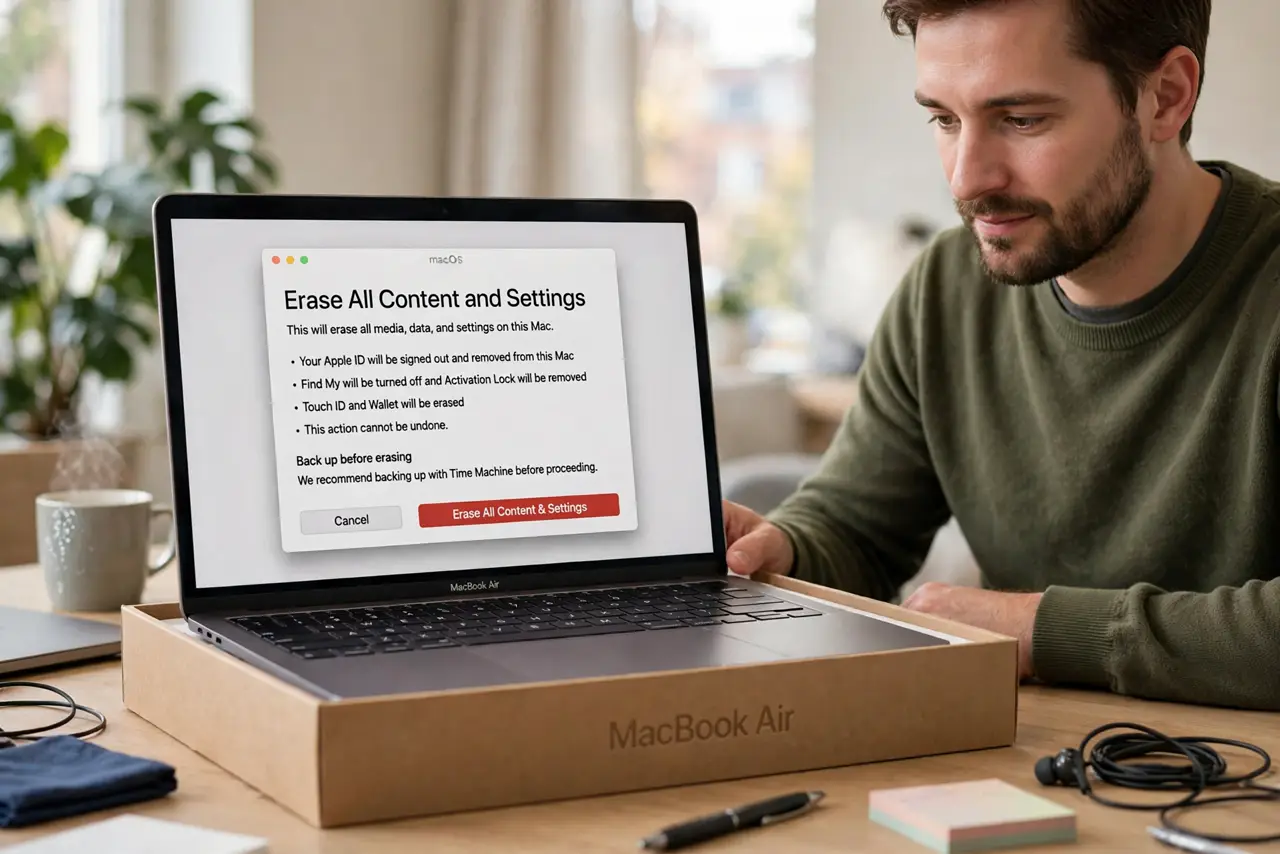
Quick fix: on Apple silicon and recent Intel Macs, open System Settings, go to General, then Transfer or Reset, and choose Erase All Content and Settings. Sign out of iCloud first and back up anything you want to keep. The process takes minutes and leaves a factory-fresh Mac.
Follow these steps
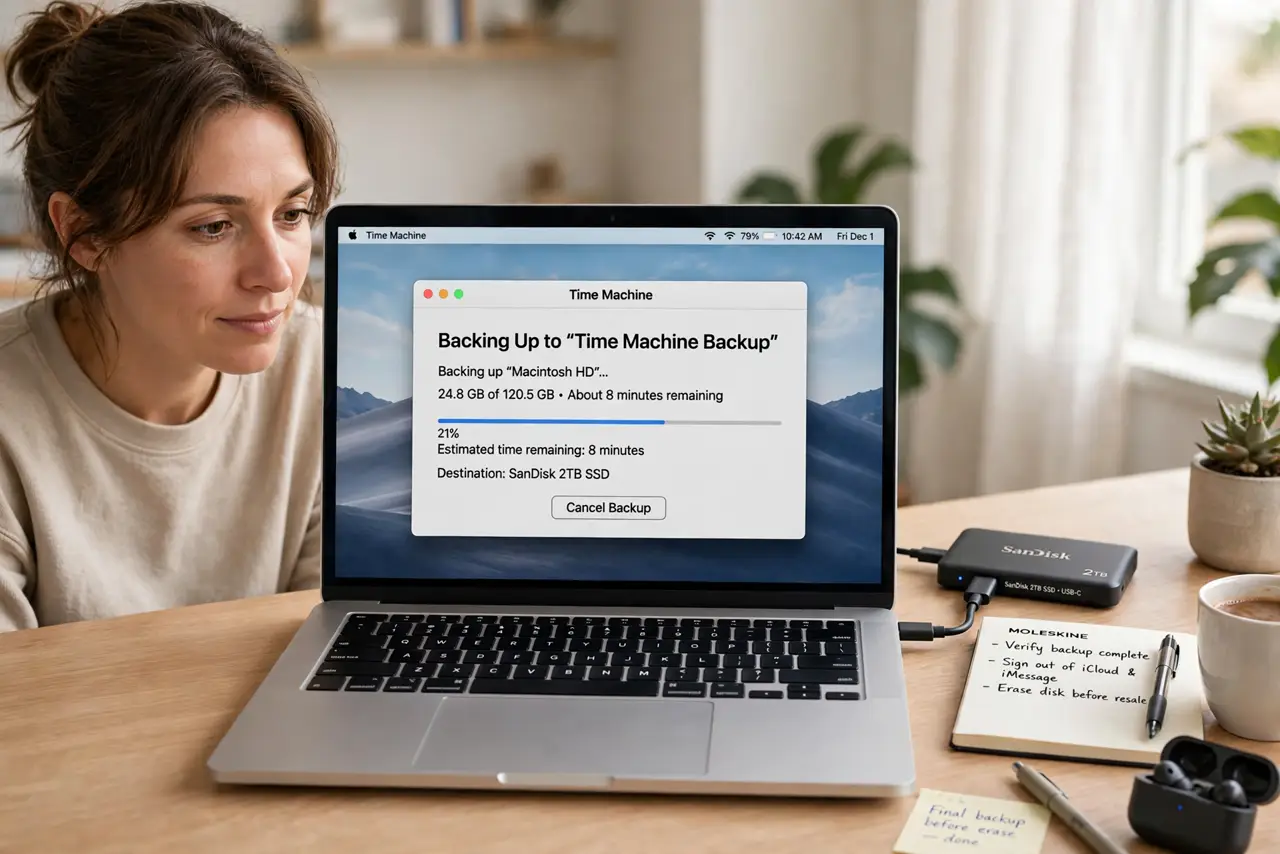
- Back up what you want to keep. Run a final Time Machine backup or copy files manually. After erasing, recovery is impossible — there is no undo.
- Sign out of iCloud. In System Settings, sign out of your Apple ID. This disables Activation Lock so the next owner can actually use the Mac.
- Deauthorize media and apps. Sign out of music, TV, and any licensed software. Some apps limit activations — free yours up before the Mac goes.
- Run Erase All Content and Settings. In System Settings, go to General, then Transfer or Reset, and choose the erase option. Confirm — the Mac restarts into setup fresh.
- Verify the Hello screen appears. The Mac should boot to the language-selection welcome screen. That confirms the erase completed and no account remains.
- Remove it from your device list. In your Apple ID settings on another device, confirm the old Mac no longer appears among your devices.
What NOT to do
- Do not just delete your user account. Leftover data survives in other accounts, caches, and free space — only a full erase is clean.
- Do not forget Activation Lock. A Mac still tied to your Apple ID is a brick to the buyer — sign out before erasing, not after.
- Do not hand it over without testing the fresh setup. Boot once to the welcome screen yourself — it takes a minute and proves the job is done.
- Do not include your passwords 'to be helpful.' The buyer sets up their own Apple ID — your credentials must never transfer.
Frequently asked questions
Is Erase All Content enough for security?
On modern Macs with FileVault-era encryption, yes — erasing destroys the encryption keys, making old data unrecoverable. It is not a casual delete.
What about very old Macs without the erase option?
Boot into Recovery and erase the disk with Disk Utility, then reinstall macOS. Older Macs need the manual path — see macOS Recovery.
Should I remove stickers and clean it?
A clean Mac sells faster and for more. It is not a security step, but it is a money step.