Text Blurry on an External Mac Display
Text on your external monitor looks fuzzy and slightly out of focus while the MacBook's own screen is razor sharp. The external display is running at a non-native resolution, a wrong refresh rate, or a scaling mode the panel dislikes. This guide sharpens it up.

TL;DR / Quick Fix
Quick fix: in System Settings > Displays, hold Option, click Scaled, and pick the monitor's native resolution. If text stays fuzzy, swap to a quality cable or adapter — cheap adapters cause exactly this blur. Keep the monitor's sharpness at neutral.
Follow these steps
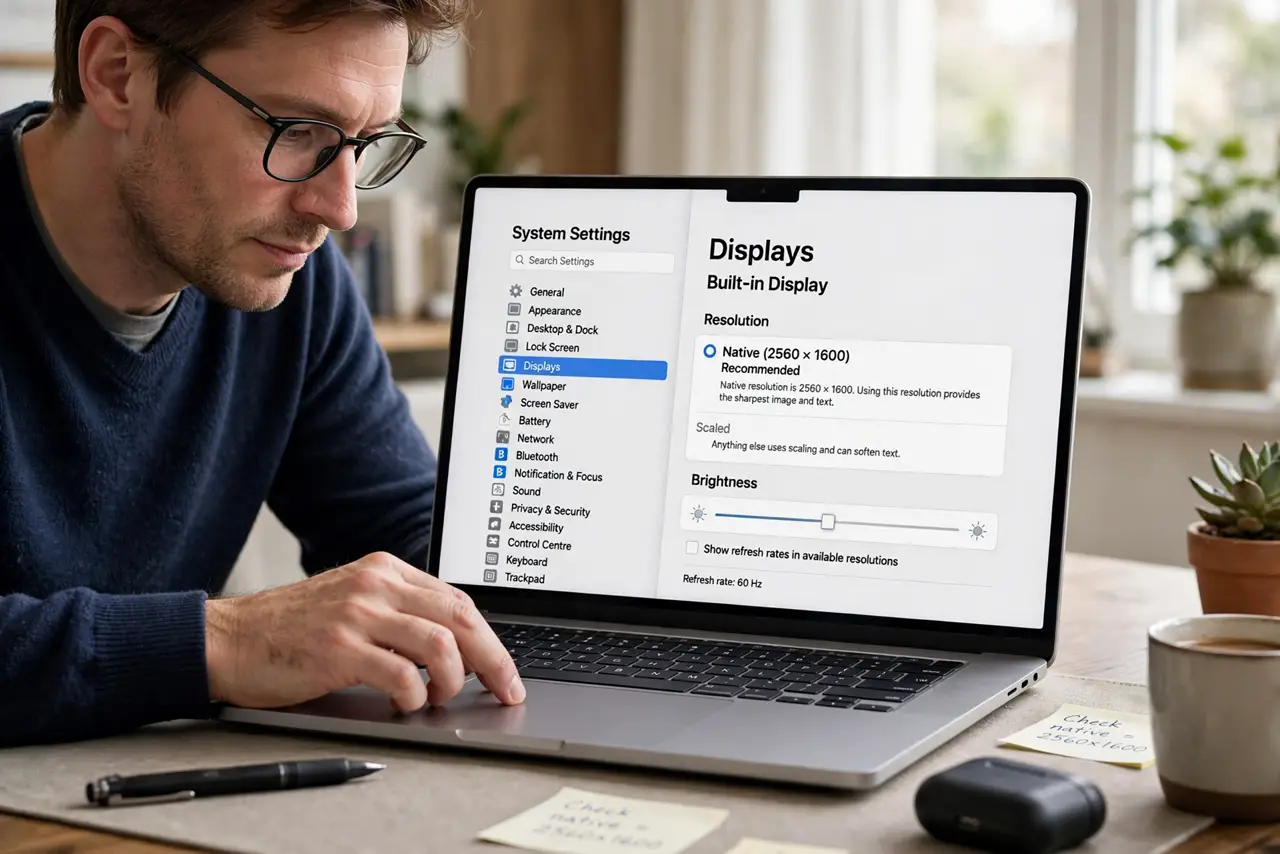
- Select the native resolution. In System Settings > Displays, choose the monitor's native resolution (its actual pixel count). Anything else forces scaling that softens text.
- Reveal all resolutions. Hold Option while clicking Scaled in the Displays settings. macOS hides resolutions by default; the full list includes the sharp native mode.
- Try a better cable or adapter. Swap to a quality cable or adapter, preferably direct USB-C or DisplayPort. Cheap HDMI adapters are a classic cause of fuzzy text on external monitors.
- Check the refresh rate. In the Displays settings, confirm the refresh rate matches the monitor's spec. A mismatched rate can make the image subtly unstable and soft.
- Adjust the monitor's own sharpness. Open the monitor's on-screen menu and set sharpness to its neutral middle value. Excess sharpness adds halos; too little adds blur — middle is honest.
- Test with the MacBook lid closed. Run the external display as the only screen in clamshell mode. This rules out mixed-scaling weirdness between the two displays.
What NOT to do
- Do not run a 4K monitor at 1080p to 'make text bigger.' Use macOS scaling instead — dropping resolution blurs everything the panel worked to sharpen.
- Do not crank the monitor's sharpness to maximum. Fake sharpness adds white halos around letters and makes real text harder to read.
- Do not buy a new monitor before trying a cable. A surprising share of 'blurry monitor' cases are a five-dollar adapter's fault.
- Do not enable odd custom resolutions. Stick to the monitor's native resolution and let macOS handle scaling — custom modes invite blur.
Frequently asked questions
Why is text blurry on my external monitor but sharp on the MacBook?
The external display runs at a non-native resolution or through a poor adapter, while the MacBook's panel runs natively.
What resolution should an external Mac display use?
Its native resolution — the panel's actual pixel count. Let macOS scale the interface instead of lowering the resolution.
Can the cable really make text blurry?
Yes. A bad adapter or long cheap cable degrades the digital signal enough to soften text visibly.