External Monitor Stuck at Low Refresh on Mac
Your monitor can run at 120Hz or 144Hz, but macOS sometimes settles for 60Hz and hides the faster option. The fix is usually a cable, port, or settings issue, not a broken screen. This guide shows you how to reveal the hidden refresh menu, pick the right rate, and test the result.
TL;DR / Quick Fix
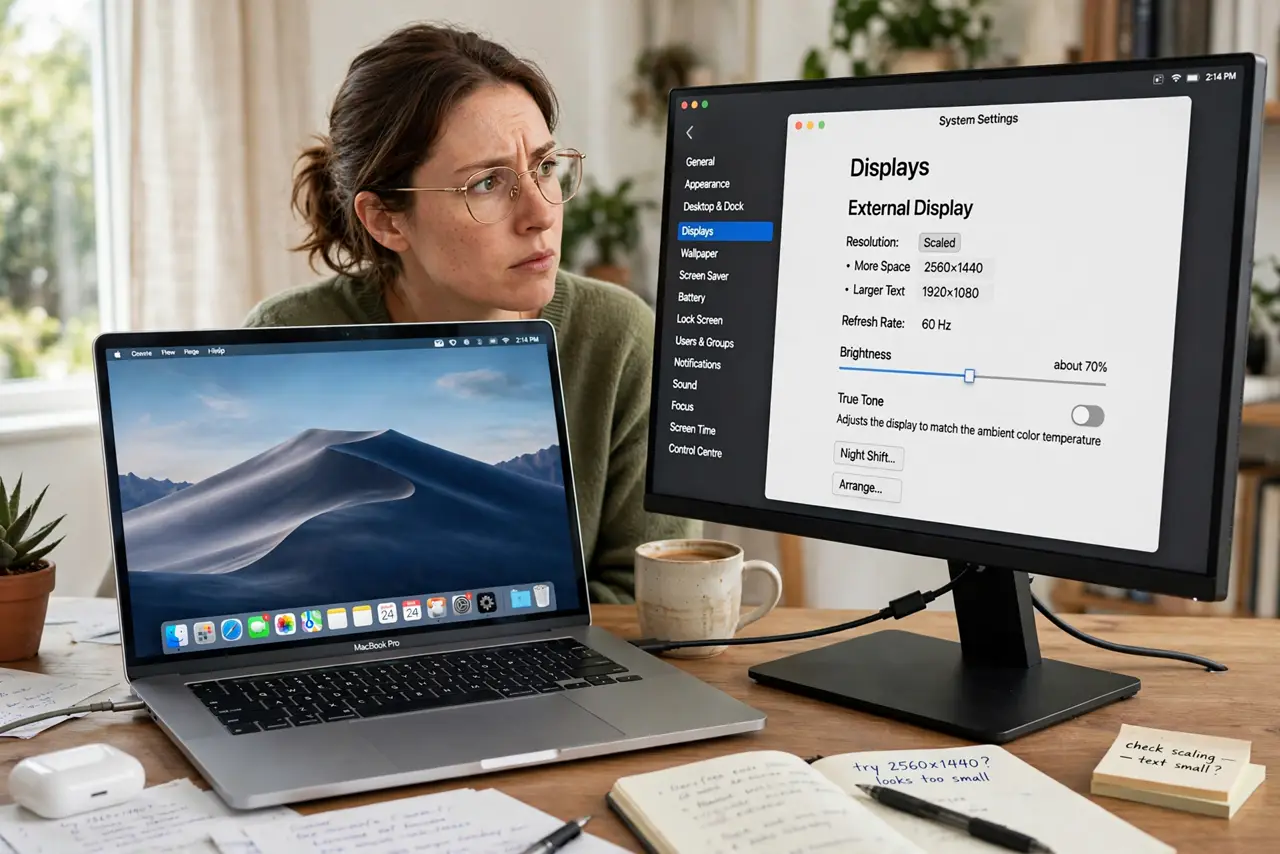
Quick fix: open System Settings, go to Displays, hold Option and click the resolution list to reveal refresh rate options, then pick the highest rate your monitor and cable support. If 120Hz is missing, swap in a better cable, try a different port, and restart the Mac.
Follow these steps
- Check what your monitor and cable support. Confirm the monitor actually runs above 60Hz and that you are using a fast port, usually DisplayPort or HDMI 2.0 and up. A 60Hz-only panel or an old cable makes the menu option disappear for a good reason.
- Open Displays in System Settings. Go to System Settings, then Displays, and click the external monitor. The refresh rate menu only appears for the external display, never for the built-in one.
- Reveal the hidden refresh rate list. Hold the Option key and click the resolution row. macOS hides the extra rates by default, and the Option-click reveals them all.
- Pick the highest stable rate. Choose 120Hz or 144Hz and watch the screen for a few seconds. If it flickers or goes black, the cable cannot handle the bandwidth, so drop back down and upgrade the cable before trying again.
- Try a different port or adapter. Move the cable to another port on the Mac or dock, or swap the adapter. Some adapters and dock ports cap the bandwidth, silently forcing 60Hz no matter what the menu offers.
- Restart and re-check after updates. Restart the Mac and revisit the Displays pane after any macOS update, which can reset the rate to 60Hz. If the fast option keeps vanishing, test the monitor on another computer to rule out the Mac.
What NOT to do
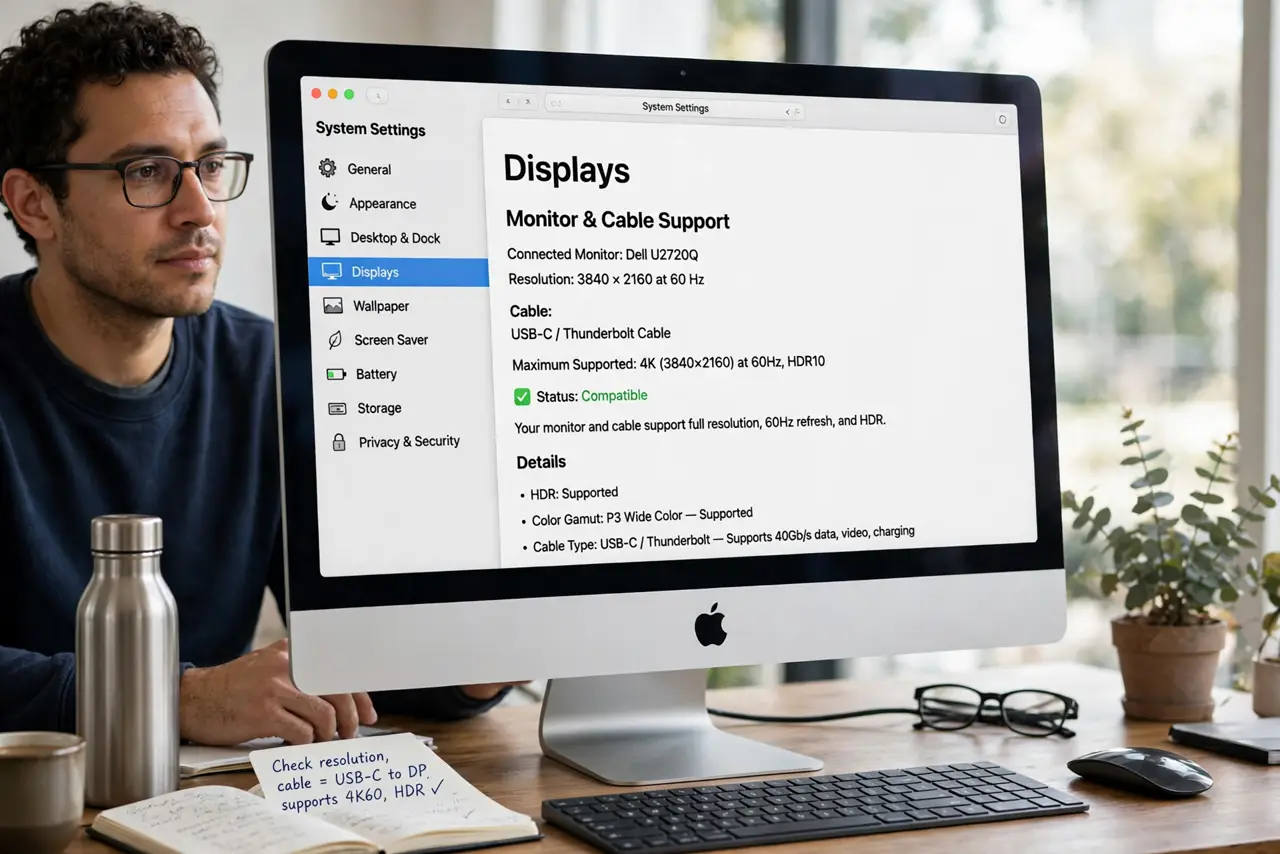
- Do not buy a new monitor before testing the cable. Most stuck-at-60Hz cases are a cable or adapter limit, not a bad panel.
- Do not force a rate the screen cannot hold. A flickering image at 144Hz is worse than a stable 120Hz, so pick the fastest stable option.
- Do not use a cheap no-name adapter for high refresh. Low-quality adapters are the most common silent bandwidth cap.
- Do not ignore which port you use. On many monitors only one or two ports support the top refresh rate, so check the monitor manual.
Frequently asked questions
Why does macOS hide the refresh rate options?
Apple simplifies the Displays pane by showing only common rates. Holding Option while clicking reveals the full list the monitor reports.
Does macOS support 144Hz monitors?
Yes, over DisplayPort or a good HDMI connection. If text looks fuzzy at any rate, that is the separate blurry text issue, not the refresh setting.
Will a higher refresh rate drain the MacBook battery faster?
Slightly, since the GPU works harder. On battery power you can drop to 60Hz to save energy.