Stop a Mac Drive Ejecting by Itself
An external drive that ejects itself, often with a Disk Not Ejected Properly warning, usually has a loose cable, a weak port, or a power problem. Repeated improper ejections can damage files, so fix the connection rather than dismissing the warning each time.
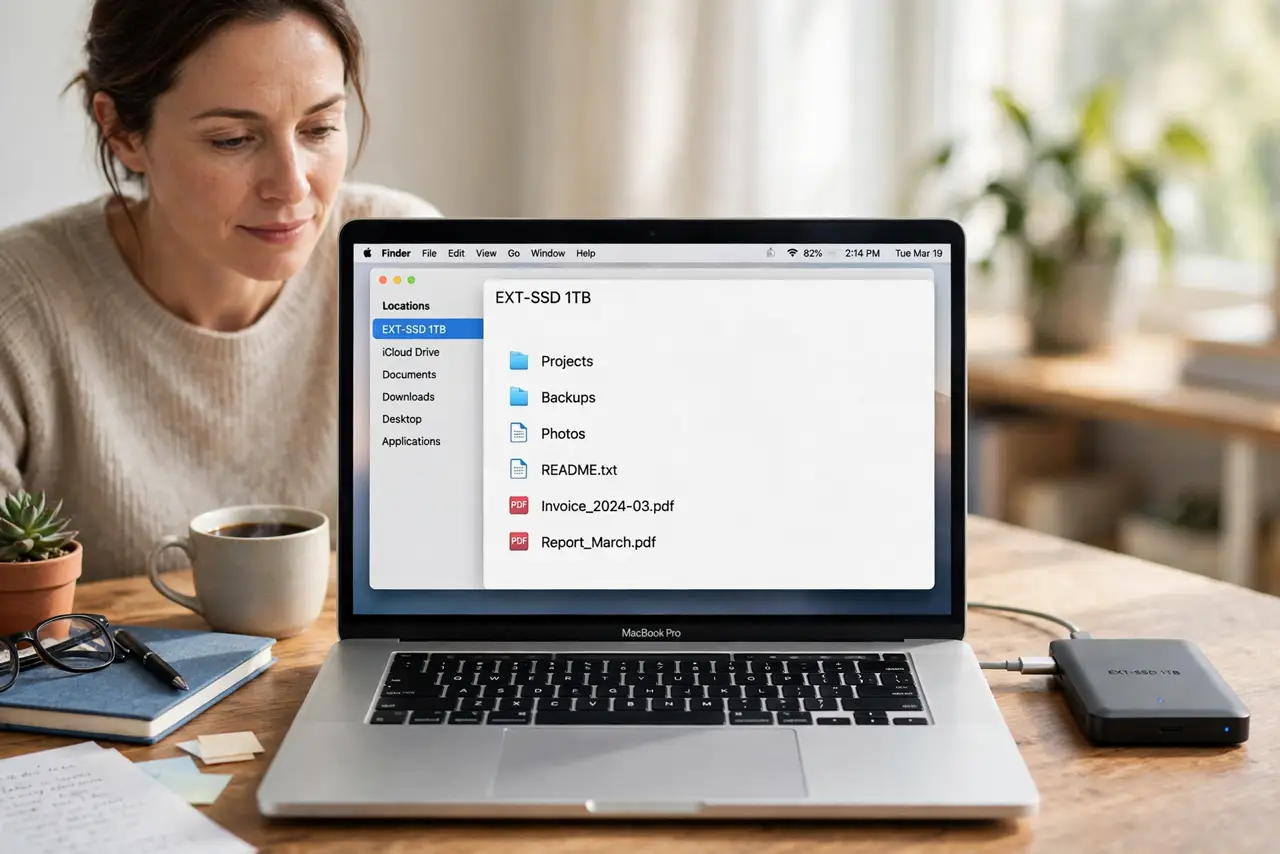
TL;DR / Quick Fix
Quick fix: reseat the cable firmly at both ends and try a different port. Then test another cable, and if the drive has its own power supply, confirm it is plugged in. Finally, check Energy Saver settings for putting hard disks to sleep.
Follow these steps
- Reseat the cable firmly. Unplug the drive cable from the drive and the Mac, then plug it back in firmly at both ends. A cable that looks connected can still sit slightly loose.
- Try a different port. Move the drive to another USB port on the Mac, avoiding a hub for the test. A faulty port or hub can drop the drive without warning.
- Test another cable. Try a different cable of the same type. Cables wear out, and a damaged cable is a common cause of random ejections.
- Check the drive's power. If the drive has its own power adapter, confirm it is firmly plugged in and the outlet works. Underpowered drives eject when they cannot spin up reliably.
- Check Energy Saver settings. Open System Settings, then Energy Saver or Battery, and check options for putting hard disks to sleep. Adjust them if the drive ejects during idle periods.
- Test the drive on another Mac. Connect the drive to another Mac with a good cable and watch whether it stays mounted. If it ejects there too, the drive or its cable is likely at fault.
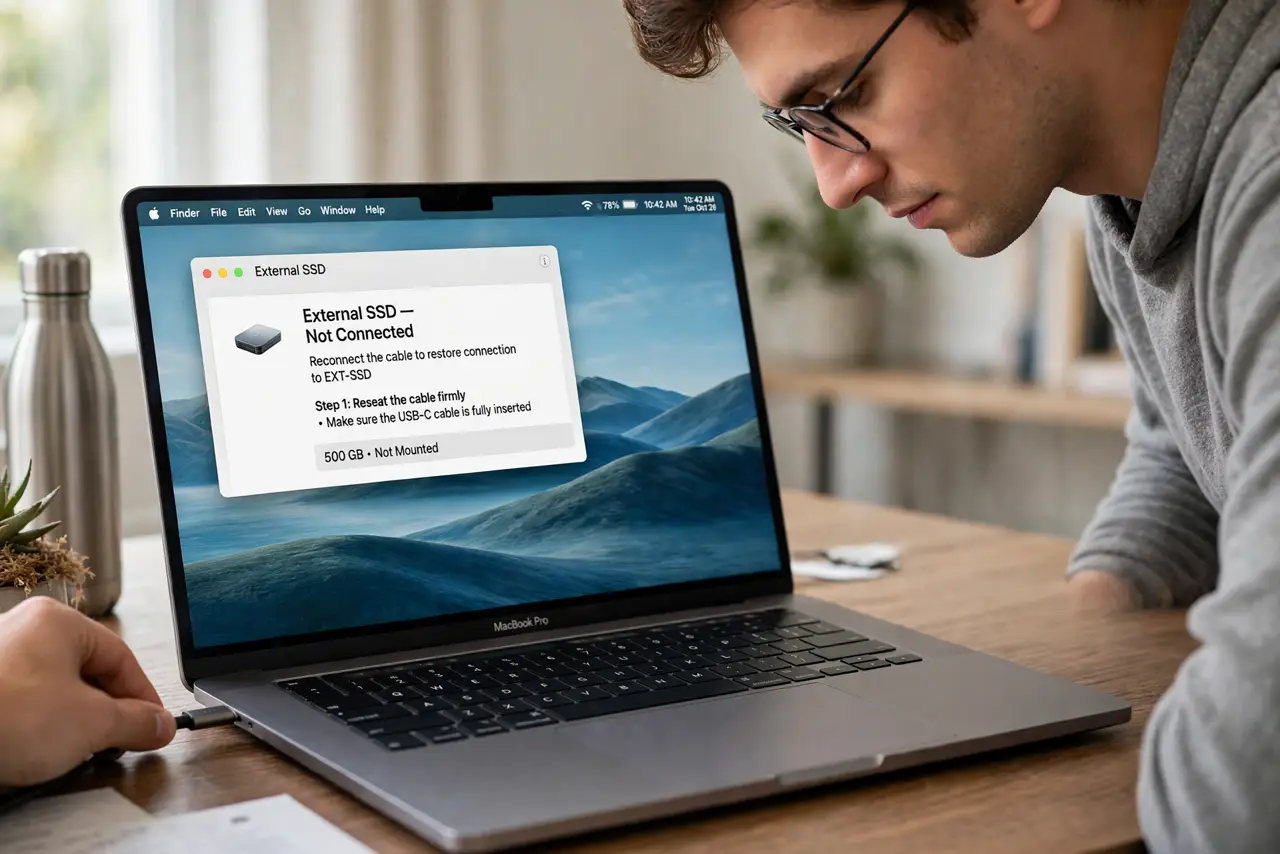
What NOT to do
- Do not keep dismissing the ejection warning. Repeated improper ejections can corrupt files, so fix the cable, port, or power cause promptly.
- Do not pull the drive out while it is copying. Wait for copies to finish and eject safely, or you risk losing the files being written.
- Do not use a cheap hub for an important drive test. Test the drive directly on the Mac first, so a faulty hub does not mislead you.
- Do not reformat the drive to fix ejections. A connection or power problem will eject a reformatted drive just as easily, and you would lose files needlessly.
Frequently asked questions
Why does my drive eject by itself?
A loose or damaged cable, a faulty port or hub, or insufficient power usually breaks the connection briefly, and macOS reports it as an ejection.
Is it safe to keep using a drive that ejects often?
Not for important files. Back up its contents promptly, then fix the cable, port, or power cause before relying on it again.
What if it ejects only when idle?
Check Energy Saver settings for disk sleep, and test with the drive connected directly to the Mac rather than through a hub.