Fix a Mac External Monitor With No Signal
A monitor that shows no signal after you connect your Mac is frustrating, but the cause is often power, input, or a loose cable rather than a dead screen. Work from the monitor backward to the Mac, and test one change at a time.
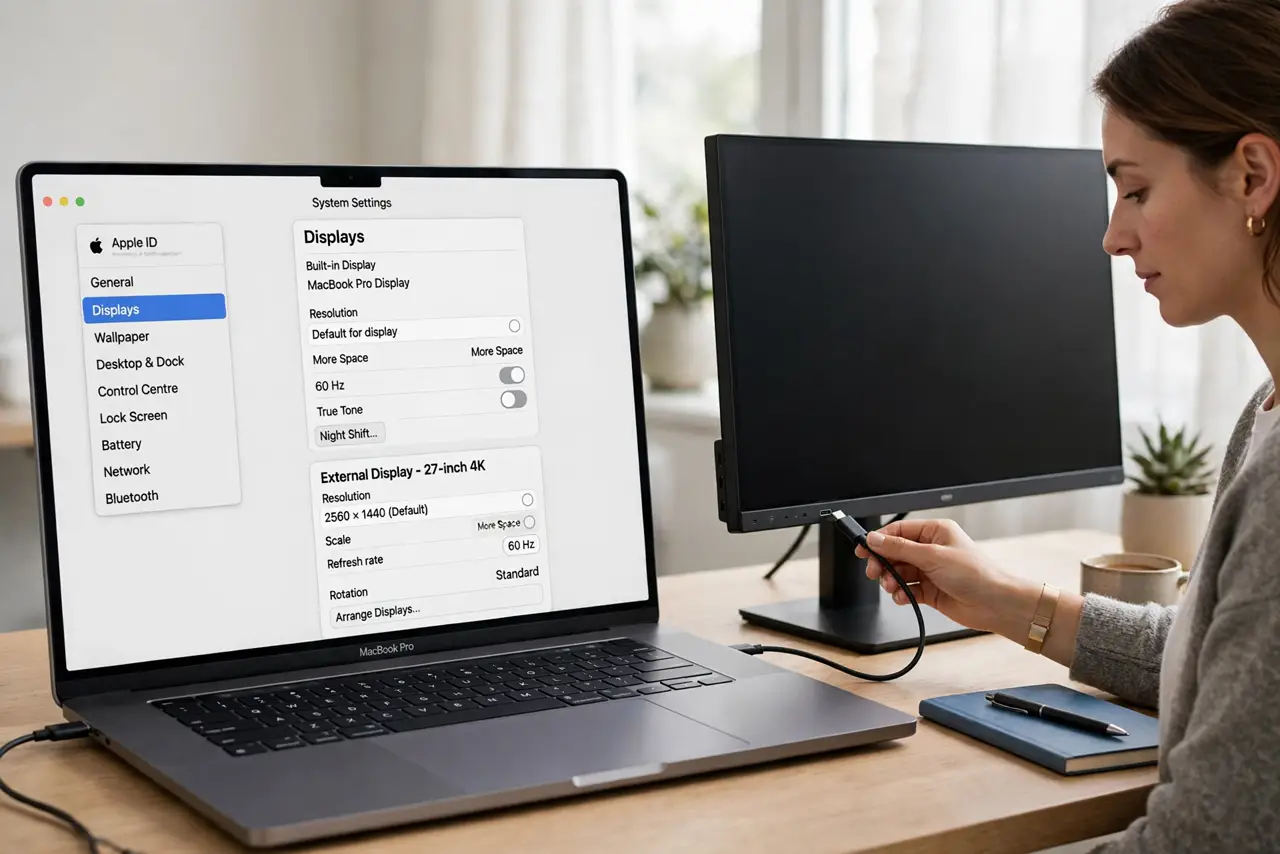
TL;DR / Quick Fix
Quick fix: check the monitor power light and input source first. Then unplug and firmly reconnect the cable at both ends, try a different port or cable, and use Detect Displays in System Settings. Test the monitor with another device if you can.
Follow these steps
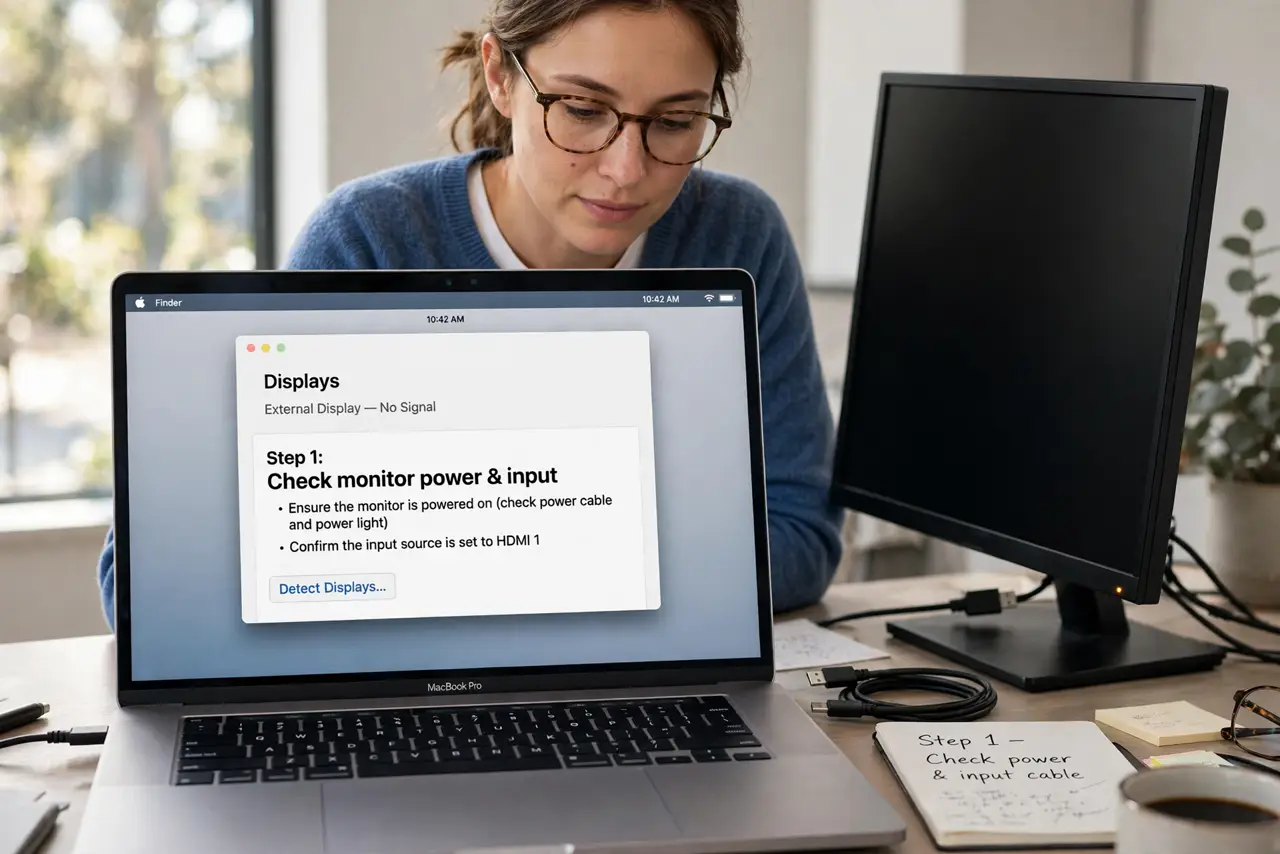
- Check monitor power and input. Make sure the monitor power light is on and the input source matches the cable you used, such as HDMI or USB-C. A monitor on the wrong input shows no signal even when everything else works.
- Reseat the cable at both ends. Unplug the cable from the monitor and the Mac, then plug it back in firmly. A cable that looks connected can still sit slightly loose.
- Try a different port or cable. Move the cable to another port on the Mac or the monitor, or try a different cable. This tells you quickly whether the port, the cable, or the monitor is at fault.
- Wake the Mac and the monitor together. Move the mouse or press a key to wake the Mac, and press the monitor power button once. A sleeping Mac or a monitor in deep sleep can both report no signal.
- Use Detect Displays. Open System Settings, then Displays, hold the Option key if needed, and choose Detect Displays. This forces the Mac to look for connected displays again.
- Test the monitor with another device. Connect the monitor to another computer or a game console if you can. If it works there, the problem is the Mac connection, not the monitor.
What NOT to do
- Do not buy a new monitor first. Test power, input, cable, and port before concluding the monitor has failed.
- Do not keep swapping cables while the Mac is updating. Wait for updates to finish, since a restart during an update can cause bigger problems.
- Do not force a connector into the wrong port. USB-C, HDMI, and DisplayPort look different, and forcing one can damage the port.
- Do not change display settings blindly. Fix the signal first, then adjust resolution and arrangement once the monitor shows a picture.
Frequently asked questions
Why does the monitor say no signal but the Mac seems on?
The monitor may be on the wrong input, the cable may be loose, or the Mac may still be asleep, even though its fan or light suggests otherwise.
Does the cable type matter?
Yes. A damaged cable, a wrong adapter, or a port that does not carry video can all cause no signal, so test another cable or port.
What if the monitor works with another device?
Then focus on the Mac side: the port, the adapter, the cable, and Detect Displays in System Settings.