Turn On Live Captions in FaceTime
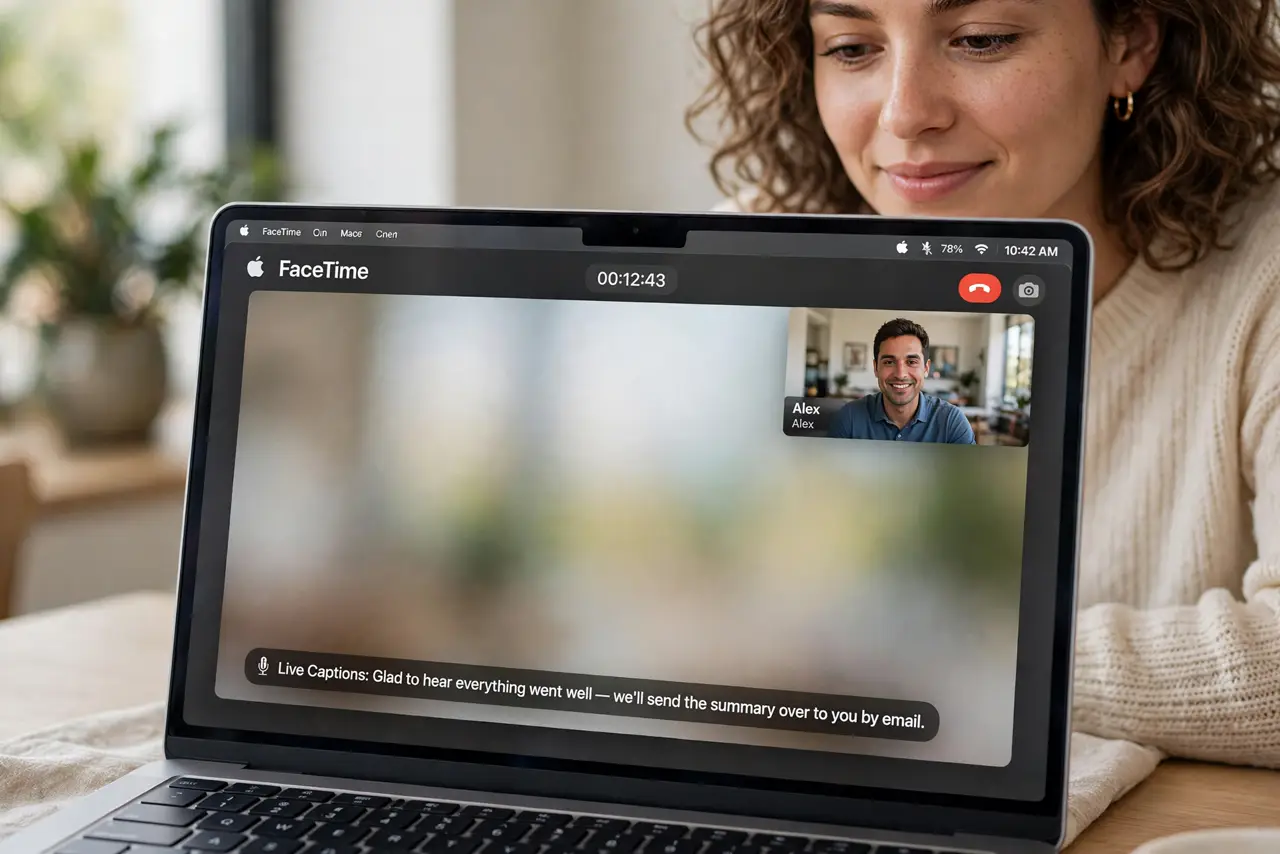
FaceTime calls where you catch every third word — a noisy cafe, a soft speaker, or hearing that is not what it was. Live Captions puts real-time subtitles on FaceTime on the Mac, generated on-device. It is one Accessibility switch, and it changes the whole experience.
TL;DR / Quick Fix
Quick fix: on macOS Ventura or later, open System Settings > Accessibility > Hearing and turn on Live Captions. Then start or join a FaceTime call — captions appear automatically. The transcription happens on your Mac, not in the cloud.
Follow these steps
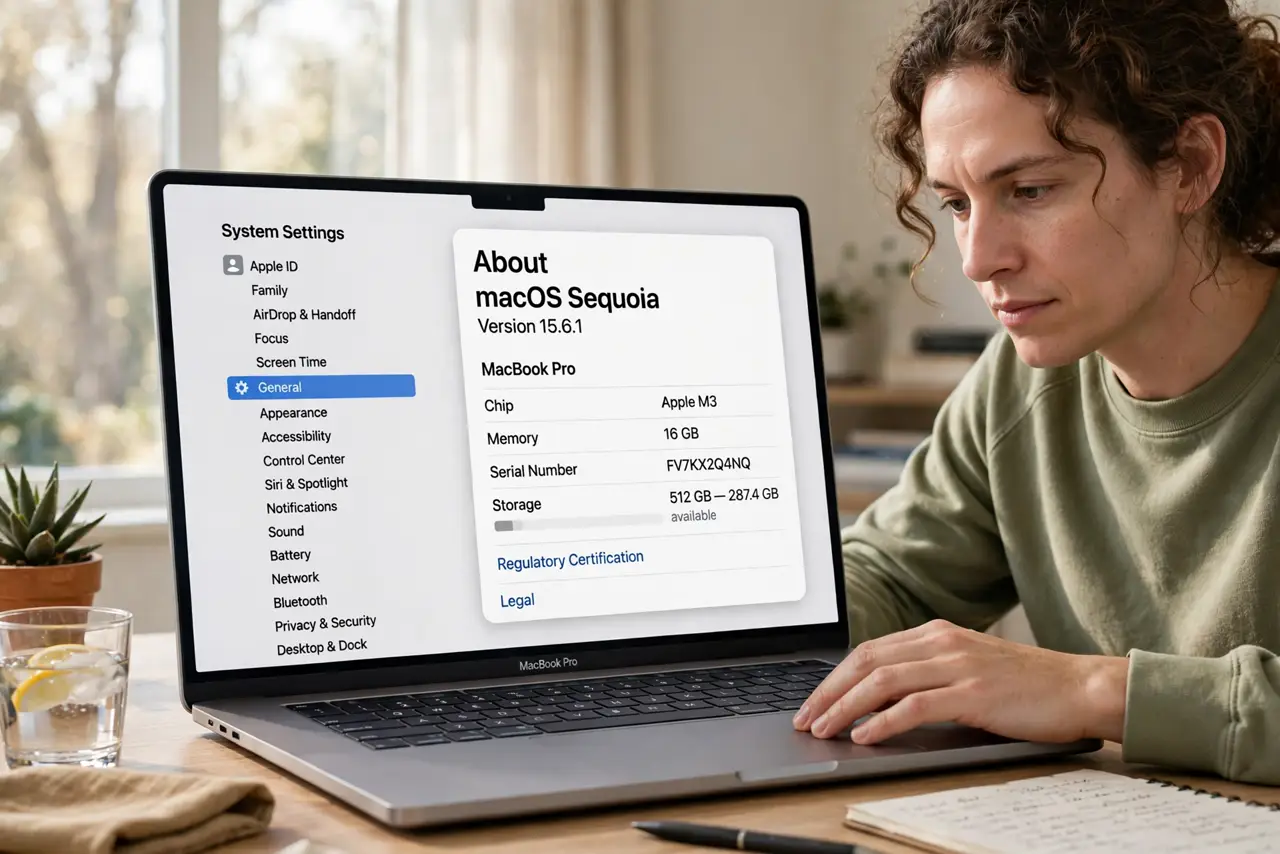
- Check you are on Ventura or later. Live Captions for FaceTime needs macOS Ventura or newer. Check in System Settings > General > About > macOS version.
- Open the Hearing settings. System Settings > Accessibility > Hearing > turn on Live Captions. This enables it system-wide, including FaceTime.
- Start a FaceTime call. Captions appear automatically once the call connects. No per-call button to press — the switch is the whole setup.
- Position the caption box. Drag the caption window where it does not cover faces. It remembers its spot for the next call.
- Speak clearly toward the mic. On-device transcription is good, not perfect. Mumbling, heavy accents over noise, and crosstalk lower its accuracy.
- Know it is on-device and private. Apple processes the captions on your Mac — the audio is not sent to servers for transcription.
What NOT to do
- Do not expect perfect transcripts. Names, jargon, and overlapping speech still trip it up — treat captions as an aid, not a record.
- Do not enable it and forget it in quiet rooms. The caption box covers part of the call window — drag it aside or switch it off when you do not need it.
- Do not assume the other person sees your captions. Captions are local to your Mac; the other side sees a normal call.
- Do not rely on captions for a bad connection — garbled audio makes garbled captions. Fix the audio first.
Frequently asked questions
Do Live Captions work in other apps?
The system-wide Live Captions setting also covers other audio, but FaceTime integration is the smoothest — captions attach to the call window.
Why are the captions delayed?
A second or two of lag is normal — transcription takes a moment. Long delays usually mean the Mac is under heavy load.
Can I save the captions?
No — they are live only, with no transcript saved. For a record, you would need the other party's consent and a recording setup.