Watch Together With SharePlay
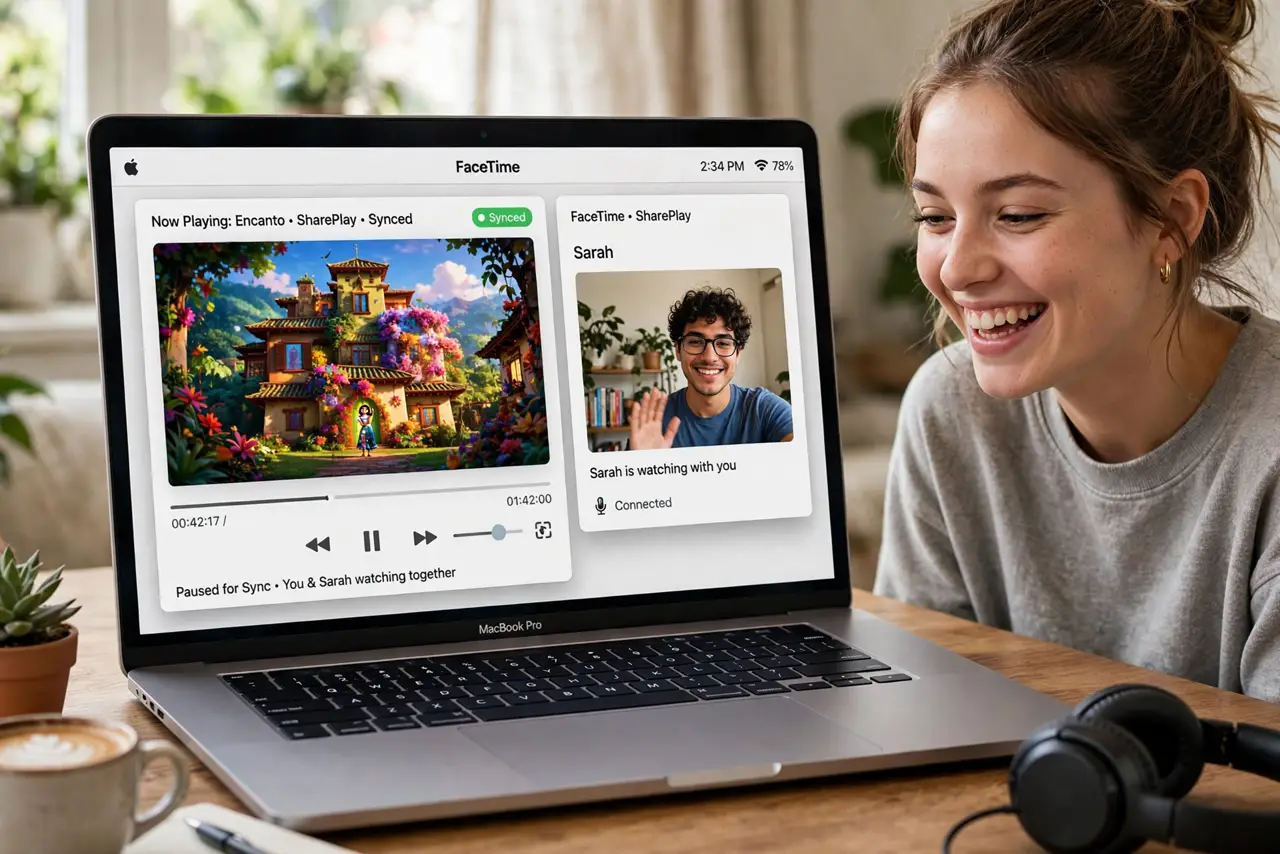
Movie night with someone across the country — same film, synced playback, your reactions in real time. SharePlay does that inside FaceTime on the Mac: shared video, shared music, even a shared screen. Everyone needs a compatible device, and for some services, their own subscription.
TL;DR / Quick Fix
Quick fix: start a FaceTime call on the Mac, then open a supported app — Apple TV, Music, or Disney+ — and tap the SharePlay prompt. Or share your screen from the FaceTime call controls. Everyone stays in sync automatically.
Follow these steps
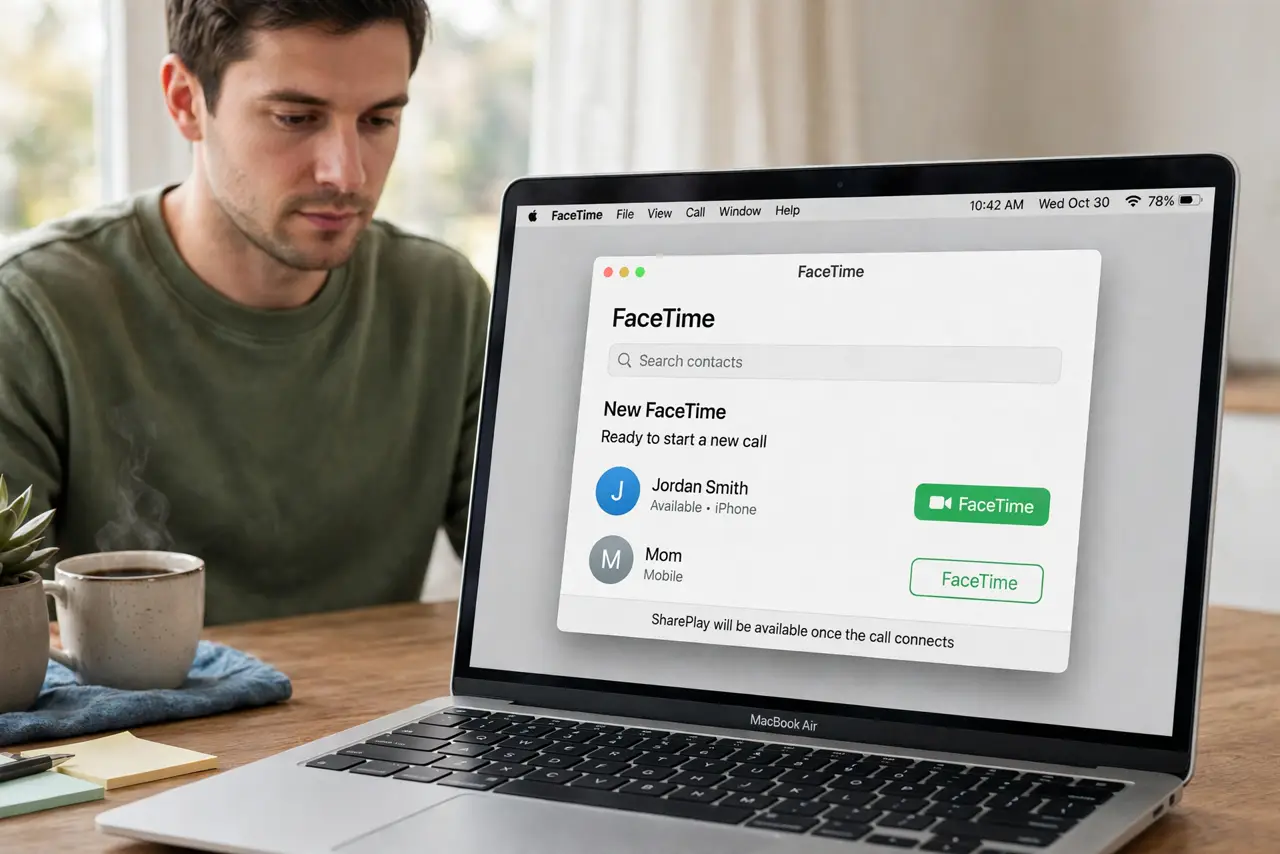
- Start a FaceTime call first. SharePlay lives inside a FaceTime call. Call the person on your Mac, then add the shared activity — order matters.
- Open a supported app and accept the prompt. With the call active, open Apple TV, Music, or another SharePlay app. It asks whether to SharePlay — say yes and pick the content.
- Or share your screen instead. In the FaceTime call, click the SharePlay button and choose to share your screen. Anything on your screen becomes the shared experience.
- Check subscriptions for paid content. For Apple TV+ or Disney+, each participant generally needs their own subscription. Music sharing is more forgiving.
- Use the shared controls. Play, pause, and skip stay in sync for everyone — anyone can pause, and the group follows. The call stays open alongside.
- End SharePlay without ending the call. Stop sharing from the same button; the FaceTime call continues. Useful when the movie ends but the conversation does not.
What NOT to do
- Do not start the movie before the call. Launching content first means everyone presses play at different times — start the call, then SharePlay.
- Do not assume every app supports it. Netflix famously does not do SharePlay — check the app's sharing options before promising a watch party.
- Do not share your screen with notifications visible. Turn on Do Not Disturb first — your incoming messages become everyone's viewing.
- Do not forget headphones in a shared house. SharePlay audio plus room speakers equals an echo chamber for everyone on the call.
Frequently asked questions
Why can't my friend join the SharePlay?
They need a compatible Apple device with a recent OS, and for paid services their own subscription. An outdated device is the usual blocker.
Does SharePlay work with Android friends?
No — SharePlay is Apple-only. For mixed groups, share your screen in a cross-platform call instead.
Why is the shared video out of sync?
Usually one side's connection stuttering. Pause and resume once — SharePlay re-syncs from the pause point.