Blur the Background in FaceTime
Laundry mountain behind you on a work call — Portrait mode in FaceTime blurs it into a soft nothing while keeping your face sharp. On the Mac it is a video effect, not a camera setting, and it works in FaceTime, Zoom, and most video apps. One Control Center toggle, and the background disappears.

TL;DR / Quick Fix
Quick fix: during a video call on the Mac, open Control Center, click Video Effects, and turn on Portrait. It needs a Mac with Apple silicon or recent Intel plus macOS Monterey or later. The blur applies to any app using the camera.
Follow these steps
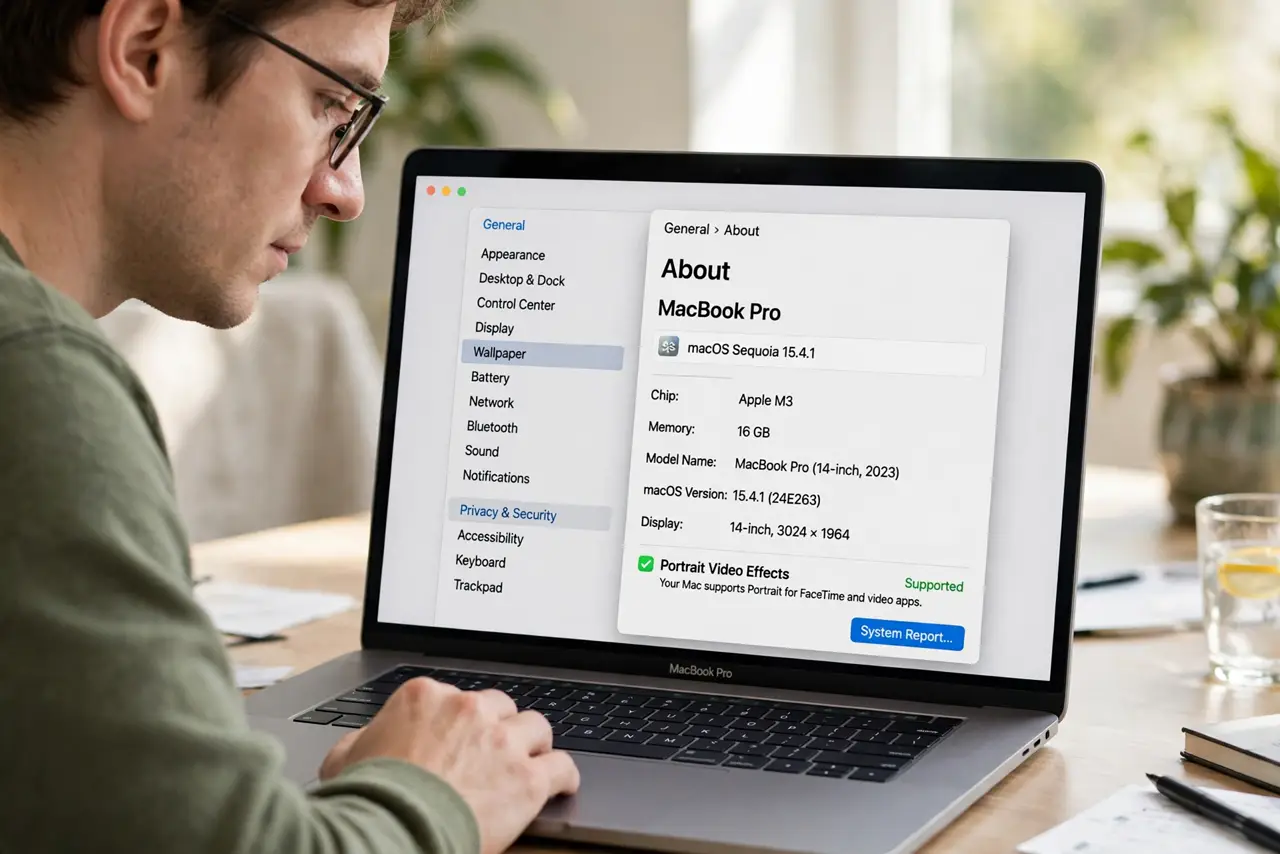
- Check the Mac qualifies. Portrait video effects need Apple silicon or a recent Intel Mac on macOS Monterey or later. Older Macs do not show the option.
- Open Control Center during a call. Click the Control Center icon in the menu bar while the camera is active, then click Video Effects.
- Turn on Portrait. One click blurs the background live. The effect previews immediately — adjust your seating if the edges look odd.
- Use it in any video app. The effect is system-level: FaceTime, Zoom, Teams, and browser calls all get the blur once it is on.
- Combine with [[Continuity Camera|mac-continuity-camera-webcam]] for best results. An iPhone as the webcam plus Portrait blur gives the sharpest subject separation — phone optics beat the built-in camera.
- Turn it off for show-and-tell. Blur hides the whiteboard you are trying to show. Toggle it off from the same Video Effects panel when the background matters.
What NOT to do
- Do not leave it on for every call. A blurred background in a casual family call looks oddly formal — match the effect to the audience.
- Do not expect miracles in bad light. Low light makes the edge detection glitchy, with hair and glasses flickering in and out.
- Do not forget it is still your real room. Blur hides detail, not presence — a walking housemate still shows as a moving blob.
- Do not confuse it with a virtual background. Portrait blurs your real background; virtual backgrounds replace it — different setting, different apps.
Frequently asked questions
Why is the Portrait option missing?
Your Mac is too old or the OS too early — Apple silicon or recent Intel plus Monterey or later is the floor.
Does it slow down the call?
Slightly — the blur uses the neural engine. On Apple silicon the cost is negligible; on older Intel Macs you may notice warmth.
Why does my hair keep flickering?
Edge detection struggling — usually low light or a background too close to your hair color. Add light on your face and sit farther from the wall.