Set Up Family Sharing
Six people, six app purchases, six iCloud subscriptions — or one family group sharing it all, with the kids' spending under approval. Family Sharing pools purchases, storage, and subscriptions while keeping everyone's photos, messages, and accounts private. Setup takes one organizer and a few invitations.
TL;DR / Quick Fix
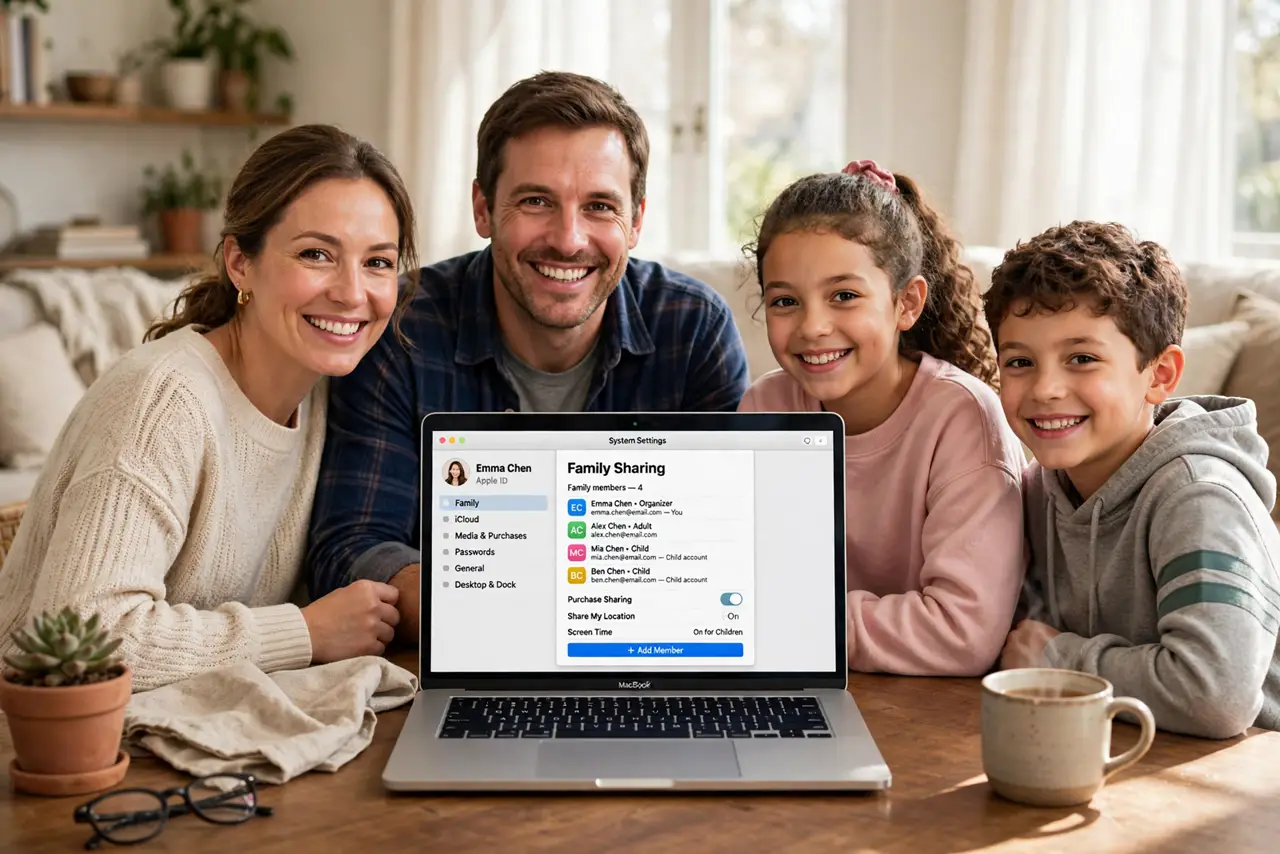
Quick fix: open System Settings, click Family, and invite members by Apple ID — each person keeps their own account, photos, and messages. The organizer's payment method covers shared purchases, and you can require approval for kids' downloads. Location and subscription sharing are optional toggles.
Follow these steps
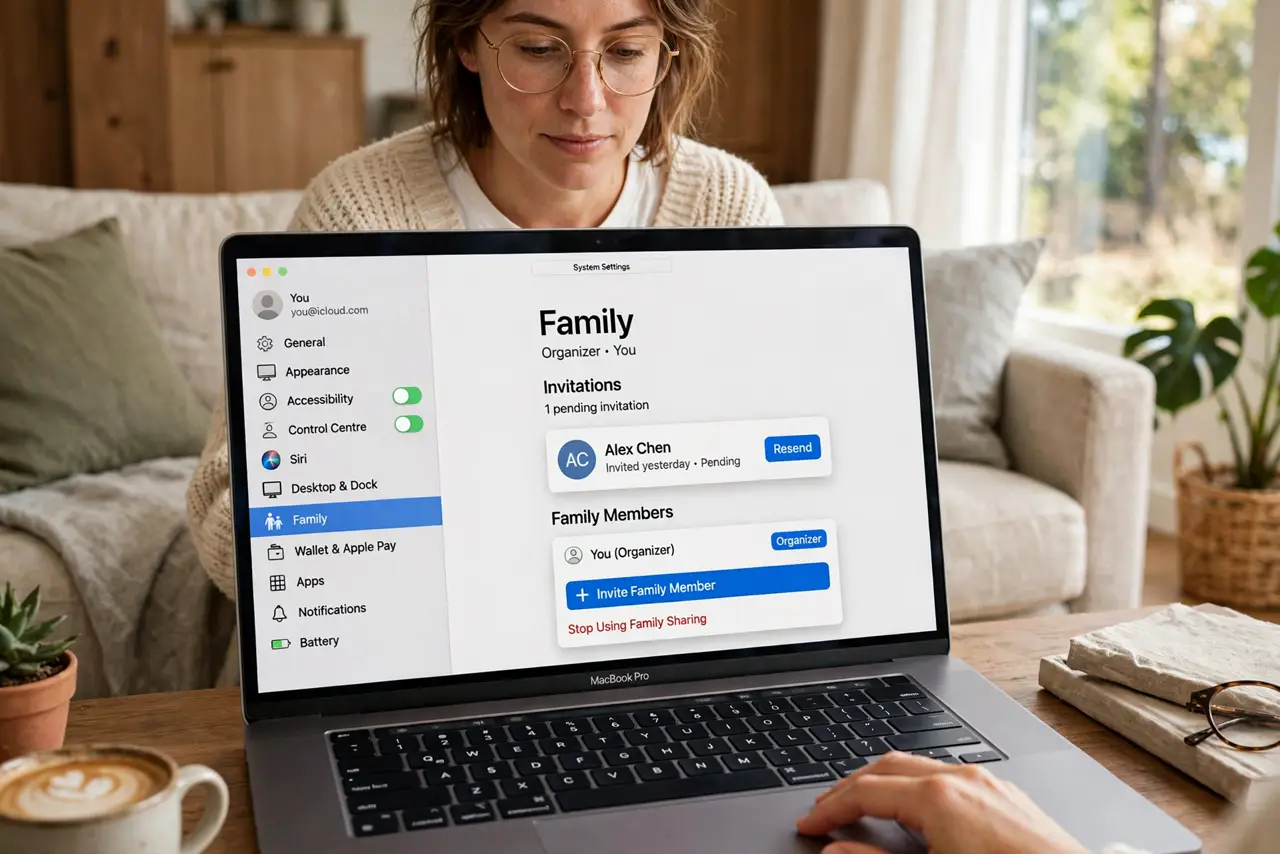
- Open the Family settings. In System Settings, click Family in the sidebar. The organizer — usually the first person — manages invitations here.
- Invite members by Apple ID. Send invitations to each person's existing Apple ID. Everyone keeps their own account, photos, messages, and sign-ins — sharing never merges identities.
- Set up purchase sharing. The organizer's payment method covers shared App Store and media purchases. Family members' own cards stay untouched unless they buy outside sharing.
- Require approval for kids. Turn on Ask to Buy for children's accounts. Every purchase request pings the organizer for approval — no surprise charges.
- Choose what else to share. iCloud+ storage, Apple Music, location, and subscriptions each have their own toggle. Share what helps; skip what does not.
- Add Screen Time for the kids next. Family Sharing handles purchases; Screen Time handles limits. Together they cover the two things parents actually worry about.
What NOT to do
- Do not share one Apple ID across the family instead. Shared IDs merge messages, photos, and contacts into chaos — Family Sharing exists to avoid exactly this.
- Do not invite with the wrong Apple ID. Invitations attach to the invited account permanently-ish — double-check the address before sending.
- Do not forget the organizer pays. Every approved purchase bills the organizer's card — make sure the organizer is the right person.
- Do not enable location sharing without telling everyone. Surprise location tracking breeds resentment — announce it, then toggle it.
Frequently asked questions
Does Family Sharing merge our photos?
No — photos, messages, and personal data stay entirely separate. Only purchases, subscriptions, and explicitly shared items cross over.
Can adults join or is it just for kids?
Anyone with an Apple ID can join — up to six members. Adults get purchase and subscription sharing without any parental controls.
What happens when a kid turns 13?
Age-based restrictions relax automatically per local law, but Ask to Buy and Screen Time settings you configured stay until you change them.