Use Column View in Finder
Digging through nested folders in icon view is a special kind of lost — you can never see where you are. Column View lays every level out left to right, so the whole path is always visible and the file preview sits at the end. It is the view power users live in, and it takes one keystroke to try.
TL;DR / Quick Fix
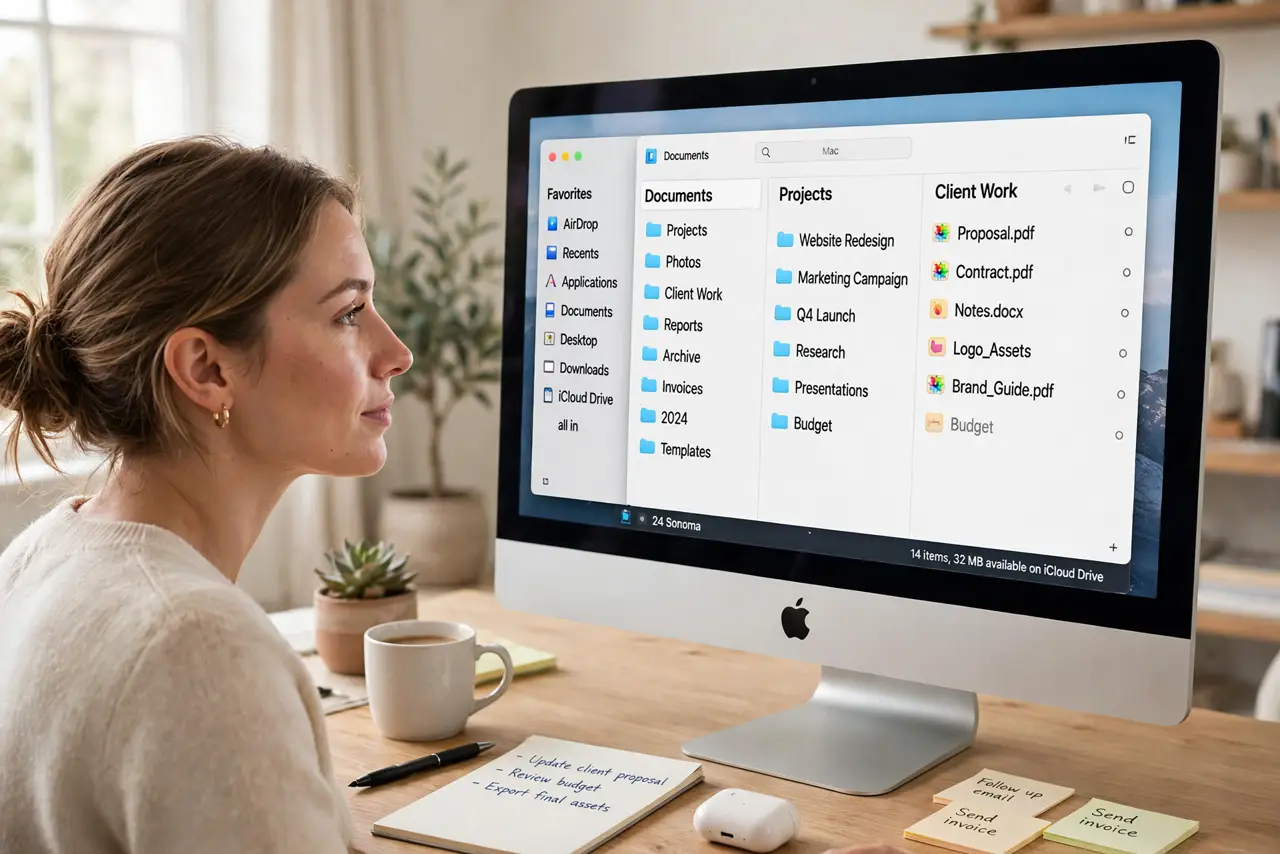
Quick fix: in Finder press Command+3 or choose View > as Columns — folders cascade left to right so you always see where you are. Click a folder to preview its contents in the next column; the far right previews the file. Fastest way through deep folder trees.
Follow these steps
- Switch to Column View. In any Finder window press Command+3, or choose View > as Columns from the menu. The window instantly reorganizes into cascading columns — nothing moves, only the display changes.
- Click through the columns. Click a folder and its contents appear in the next column to the right. Keep clicking deeper — the trail of columns is your breadcrumb path, always visible.
- Use the preview column. Select any file and the far-right column shows a preview — images, PDFs, text, even video thumbnails. Space-bar Quick Look still works too for a bigger view.
- Navigate with arrow keys. Right arrow dives into a folder, left arrow backs out, up/down moves within a column. Once this is muscle memory, you will never drag-scroll through folders again.
- Resize columns that clip names. Drag the column dividers (or the small handle at the bottom) to widen columns with long filenames. Finder remembers per-folder, so fix it once per messy folder.
- Combine with smart sorting. Column View shows structure; sorting orders it. Set both and large folders become scannable — and aliases in the sidebar give one-click jumps to deep spots.

What NOT to do
- Do not use Column View for photo browsing. Gallery view shows images far better — columns are for navigating, not admiring.
- Do not fight narrow columns. Widen them once per folder instead of squinting forever — the setting sticks.
- Do not forget the path bar. If columns still confuse you, enable View > Show Path Bar for a clickable trail at the bottom too.
- Do not assume it changed your files. Views only change display — your folders are exactly where they were.
Frequently asked questions
How do I make Column View the default?
Set it in one window, then Finder > Settings > General is not the place — use View > Show View Options and click Use as Defaults with a Finder window open.
Can I preview files without opening them?
Yes — the last column previews most file types automatically. For a full-size look, press Space for Quick Look.
Why do some columns show no preview?
Unsupported file types show an icon instead. The file still opens fine in its app — preview coverage is just not universal.