Show the Path Bar in Finder
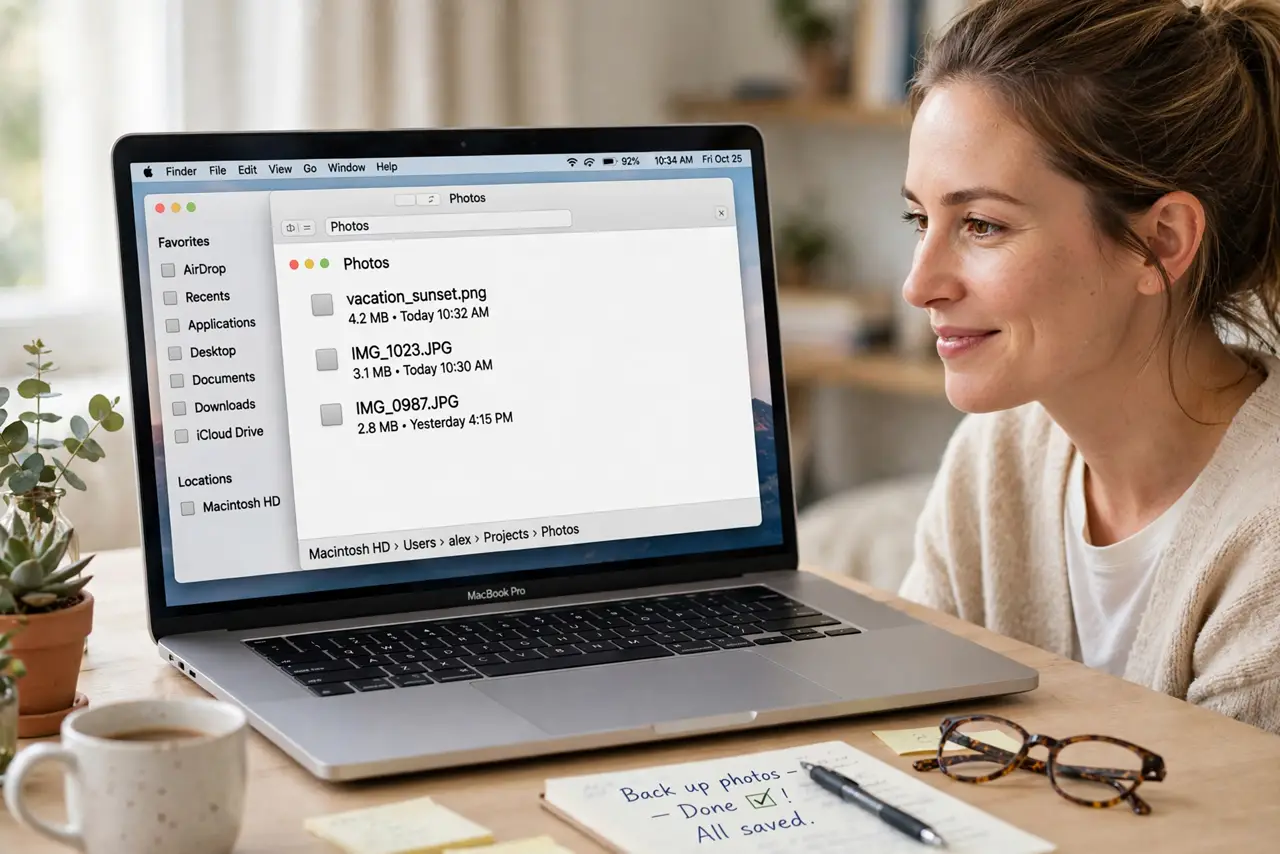
You are three folders deep and have no idea where you are — the Finder window shows files but not the trail that led here. The Path Bar fixes this permanently: a clickable breadcrumb trail across the bottom of every Finder window, showing exactly where you are and letting you jump to any parent folder in one click.
TL;DR / Quick Fix
Quick fix: in Finder, go to the View menu and choose Show Path Bar. A clickable trail of folders appears at the bottom of every window, so you always know where you are. Double-click any folder in the trail to jump there — it ends the lost-in-folders feeling instantly.
Follow these steps
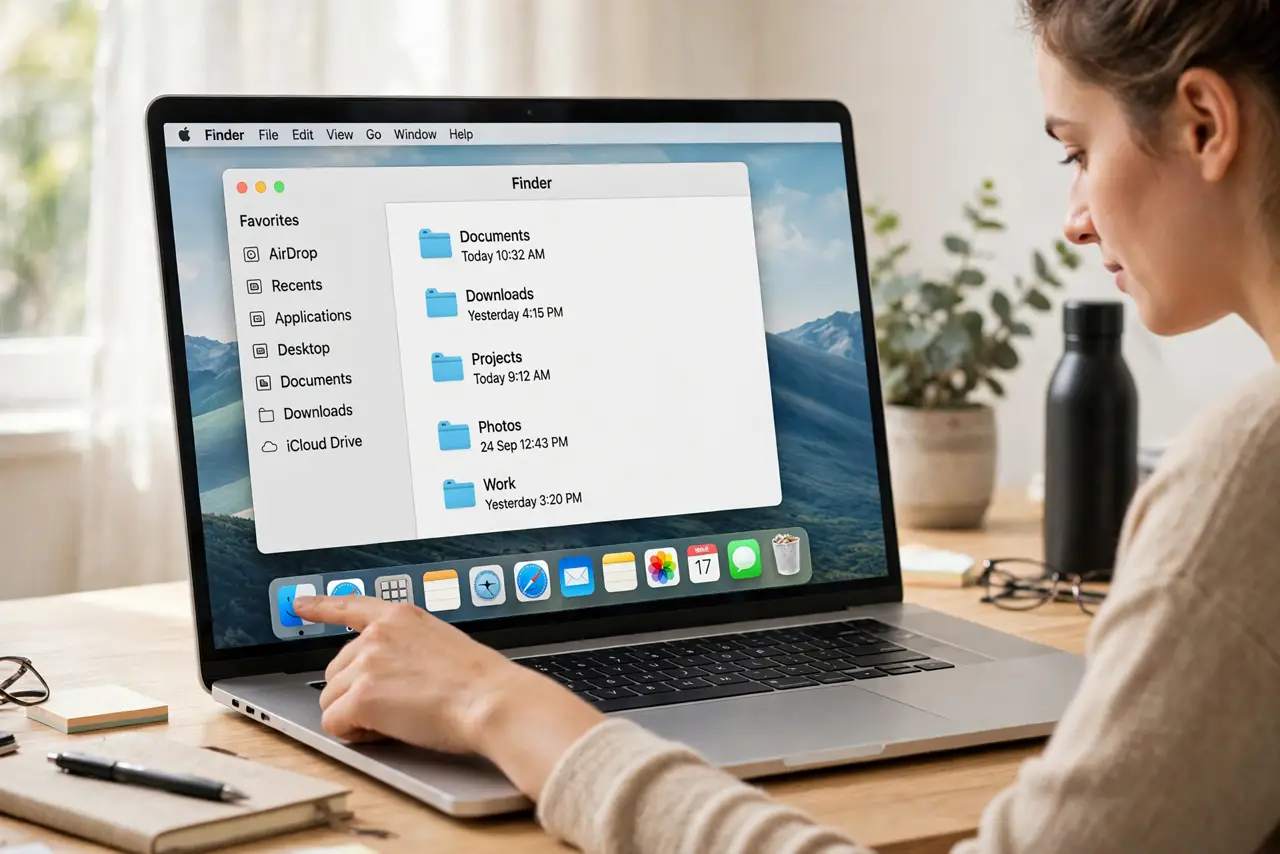
- Open any Finder window. Click the Finder icon in the Dock. Any window works — the setting applies everywhere at once.
- Choose Show Path Bar. In the menu bar, go to View, then Show Path Bar. The breadcrumb trail appears along the bottom immediately — no restart needed.
- Read the trail. Each segment is a folder from your drive down to the current one. You always know exactly where you are — the lost-in-folders feeling ends here.
- Click to jump. Single-click any folder in the trail to jump straight there. Deep navigation becomes one click instead of five backs — and you can copy any path from here too.
- Double-click for a new window. Double-click a trail folder to open it in its own window. Handy when you need the parent and the child side by side.
- Leave it on forever. The Path Bar stays until you hide it, across restarts. It costs no performance and a sliver of space — there is no reason to turn it back off.
What NOT to do
- Do not confuse the Path Bar with the title bar path. The title bar shows text; the Path Bar is clickable — much more useful.
- Do not hide it to save space. The sliver it occupies pays for itself the first time you need to jump up two folders.
- Do not expect it in open and save dialogs. Those have their own navigation — the Path Bar is for Finder windows.
- Do not overlook right-click. Right-clicking a trail folder offers Get Info, Open in New Tab, and other shortcuts.
Frequently asked questions
Can I copy a folder path from the Path Bar?
Yes — right-click any segment, or Option-click to copy the full path as text. Pasting paths into Terminal or dialogs saves typing.
Does the Path Bar slow down Finder?
No measurable effect. It is a static display of where you already are.
The Path Bar disappeared — how do I get it back?
View menu, Show Path Bar again. Some macOS updates or window resets hide it; the toggle always brings it back.