Find Files with Smart Folders
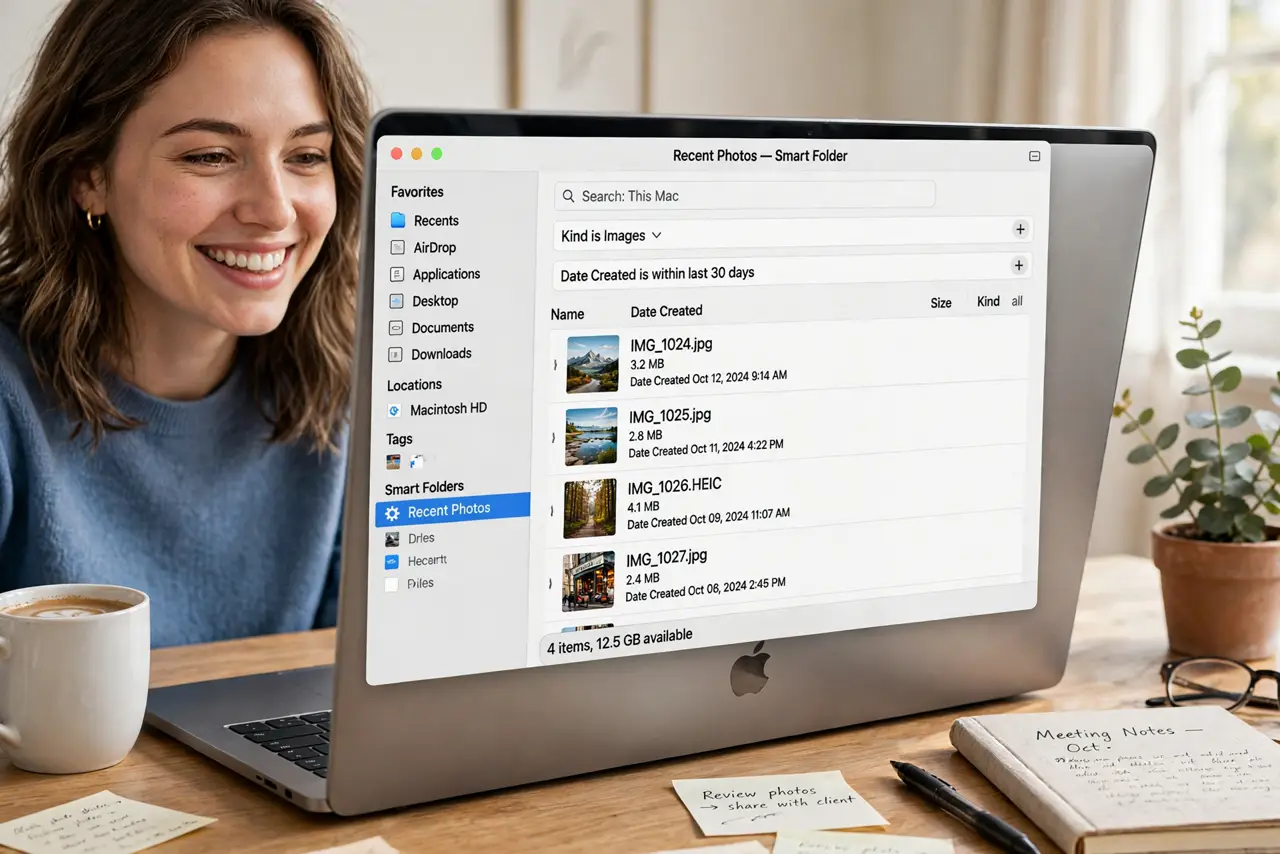
You know the file exists — a PDF from last month, every screenshot from this week, all the huge videos eating your drive — but hunting through folders is hopeless. Smart Folders are saved searches that always show current matches: define the rules once, and the folder stays magically up to date forever.
TL;DR / Quick Fix
Quick fix: in Finder, choose File then New Smart Folder, add search rules like kind, date, or name contains, and save it. The folder always shows current matches — it is a saved search, not a copy. Use them for recent downloads, large files, or everything from one project.
Follow these steps
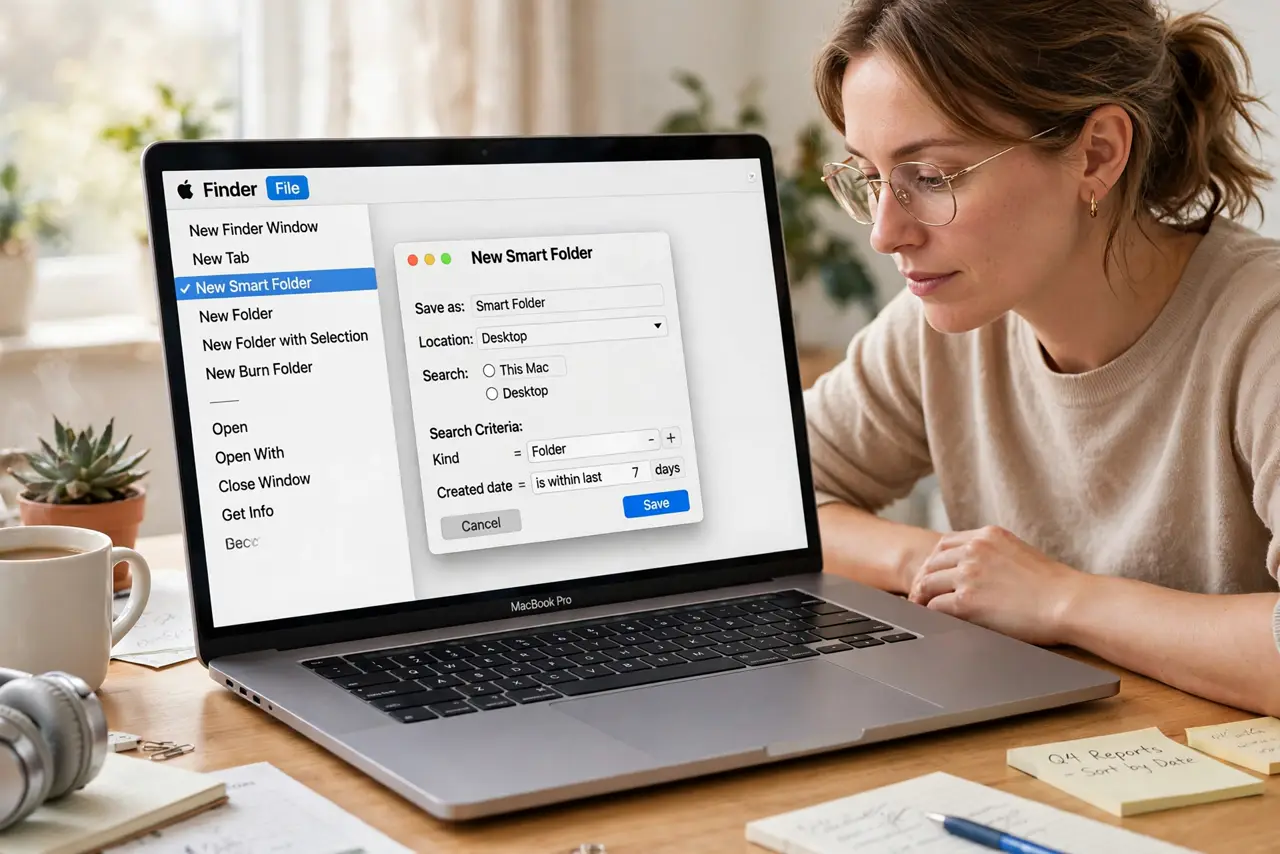
- Create a new Smart Folder. In Finder, go to File, then New Smart Folder. A search window opens — this is where you define the rules.
- Add search rules. Click the plus button to add criteria: Kind is PDF, Date created within 30 days, Name contains invoice. Stack rules to narrow precisely — each rule is a filter.
- Preview the matches. The window shows matching files live as you add rules. Too many results? Add another rule. Too few? Loosen one. The preview makes it foolproof.
- Save it. Click Save, give it a clear name like Recent invoices, and choose where it lives — the sidebar is the classic spot. It now behaves like a folder.
- Understand it is a search, not a copy. Smart Folders contain no files — they display matches wherever the files actually live. Deleting from a Smart Folder deletes the real file, so be careful.
- Build the classics. Recent downloads, files over 1 GB, screenshots this month, everything from one client. Four Smart Folders replace most folder spelunking — and if one shows empty unexpectedly, see the empty folder fix.
What NOT to do
- Do not use Smart Folders as your only organization. They are finders, not filers — files still need real homes.
- Do not make rules too clever. Five stacked conditions break mysteriously; two or three clear rules stay reliable.
- Do not delete files from a Smart Folder casually. You are deleting the originals wherever they live — there is no safety copy.
- Do not forget they search everywhere. A Smart Folder can surface files from folders you forgot existed — which is the point, but stay aware.
Frequently asked questions
Do Smart Folders take up extra space?
No — they store only the search rules, not the files. A hundred Smart Folders cost essentially zero disk space.
Can I share a Smart Folder?
The rules can be recreated on another Mac, but there is no simple export. Screenshot your rules if you need to replicate them.
Why is my Smart Folder empty?
Usually a rule typo or a scope issue — check each criterion and confirm the search location includes where the files live.