Show the Path Bar in Finder
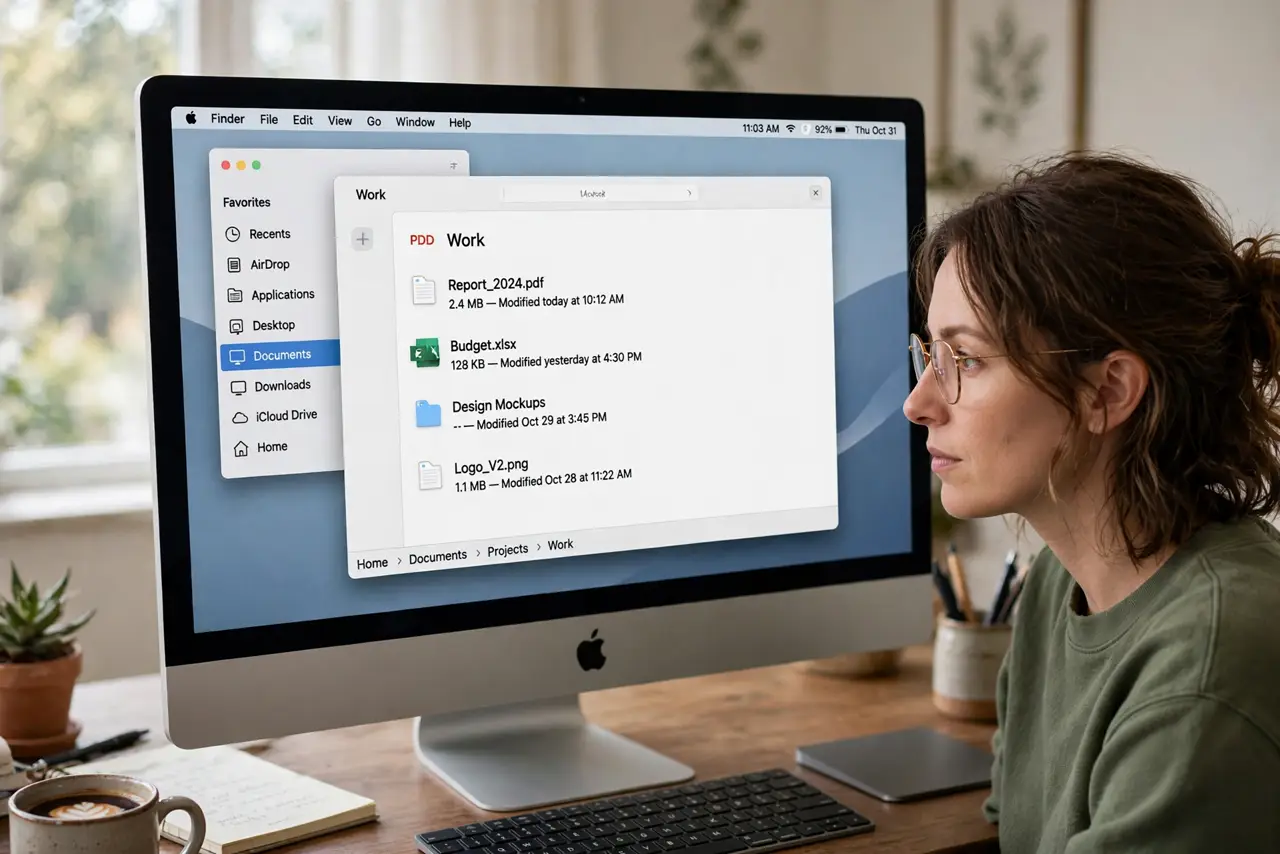
You are five folders deep and have no idea how you got here — the Finder window shows the current folder name but not the trail. The path bar adds a clickable breadcrumb strip at the bottom of every window: where you are, and one-click jumps to any parent.
TL;DR / Quick Fix
Quick fix: in Finder, open View > Show Path Bar, or press Option+Cmd+P. A breadcrumb trail appears at the bottom showing exactly where you are. Double-click any folder in the trail to jump there, or drag files onto it to move them. It stays on until you hide it.
Follow these steps
- Show the path bar. With Finder active, choose View > Show Path Bar, or press Option+Cmd+P. The breadcrumb strip appears along the bottom of every Finder window.
- Click to jump. Single-click any folder in the trail to jump straight there. Deep navigation becomes one click instead of four back-steps.
- Double-click to open in place. Double-clicking a trail folder opens it in the current window; Command-double-click opens it in a new tab or window.
- Drag files onto the trail. Drop a file onto any parent folder in the path bar to move it there — faster than opening the destination.
- Know the title-bar trick too. Command-click the folder name in the window's title bar for a dropdown of the same path. Two ways to see where you are; pick your favorite.
- It survives restarts. Once shown, the path bar stays on across relaunches. If it ever vanishes, the View menu toggle brings it back — and check the sidebar if navigation feels incomplete.

What NOT to do
- Do not confuse the path bar with the status bar. The status bar shows item counts; the path bar shows the folder trail — both can be on together.
- Do not drag system files around via the trail. Moving things into system folders from the path bar is still a bad idea.
- Do not expect the full POSIX path. The bar shows friendly folder names; use Get Info or Terminal for the raw path.
- Do not hide it again by accident. Option+Cmd+P toggles — the same shortcut that showed it can hide it.
Frequently asked questions
What is the difference between the path bar and the title bar trick?
The path bar is always visible; the Command-click title menu appears on demand. Same information, different ergonomics.
Can I copy the path from the path bar?
Right-click a trail folder for options including copying its pathname — handy for Terminal work.
The path bar shows but I still feel lost — why?
You may be in a smart folder or search results, where the trail reflects the search, not the disk. Check the sidebar location.