Finder Quick Actions Go Missing? Fix Them
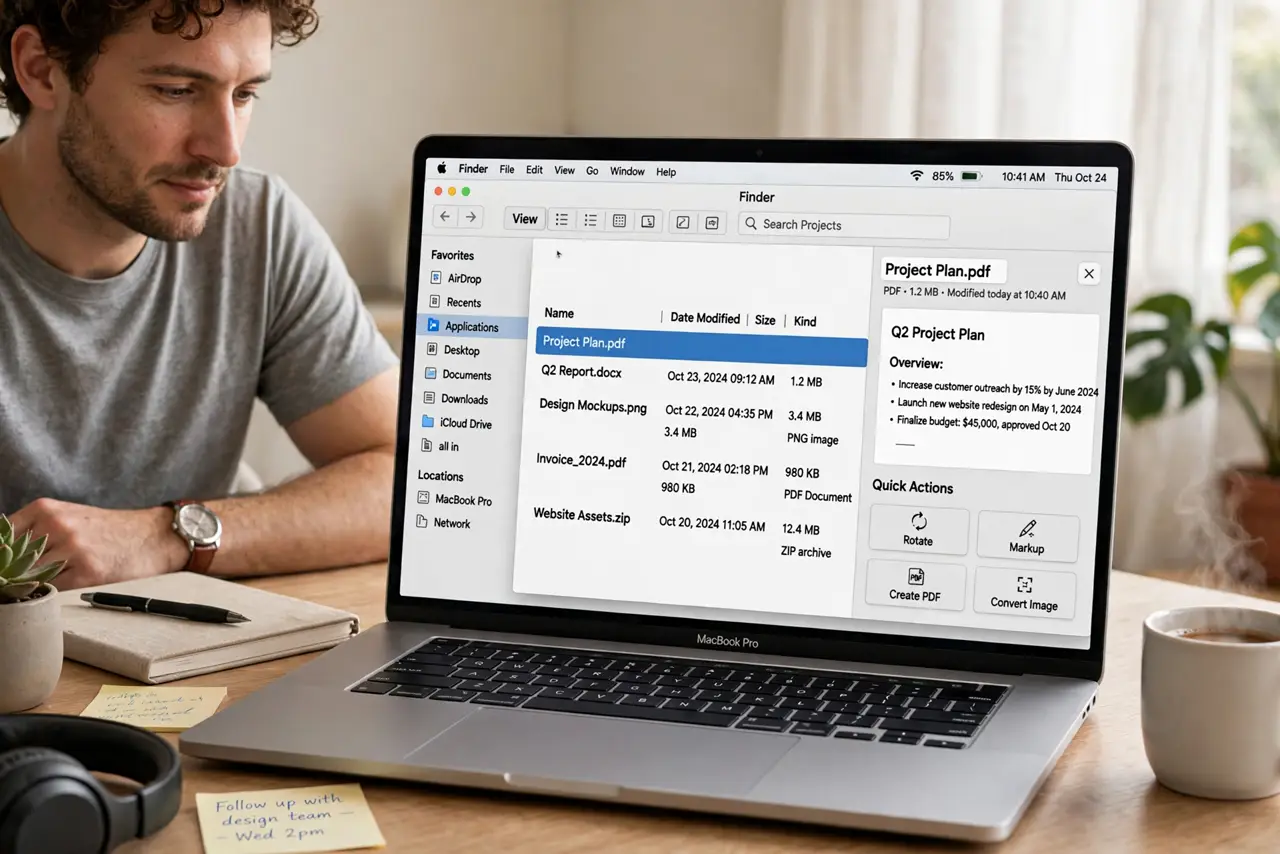
When Finder Quick Actions go missing, the handy buttons for rotating, marking up, or converting a file vanish from the Preview pane, and tasks that took one click now take several. Quick Actions are per file type and can be turned off, so checking the Preview pane and the action list usually brings them back.
TL;DR / Quick Fix
Quick fix: select a file in Finder, show the Preview pane, and look at the bottom of the pane for Quick Actions. If none appear, open the More button in the pane, or open System Settings, then Privacy and security, then Extensions, then Finder, and re-enable the missing action.
Follow these steps
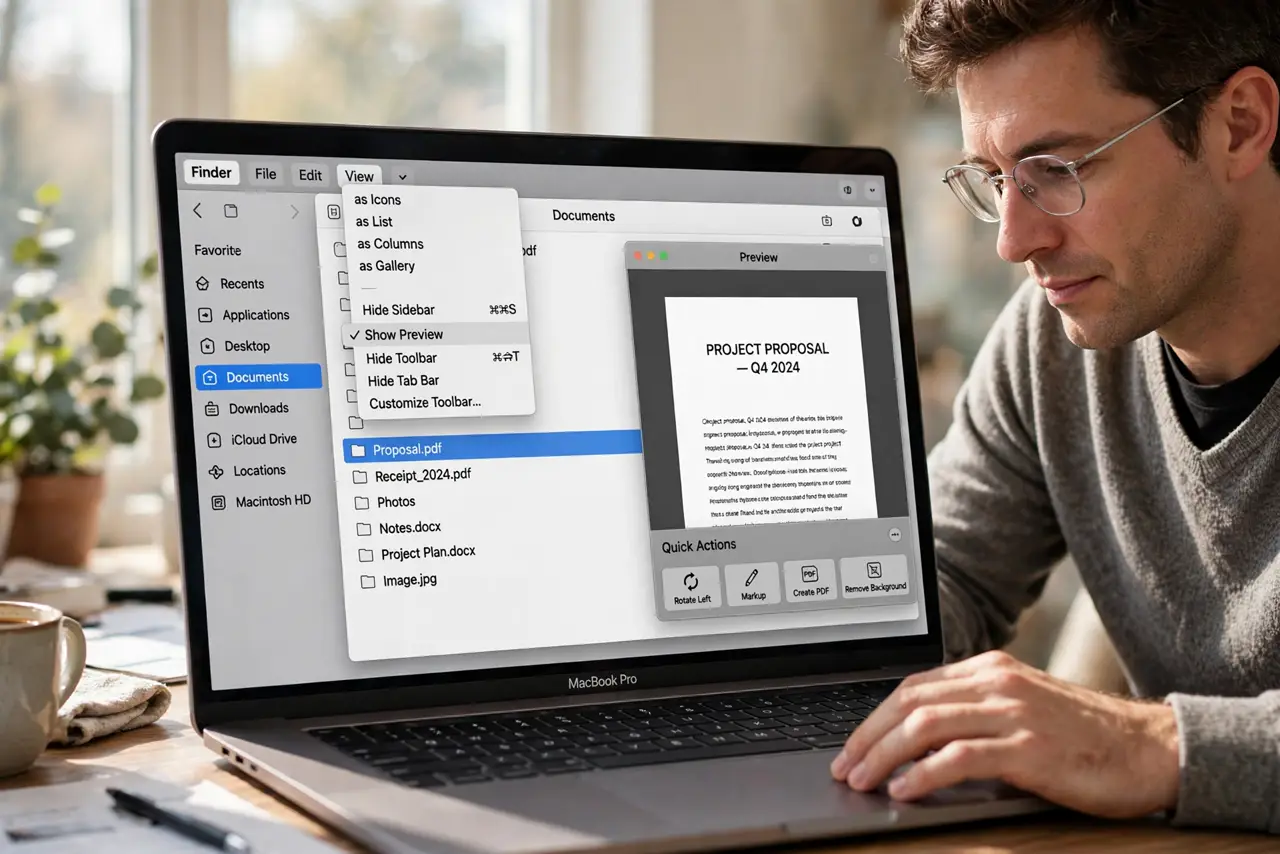
- Show the Preview pane. In Finder, choose View, then Show Preview. Quick Actions live at the bottom of the Preview pane, so a hidden pane hides the actions too.
- Select the right file type. Select a file of the type the action works on, such as an image for Rotate. An action for images will not appear when you select a document, and that is normal, not a fault.
- Check the More button in the pane. Click More at the bottom of the Preview pane and look for the missing action in the list. An action can be present but collapsed under More, rather than gone entirely.
- Re-enable the action in Extensions. Open System Settings, then Privacy and security, then Extensions, then Finder, and confirm the action is enabled. Turn it back on if it was turned off.
- Restart Finder if the action still hides. Hold Option, right-click the Finder icon in the Dock, and choose Relaunch. A fresh Finder session picks up extension changes that a running Finder may not show.
- Test the action on a copy. Test the restored action on a copy of a file first. If it works on the copy, it is safe to use on your real files.
What NOT to do
- Do not reinstall macOS because Quick Actions disappeared. Quick Actions are pane and extension settings, and reinstalling the system is far out of proportion.
- Do not install a Finder replacement tool from a pop-up to restore actions. The built-in Preview pane and Extensions settings already control Quick Actions.
- Do not enable every extension at once to find one action. Enabling everything clutters the pane, so enable only the action you actually need.
- Do not test a restored action on an original file first. Test on a copy, because an action such as Convert can change the file, and a copy keeps the original safe.
Frequently asked questions
Where do Quick Actions live?
At the bottom of the Finder Preview pane, for the selected file. If the pane is hidden, or the file type does not match, the actions will not show.
Why did an action disappear after an update?
An update can disable an extension, or change which file types it supports. Re-enabling it in Extensions usually restores it.
Can I create my own Quick Actions?
Yes, with Automator or Shortcuts, but start by restoring the built-in actions first, so you know the pane itself works.