Preview Markup Tools Hidden? Find Them
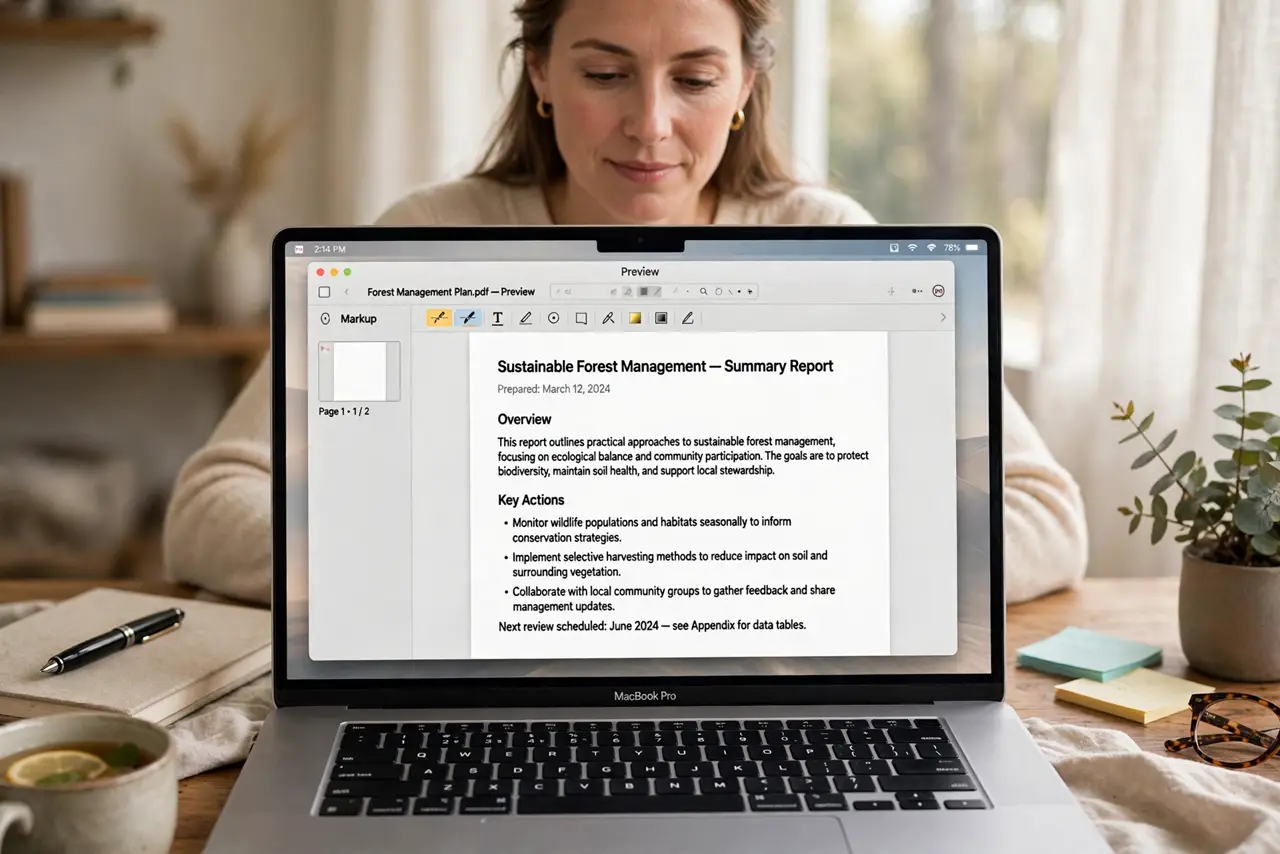
When Preview markup tools are hidden, you cannot annotate a PDF or image, and the toolbar looks bare. The Markup toolbar is a toggle, and it only appears for file types that support markup, so checking the toggle and the file type usually restores the tools.
TL;DR / Quick Fix
Quick fix: open the file in Preview, click the Markup toolbar button in the top toolbar, or choose View, then Show Markup Toolbar. If the button is missing, confirm the file is a PDF or image, because other file types do not offer markup tools.
Follow these steps
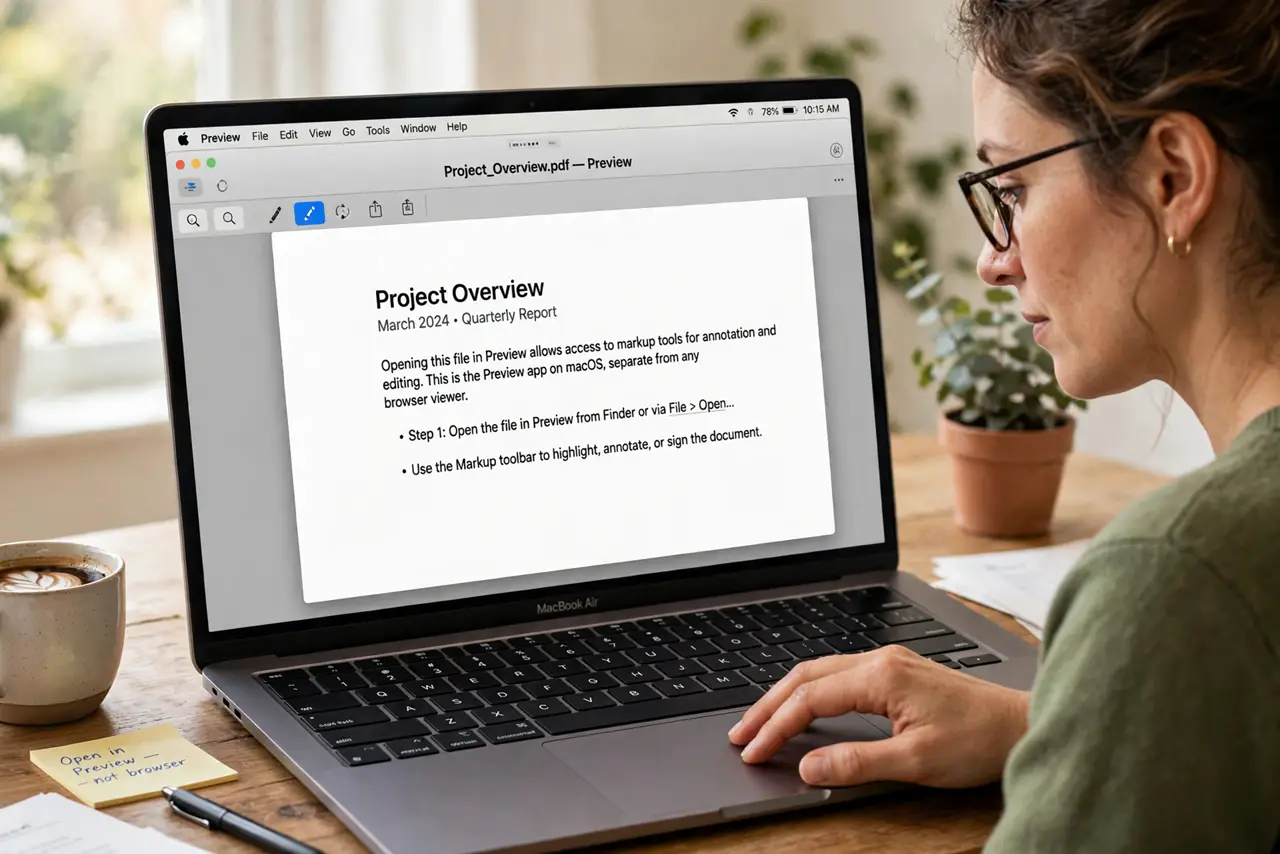
- Open the file in Preview. Open the PDF or image in Preview itself, not in a browser viewer. Browser viewers do not offer Preview markup tools, even when the file is the same.
- Show the Markup toolbar. Click the Markup toolbar button in the top toolbar, or choose View, then Show Markup Toolbar. The annotation tools should appear below the main toolbar.
- Check the toolbar customization. If the button is missing, right-click the toolbar, choose Customize Toolbar, and drag the Markup button back into the toolbar. Then click it to show the tools.
- Confirm the file type supports markup. Markup works on PDFs and images. If you opened another file type, Preview will not show markup tools, and that is normal, not a fault.
- Try a different PDF or image. Open a simple PDF or image you know well, and check for the Markup toolbar there. If it appears there, the original file, not Preview, was the problem.
- Restart Preview if tools still hide. Quit Preview fully and reopen the file. A fresh Preview session clears a toolbar state where the Markup button stayed hidden.
What NOT to do
- Do not install a PDF editor from a pop-up to annotate one file. Preview already includes markup tools, and extra editors add cost and risk for a job Preview does.
- Do not convert the file to another format just to find markup tools. Converting can lose quality, while the Markup toolbar toggle is the direct fix.
- Do not edit the original file before you test markup on a copy. Markup saves into the file, so a copy keeps the original safe while you test.
- Do not assume Preview is broken because markup is missing for one file. File type matters, so test a known PDF or image before you troubleshoot Preview itself.
Frequently asked questions
Where is the Markup toolbar?
In Preview, as a button in the top toolbar, or under View, then Show Markup Toolbar. It appears below the main toolbar once enabled.
Why does markup not appear for my file?
Because the file type does not support it, or you opened it in a browser viewer. Open a PDF or image in Preview itself and check again.
Can I hide the Markup toolbar again?
Yes. Choose View, then Hide Markup Toolbar, or click the Markup button again. Hiding it does not remove your annotations, which stay saved in the file.