Finder Tags Not Syncing via iCloud
You tag files carefully on one Mac, but the tags never appear on your other Mac. Like text replacements, Finder tags sync through iCloud Drive, and the chain needs the same account plus iCloud Drive enabled on both. This guide reconnects tag sync.
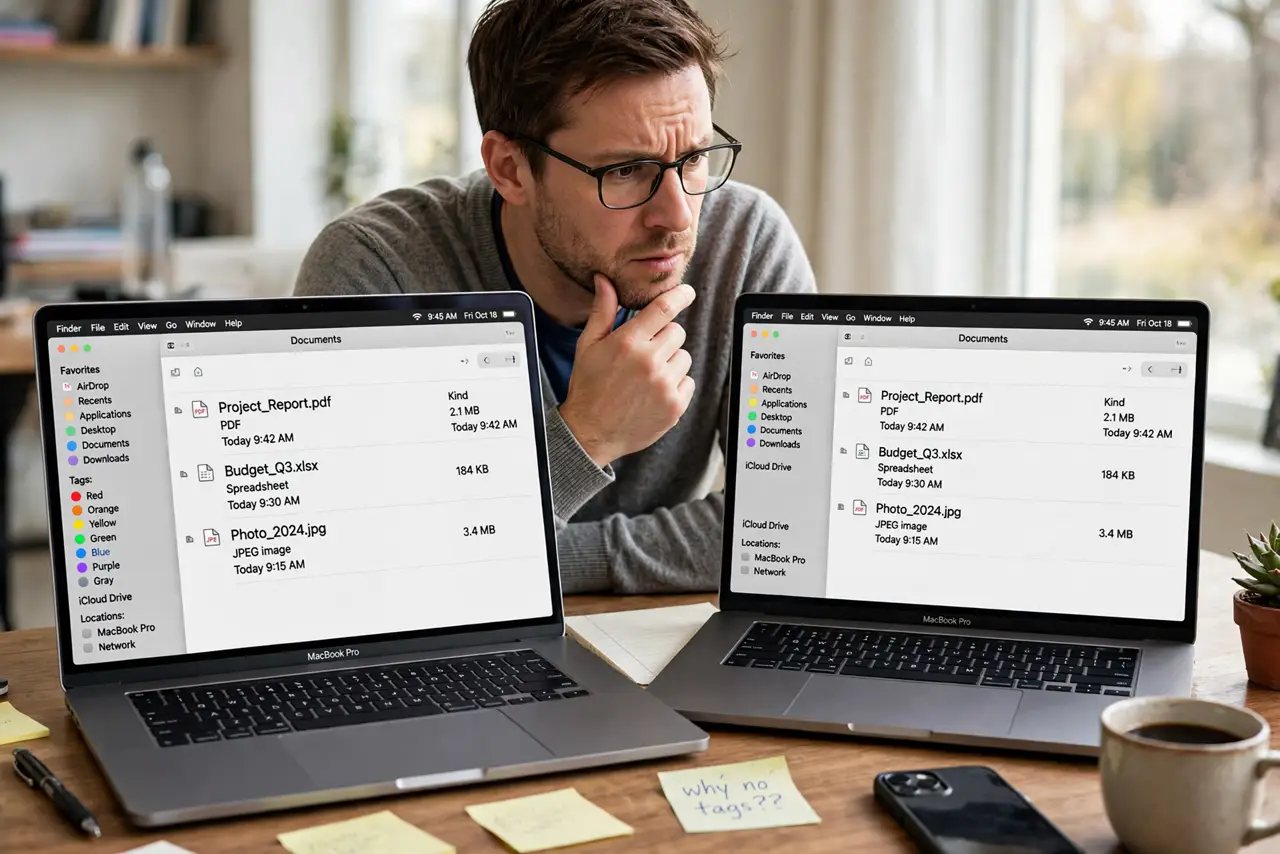
TL;DR / Quick Fix
Quick fix: confirm both Macs use exactly the same Apple ID with iCloud Drive enabled in System Settings. Like text replacements, tags follow the account; toggle iCloud Drive off and on once, then wait patiently on Wi-Fi for the sync to complete.
Follow these steps
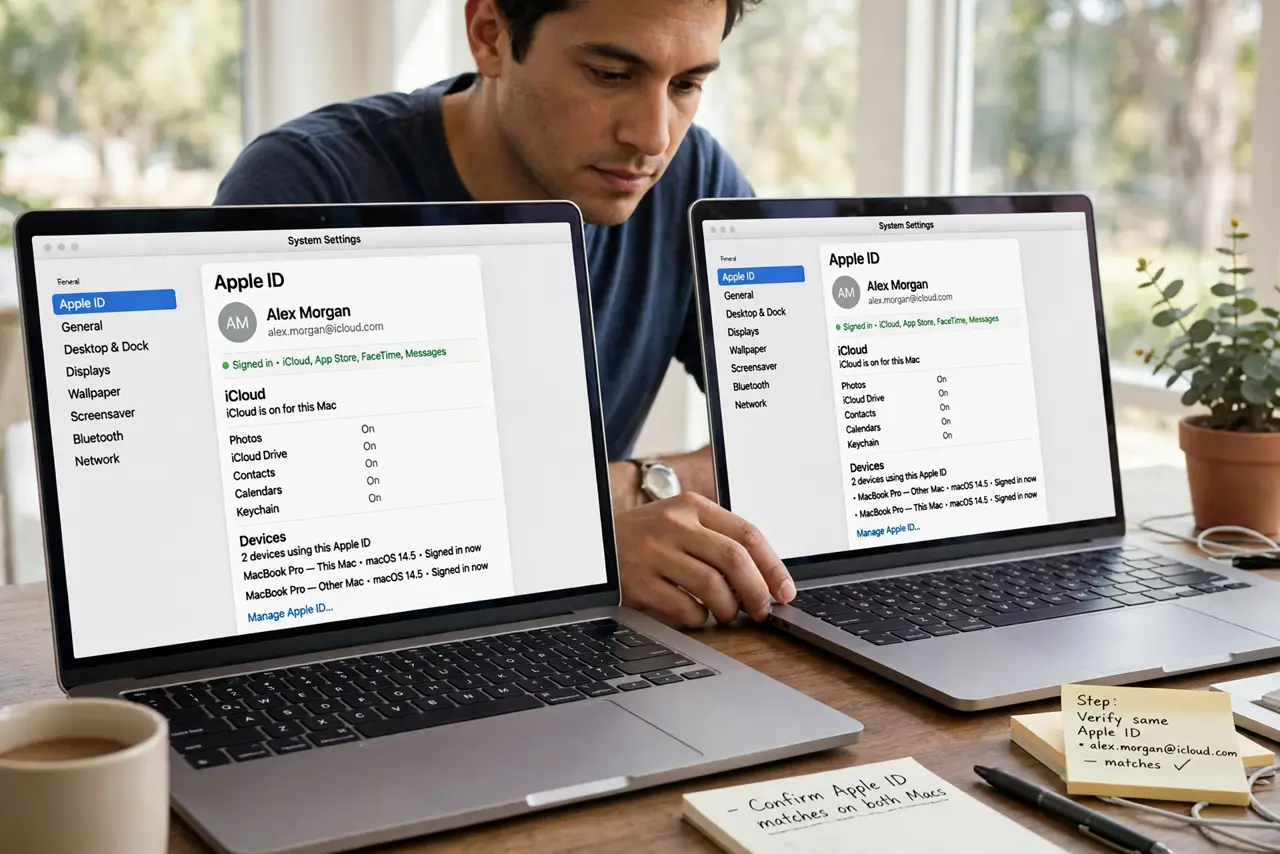
- Match the Apple ID on both Macs. Tags sync within one iCloud account. Check the signed-in Apple ID on each Mac; a mismatch means two separate tag worlds.
- Enable iCloud Drive on both. In System Settings, then Apple ID, then iCloud, confirm iCloud Drive is on. Tag metadata travels with iCloud Drive, so a disabled drive breaks tag sync.
- Check the tags exist in Finder settings. Open Finder settings and look at the Tags tab. If the custom tags are missing there too, the sync never delivered them, not just the files.
- Toggle iCloud Drive once. Turn iCloud Drive off, wait a minute, and turn it back on, choosing to keep local copies. One clean toggle restarts stalled metadata sync.
- Wait on Wi-Fi before judging. Tag metadata is tiny but syncs on a schedule. Give it fifteen minutes on Wi-Fi, especially after the toggle.
- Test with a new tag. Create a brand-new tag on one Mac and watch for it on the other. A fresh tag often syncs when old ones are stuck, proving the pipe works.
What NOT to do
- Do not retag everything on the second Mac. Duplicate tag names across devices create a mess that is hard to merge.
- Do not delete the tag definitions. Removing a tag from Finder settings untags every file carrying it.
- Do not expect tags on non-Apple file systems. Tags need APFS or HFS+; network and FAT drives may not carry them.
- Do not confuse tags with labels from old macOS. Modern tags replaced the old color labels, though the colors survived.
Frequently asked questions
Do Finder tags sync between Macs?
Yes, through iCloud Drive, when both Macs share the Apple ID and have iCloud Drive enabled.
Why do some tags sync but not others?
Partial syncs stall midway. The iCloud Drive toggle usually completes the missing ones.
Do tags work on external drives?
Only if the drive uses a Mac file system. Tags do not survive on FAT32 or exFAT drives.