Organize Files with Finder Tags
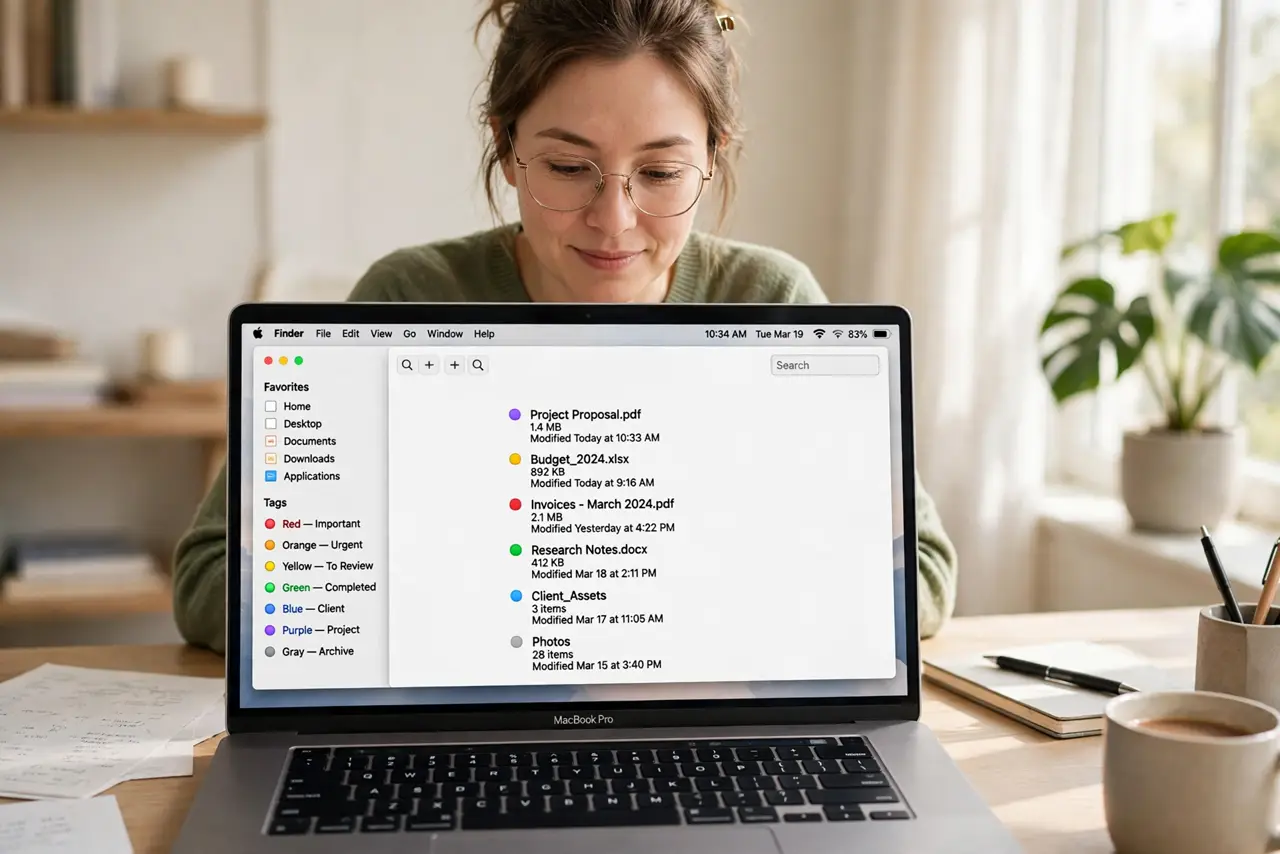
Those little colored dots in Finder look decorative until you realize they are a whole organizing system hiding in plain sight. Finder tags let you label files by project, status, or context — across any folders — and then pull them all together with one click in the sidebar. Used well, they beat folders for anything that belongs in two places at once. Here is a calm way to set up a tagging system that actually sticks.
TL;DR / Quick Fix
Quick fix: Finder tags turn macOS's color dots into an organizing system. Tag files by project, status, or context in any folder, then find them instantly with a tag search in the sidebar. Pick five or fewer tags, assign them with a right-click, and your files surface wherever they live.
Follow these steps
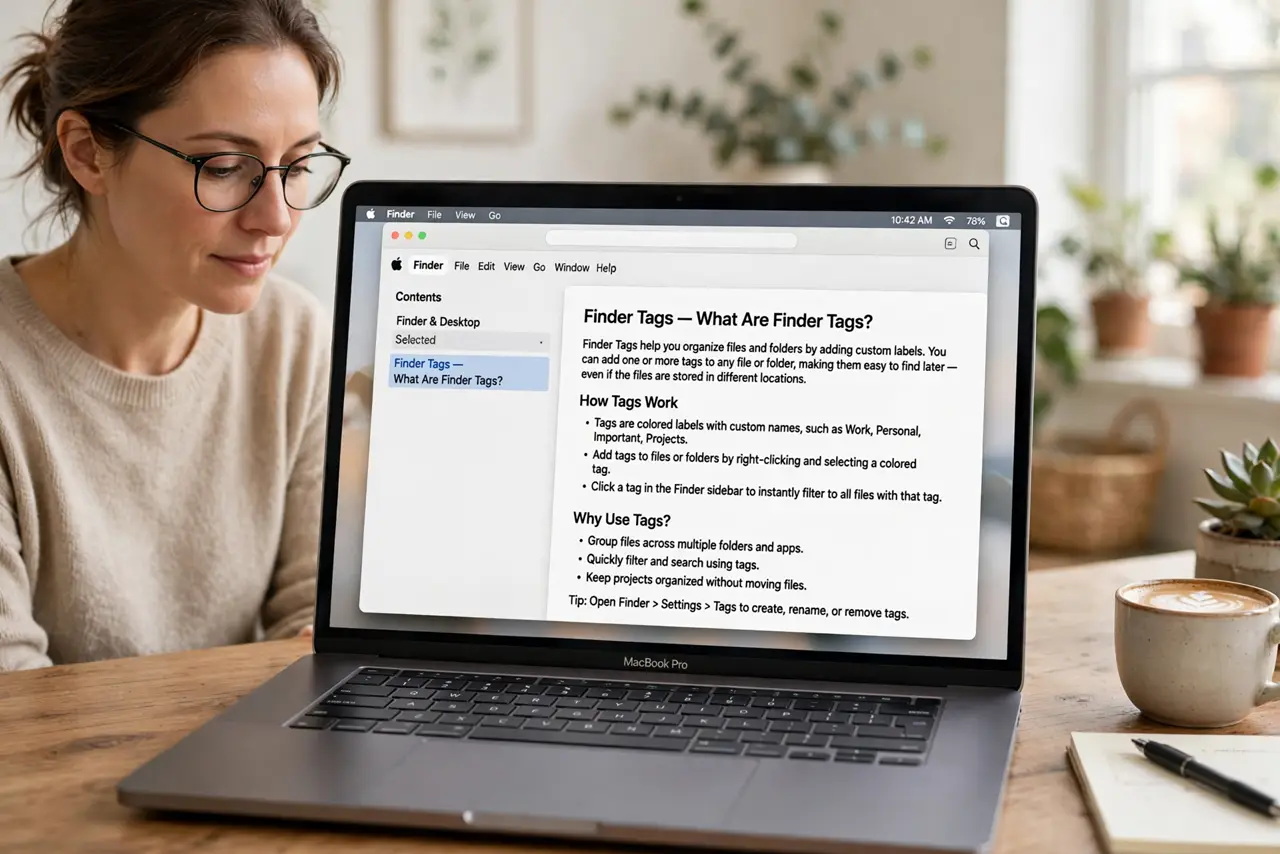
- Understand what tags are for. A tag is a label that sticks to a file wherever it lives. Unlike a folder, a file can carry several tags at once — so a contract can be tagged Legal, Urgent, and Q4 without three copies. Tags answer 'find it by what it is,' folders answer 'find it by where I put it.'
- Design a small tag set first. Open Finder, then Finder menu > Settings > Tags, and define your tags before using any. Five or fewer tags beats twenty: try something like Active, Waiting, Reference, Personal, and Archive. A small set you remember beats a taxonomy you forget.
- Tag files with a right-click. Select any file or files, right-click, and choose a tag from the Tags section. You can also drag files onto a tag name in the Finder sidebar. Tagging is instant and never moves the file.
- Find tagged files from the sidebar. Click a tag name in the Finder sidebar to see every file with that tag, across all folders and drives. This is the payoff — one click gathers what folders would scatter.
- Combine tags for smart filtering. In a Finder search, add criteria for multiple tags to narrow results — for example Active plus Urgent. Tags compose, so a small set covers a surprising number of situations.
- Maintain the system monthly. Once a month, click your Active tag and re-tag anything finished or stale. An unmaintained tag set rots into noise; five minutes of pruning keeps it trustworthy.
What NOT to do
- Do not create twenty tags on day one. A giant tag list is as useless as no tags — start with five and grow only when a gap proves real.
- Do not tag everything in sight. Tags are for things you will actually search for later; tagging every download is busywork.
- Do not treat tags as a replacement for backups. Tags organize; they do not protect. Keep your backup routine separate.
- Do not rename tags carelessly after heavy use. Renaming is safe, but deleting a tag strips it from every file at once — rename, don't delete, to reorganize.
Frequently asked questions
Do Finder tags work across iCloud Drive?
Yes — tags sync with your files through iCloud Drive, so they follow you between Macs signed into the same Apple ID.
Can I search tags in Spotlight?
Yes, typing a tag name in Spotlight surfaces tagged files. The Finder sidebar click is usually faster, though.
What is the difference between tags and labels?
Tags are the modern version of the old color labels — same idea, now with names, multiple tags per file, and sidebar search. If you remember labels, tags are their grown-up form.