Restore One File From Time Machine
You deleted a file last Tuesday. Or saved over the good version. Or an app corrupted your project. The file still exists — in yesterday's backup, and the day before's. Time Machine's timeline lets you travel back and pull out exactly the version you need, without restoring everything.

TL;DR / Quick Fix
Quick fix: open the folder where the file lived, click the Time Machine icon in the menu bar, and choose Browse Time Machine Backups. Travel back through the timeline, select the file, and click Restore. The file returns to its spot — or pick a new one if you prefer.
Follow these steps
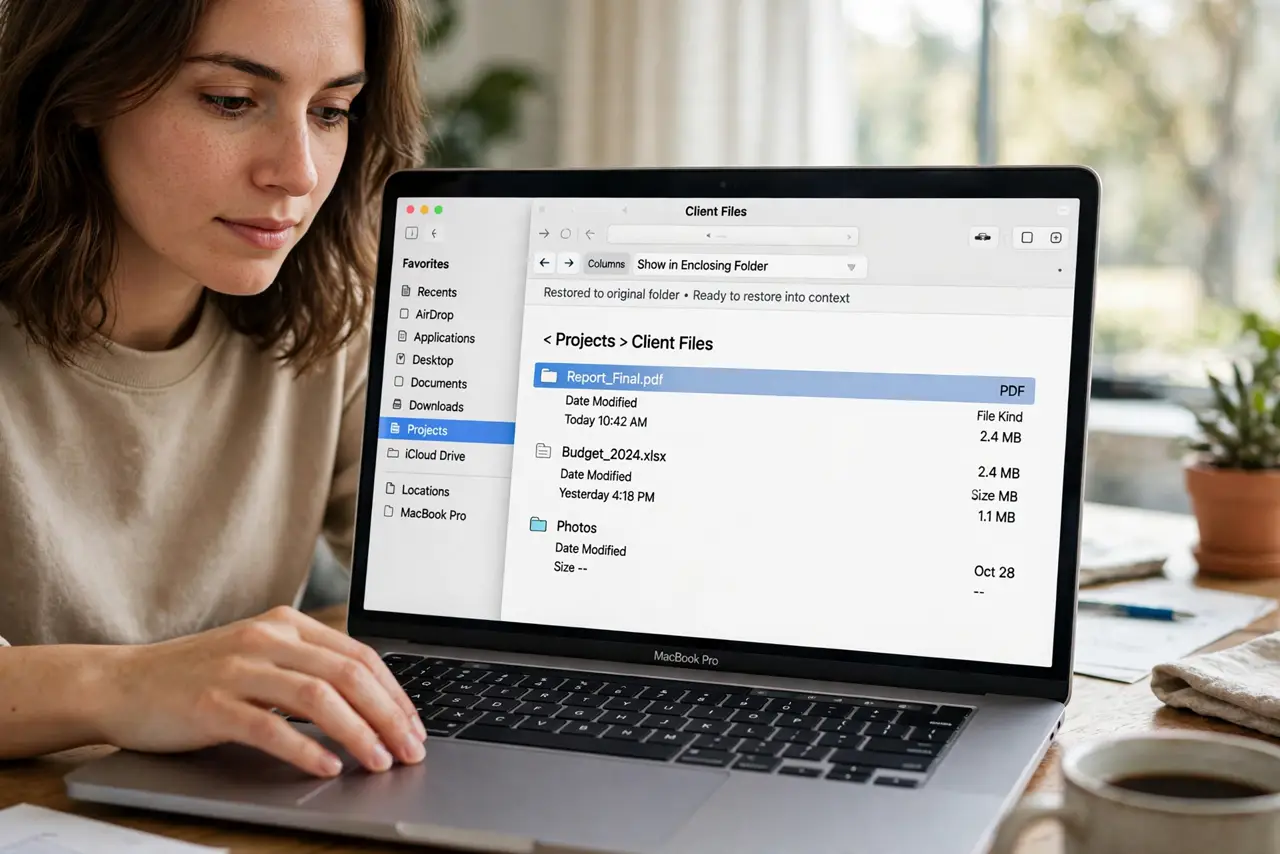
- Open the file's original folder. Open Finder to the folder where the file lived. Time Machine restores into context — starting from the right folder saves hunting.
- Enter Time Machine browse mode. Click the Time Machine icon in the menu bar and choose Browse Time Machine Backups. The starfield timeline appears.
- Travel back to when the file existed. Use the timeline on the right edge to go back days or weeks. The Finder window shows that moment's contents.
- Select the file or folder. Click the version you want. Preview it with Quick Look if you are unsure it is the right one.
- Click Restore. The file returns to its original location. If a newer version exists there, macOS asks whether to keep both — say yes to be safe.
- Verify the restored file opens. Open it immediately. A restored file that will not open means you grabbed a corrupted version — go back further in the timeline.
What NOT to do
- Do not restore your entire system for one file. Browse mode exists precisely so you can grab single items surgically.
- Do not overwrite the current version blindly. Keep both when prompted — the 'bad' current version may contain work worth salvaging.
- Do not assume the oldest backup has the file. Backups rotate — check that the timeline reaches back far enough for what you need.
- Do not restore into a synced cloud folder without thinking. iCloud or Dropbox may immediately re-sync the old version everywhere — sometimes that is what you want, sometimes not.
Frequently asked questions
Can I restore a file I deleted months ago?
Only if your backup history reaches back that far. Time Machine prunes old backups as the drive fills — bigger backup drives keep longer history.
What if the file was never backed up?
Files created and deleted between hourly backups may never have been captured. This is why the first Time Machine setup matters more than any restore trick.
Can I restore to a different Mac?
Yes — browse another Mac's backup from the Time Machine interface, or use Migration Assistant for a full move.