Finder View Options?
Your Mac folders show files in a way that fights how you work — tiny icons when you want a list, or a list when you want previews. Finder View Options control icon size, sorting, grouping, and previews per folder (or everywhere at once). Two minutes here makes every folder behave. Here is the full rundown.
TL;DR / Quick Fix
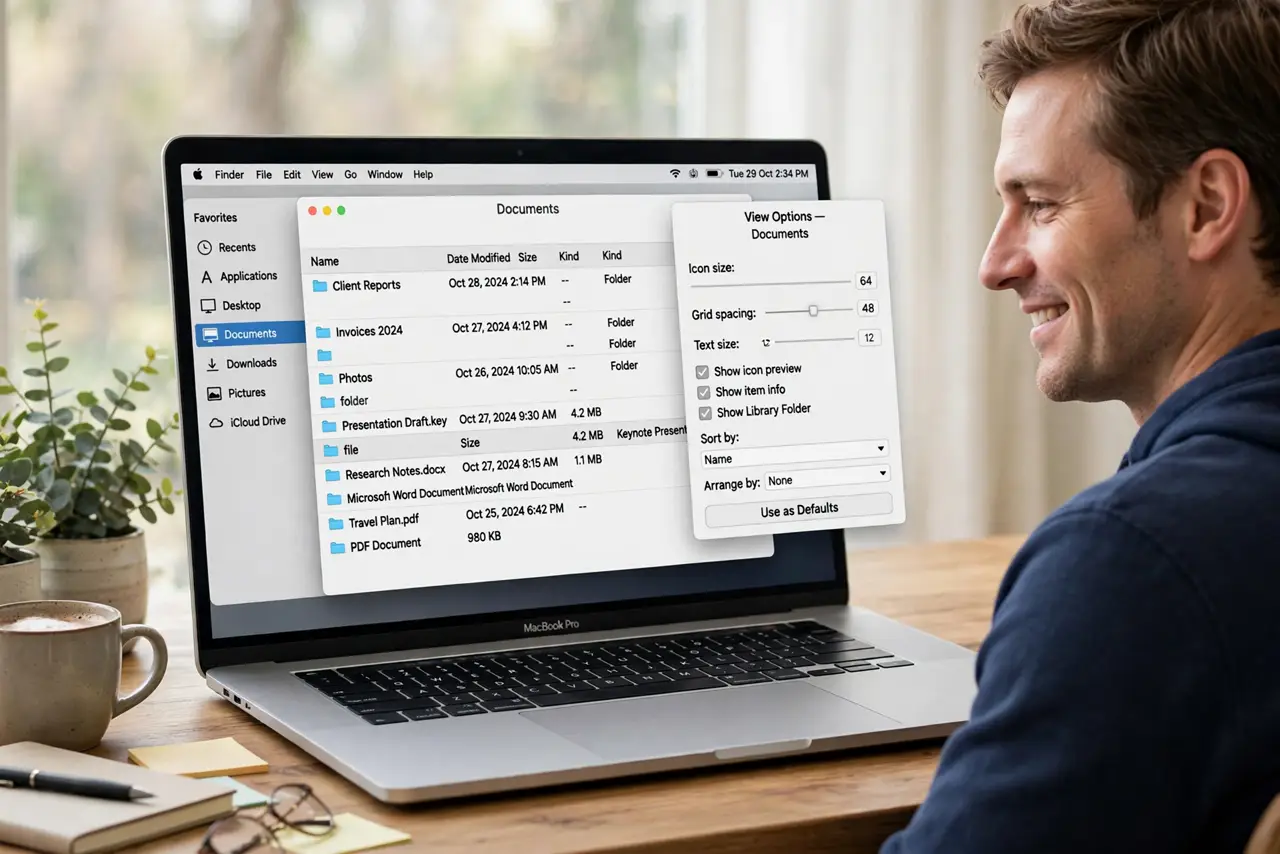
Quick fix: open any Finder window, press Command-J (or View > Show View Options), and adjust icon size, sorting, and grouping. Click 'Use as Defaults' to apply to all folders. Each of the four views — icon, list, column, gallery — has its own options.
Follow these steps
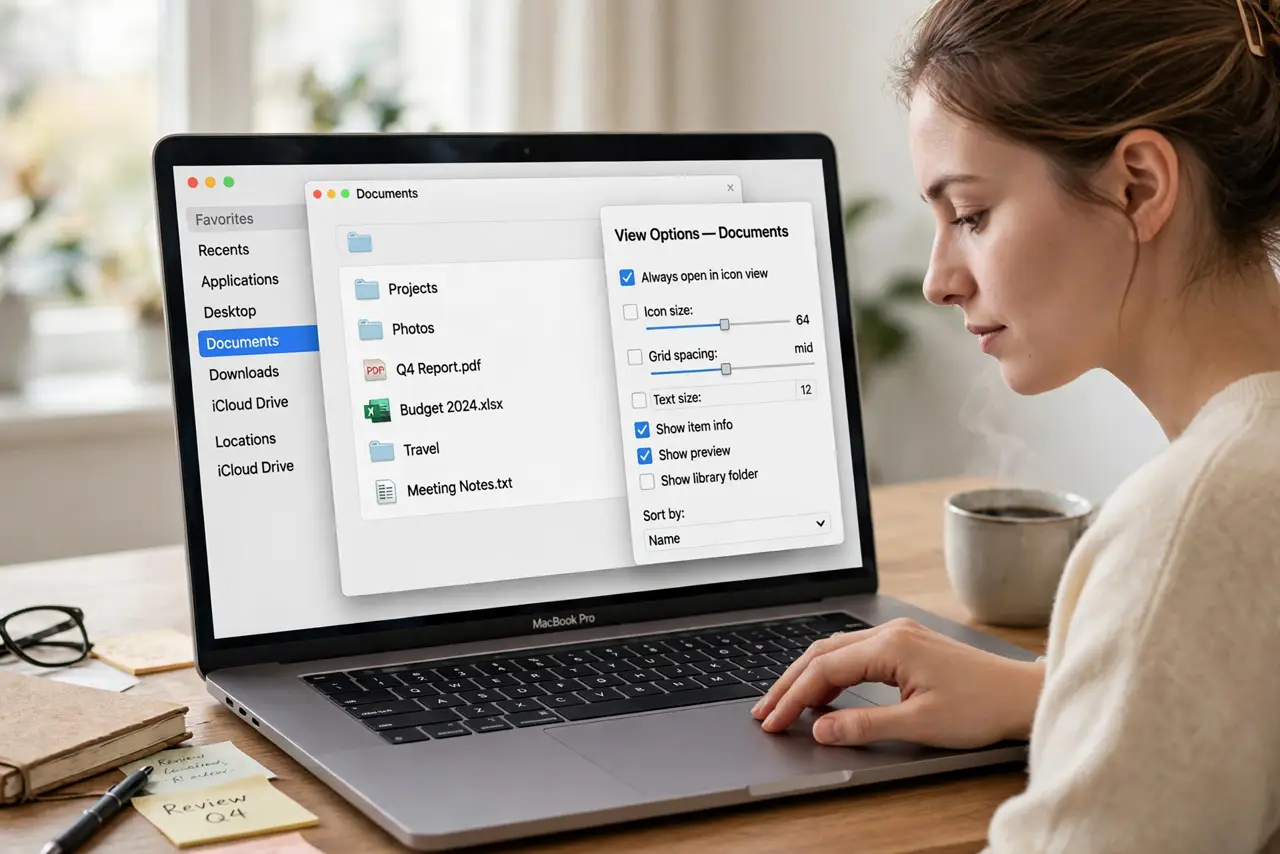
- Open View Options. In any Finder window, press Command-J or choose View > Show View Options. The panel that appears is specific to the current view mode — icon, list, column, or gallery.
- Pick the right view for the folder. Photos: gallery or large icons. Documents: list sorted by date. Deep hierarchies: column view. Switch with the toolbar buttons or Command-1 through Command-4, then tune each view's options.
- Sort and group sensibly. In list view, sort by Name, Date Modified, or Size with one click on the column header. Use 'Group by' to cluster files by kind or date — grouped lists are dramatically easier to scan.
- Resize icons and text. Drag the icon size slider until thumbnails are useful but not clownish. Bump text size up if you squint — these options are per-view, so set each one you use.
- Show useful columns and previews. In list view, enable the columns you actually check (Date Modified beats Date Created for most). Turn on 'Show preview column' or the Preview pane for quick file peeks without opening anything.
- Set defaults for all folders. Once one folder looks right, click 'Use as Defaults' at the bottom of View Options. New folders inherit these settings — set it once, enjoy it everywhere.
What NOT to do
- Do not set giant icons everywhere. Huge thumbnails in a folder with 500 files make scrolling miserable — match icon size to content.
- Do not forget each view has separate options. Tuning icon view does nothing for list view — configure each view you actually use.
- Do not sort by Date Created. Date Modified is almost always what you mean — created dates lie after copies and moves.
- Do not overlook the path bar and status bar. View > Show Path Bar and Show Status Bar add navigation context that View Options alone cannot.
Frequently asked questions
Why do my folders keep resetting their view?
Usually because 'Use as Defaults' was never clicked, or the .DS_Store file got deleted. Set defaults once and the views stick.
Can different folders have different views?
Yes — that is the default behavior. Set one folder to gallery for photos and another to list for documents; each remembers its own.
Where did my column widths go?
List view column widths reset when the view options change. Set your columns, then click 'Use as Defaults' to lock them in.